Using the Data Integrity Review
In this tutorial, you will learn how to run a Data Integrity Review on a case year of your patients, read what it finds, and fix the patient records that could be skewing your reports and analytics.
What is the Data Integrity Review?
The Data Integrity Review checks every patient in a case year for data that will quietly throw off your reports: dates that run backwards, dispositions missing required details, patients with no species, duplicate band or microchip numbers, and more. WRMD runs 20 checks, groups them into categories, and ranks each one by how soon it is worth fixing.
Note: the review never changes your records. It only reports what it finds. You fix each patient yourself by opening its record, and nothing is altered until you do.
Running a Review
Step 1
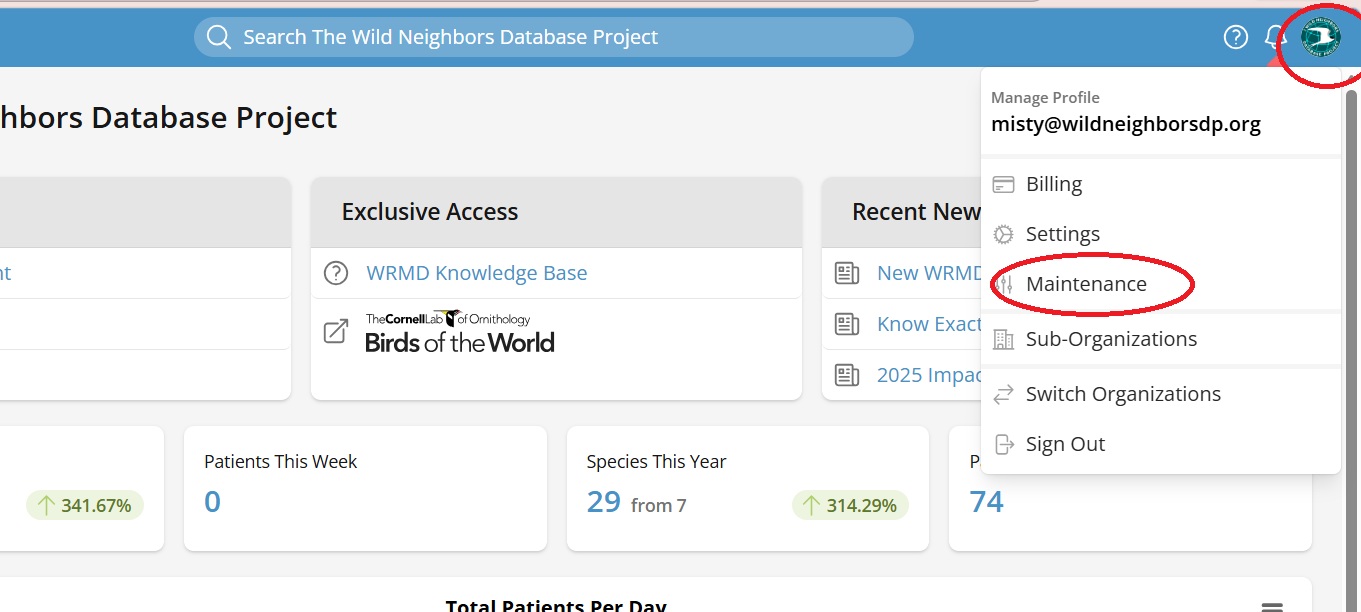
Click on your avatar in the upper right corner and choose Maintenance from the drop-down menu.
Step 2
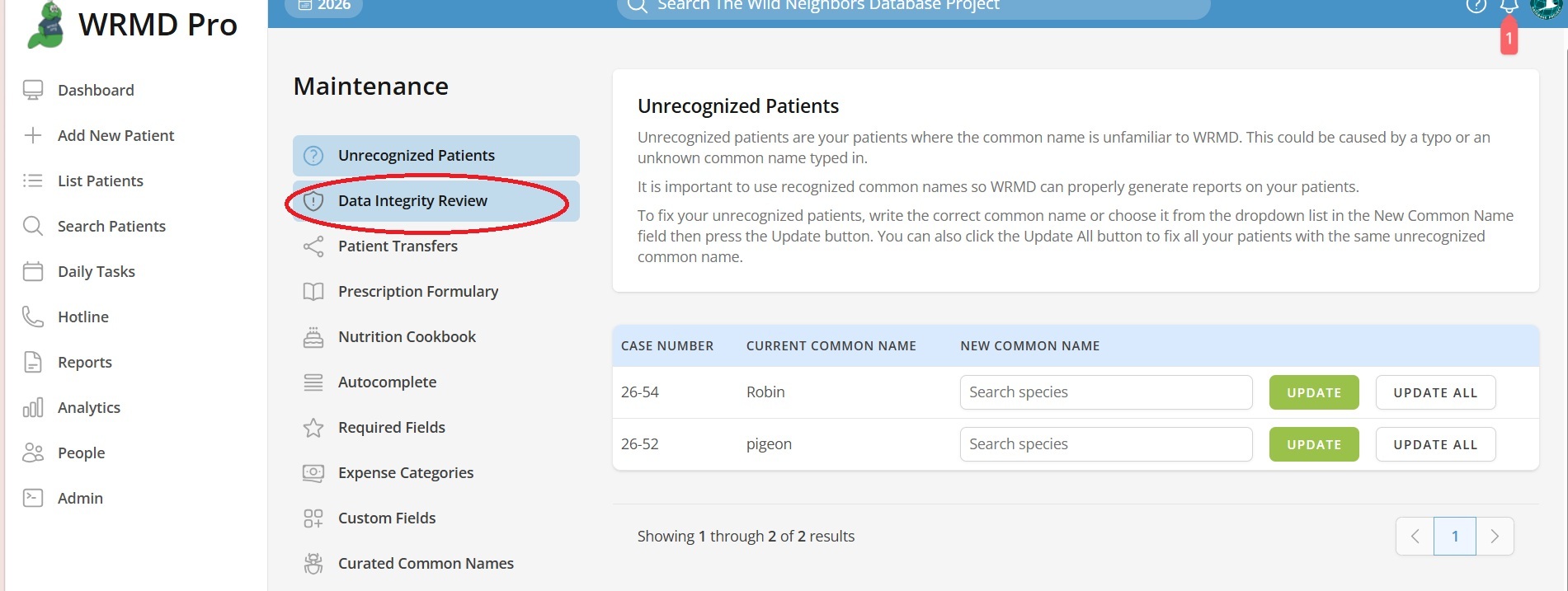
On the sidebar, click on Data Integrity Review.
Step 3
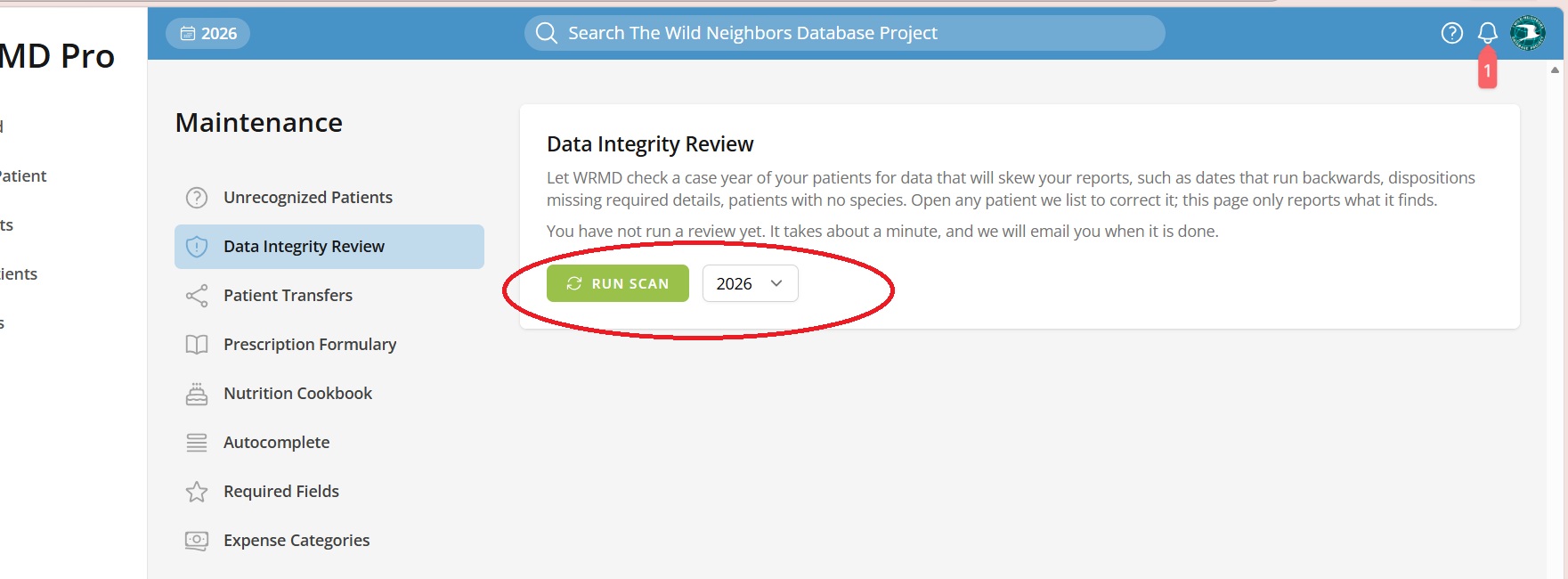
Use the year drop-down next to the Run scan button to choose the case year you want to review. The drop-down lists every year your organization has admitted patients.
Step 4
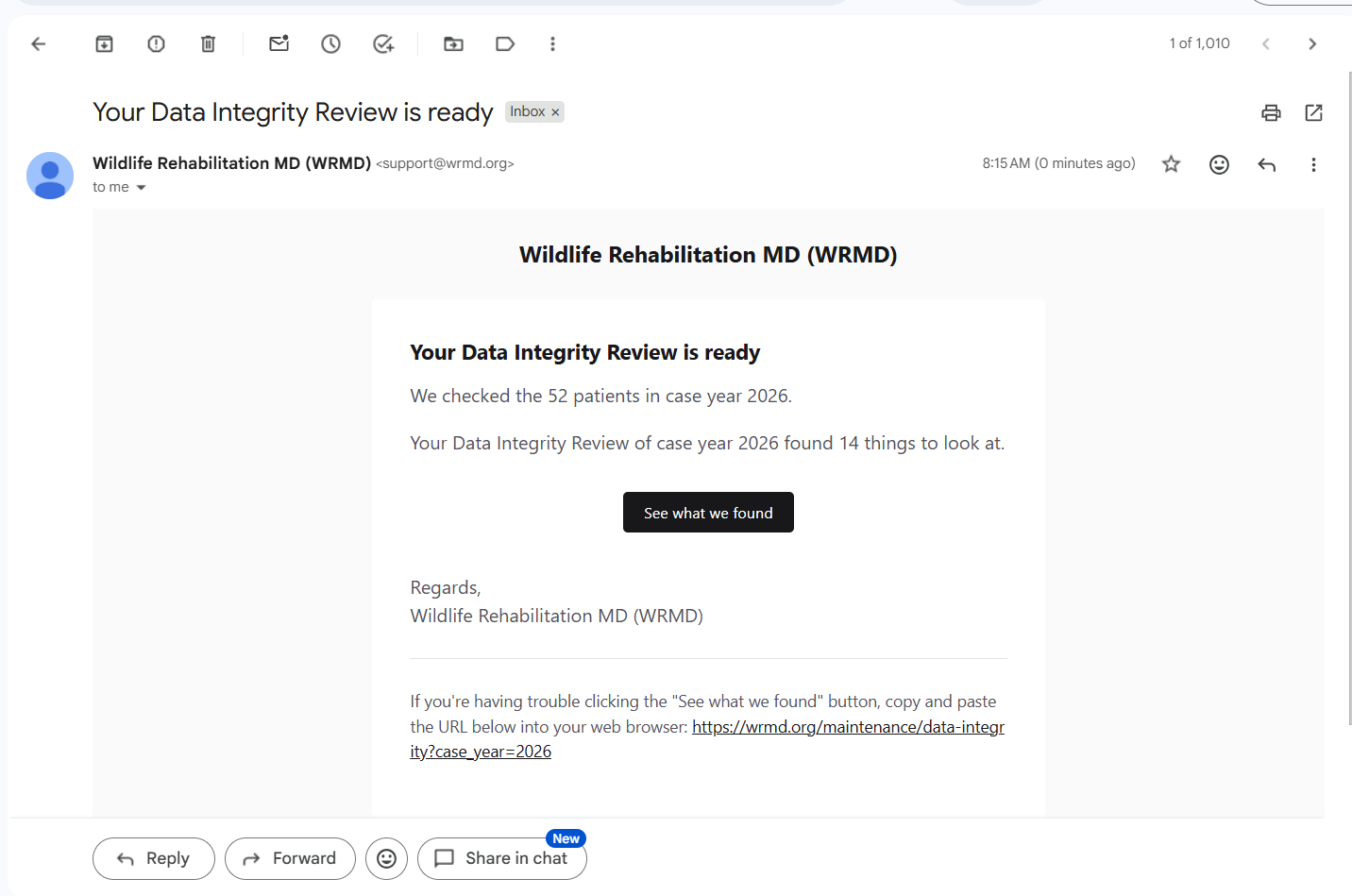
Click Run scan. The review runs in the background, so you can keep working while it does. It usually takes about a minute. When it is done, you will receive an email with a summary of what was found, and a notification will appear in WRMD. Click See what we found in the email, or the notification, to go straight to the results.
If a review of the same case year is already running, clicking Run scan again will not start a second one
.
Reading the Results
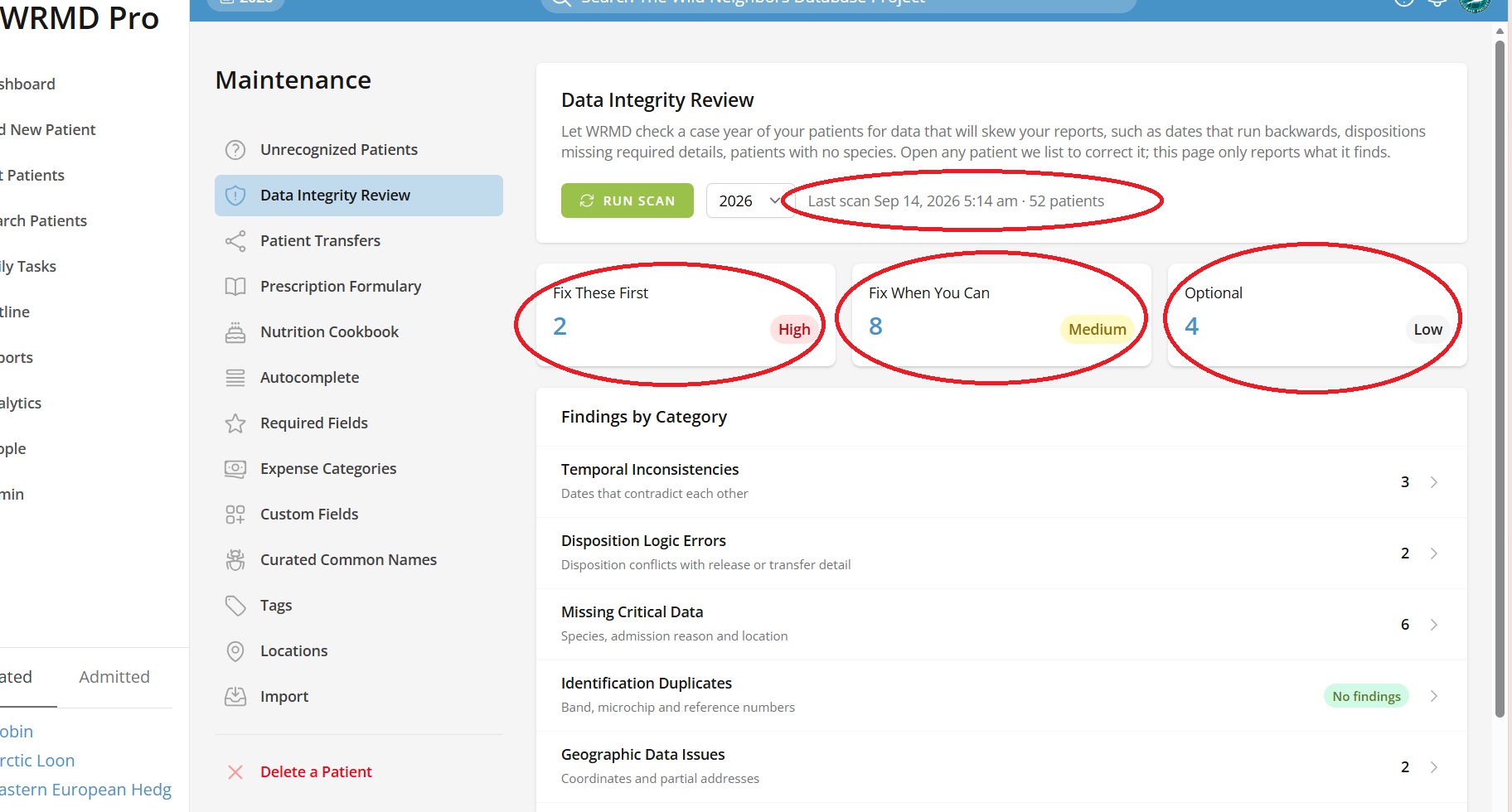
Once a review has run, the top of the page shows when the last scan finished and how many patients it checked. Below that, three tiles total the findings by severity:
- Fix These First (High): problems that directly miscount your patients, such as disposition dates before admission dates or patients left pending for years.
- Fix When You Can (Medium): problems that leave patients out of specific reports or leave a gap in the record, such as a missing species or reason for admission.
- Optional (Low): problems that mostly affect maps and cross-referencing, such as missing coordinates or duplicate reference numbers.
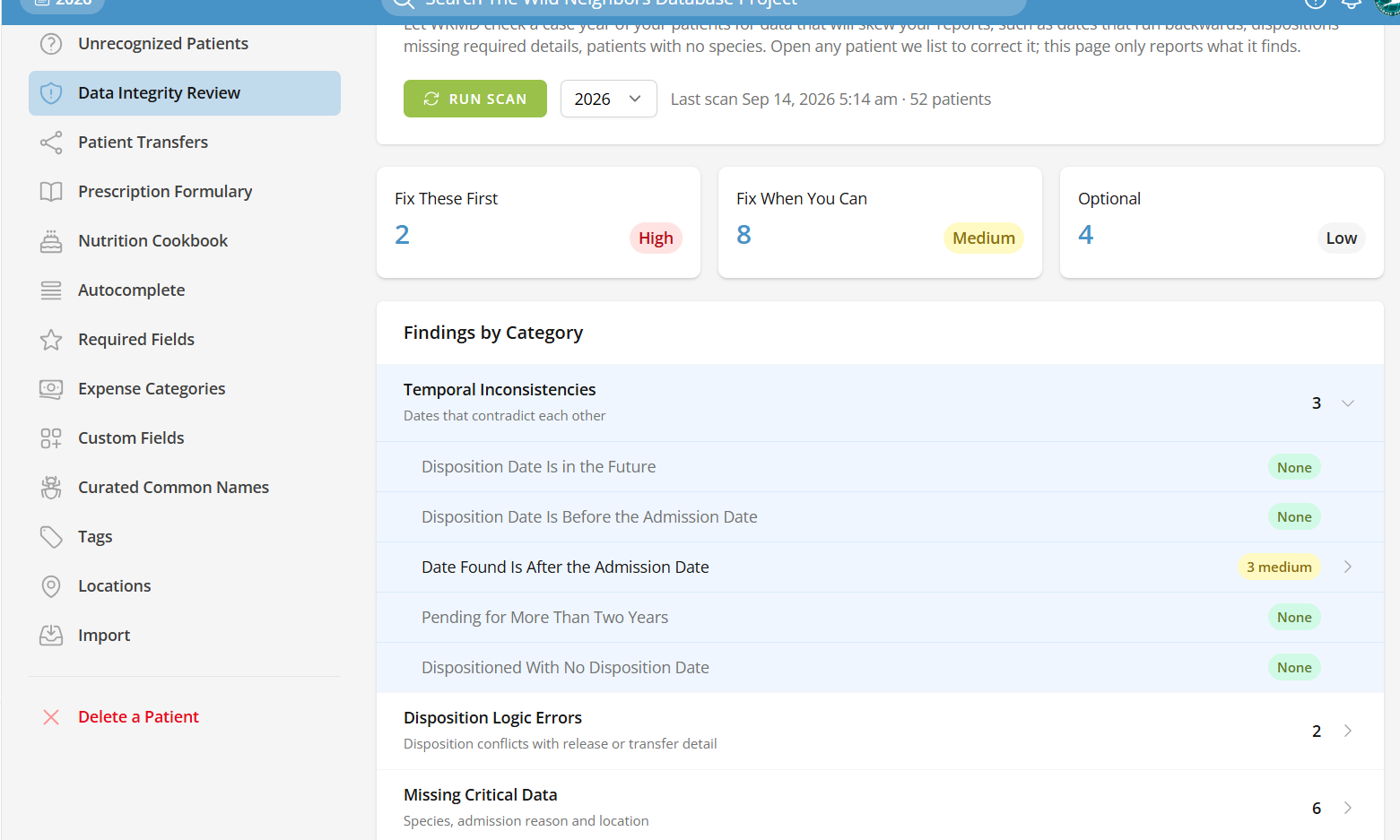
Under Findings by Category, each category shows how many findings it has, or a green No findings badge. Click a category to expand it and see each of its checks. A check with findings shows a count and severity badge; a check with nothing to fix shows None.
Results are saved per case year. Switching the year drop-down shows the last review of that year, or a prompt to run one if that year has never been reviewed.
Fixing the Patients a Check Finds
Step 1
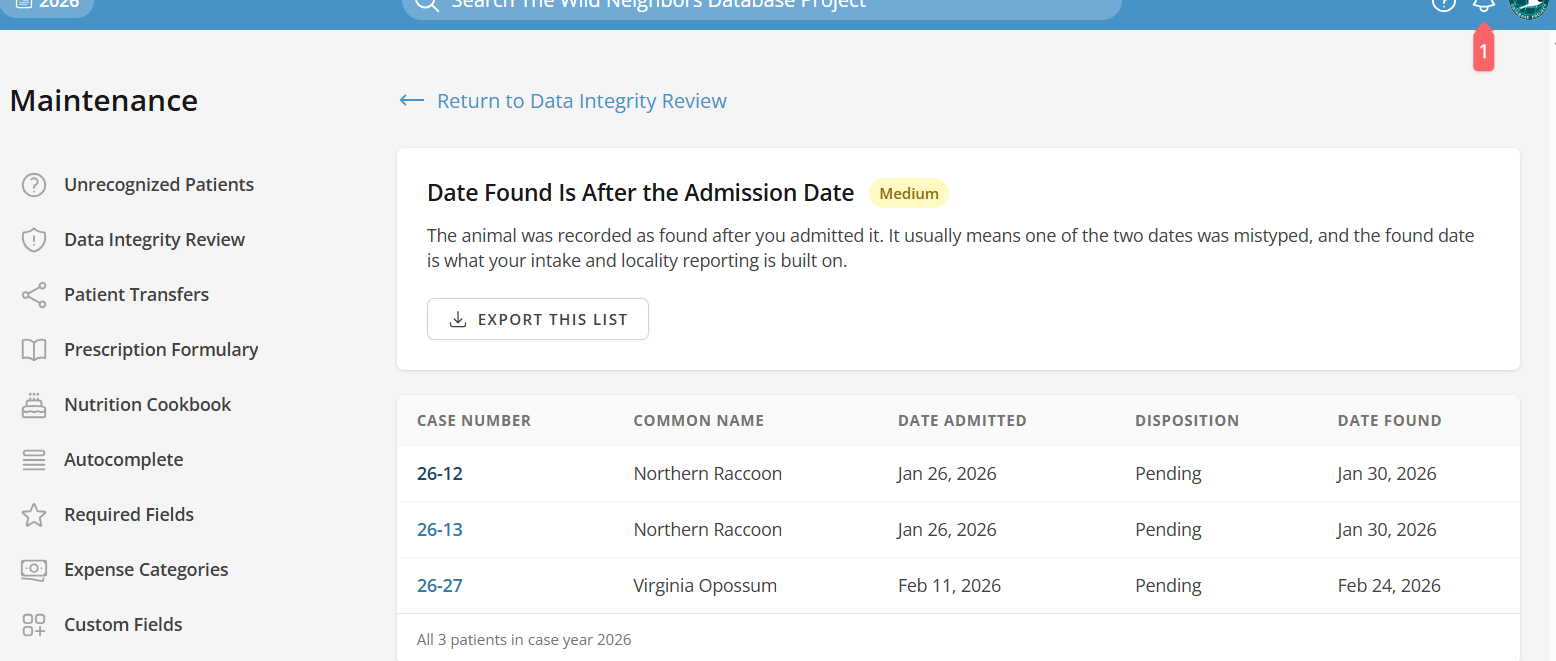
Click any check that has findings. The page explains what the problem does to your reports, and lists every affected patient with their case number, common name, date admitted, and disposition. Some checks add a column that shows the problem itself, such as the disposition date, the number of days pending, or the duplicated band number.
Step 2
Click a patient's case number to open their record and correct it. Use your browser's back button, or the Return to Data Integrity Review link, to return to the list.
Step 3
The counts on the review page are a snapshot from your last scan, so they do not go down as you fix patients. When you have worked through the list, click Run scan again to confirm your fixes and refresh the totals.
Exporting a List
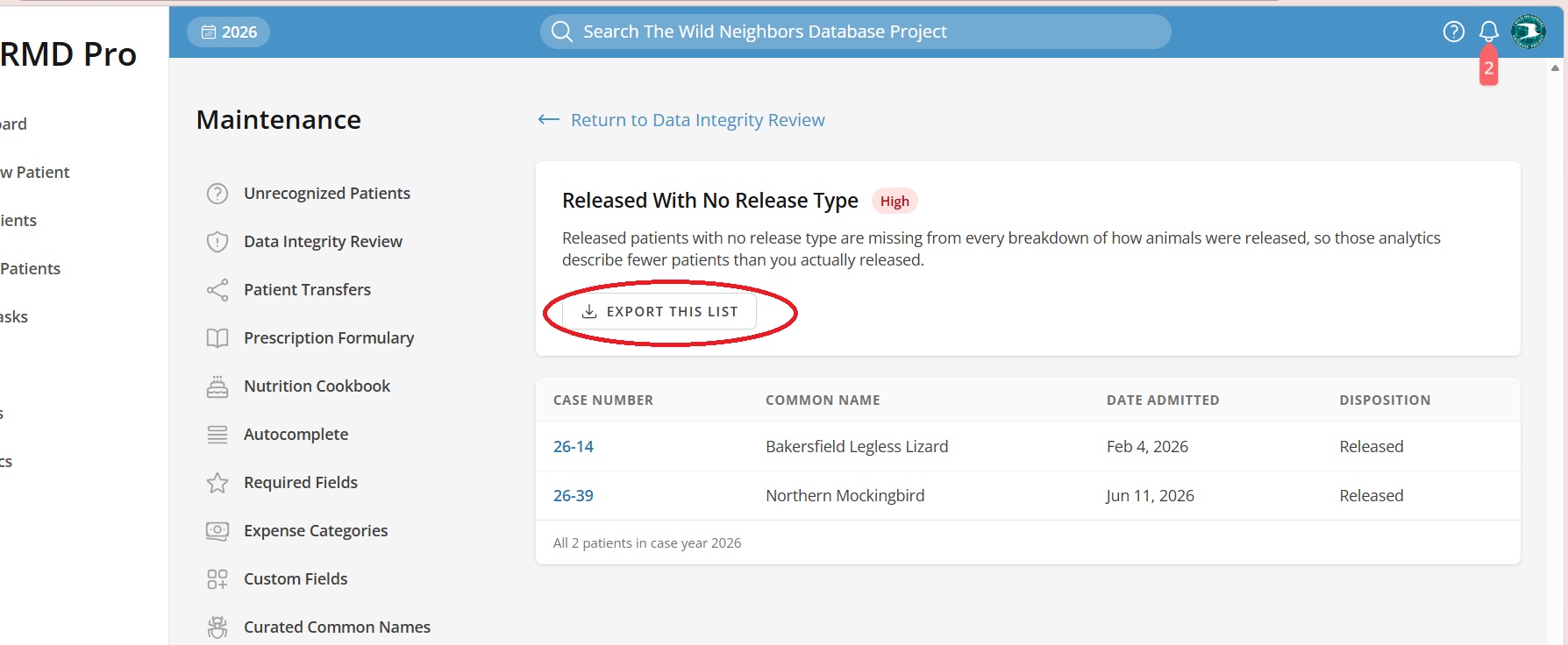
A check's page shows up to the first 1,000 patients. To work with the full list – or to share it with a colleague – click Export this list. WRMD downloads a spreadsheet of every affected patient, including a link to each patient's record.
What the Review Checks
Voided patients are left out of every check.
Temporal Inconsistencies
Dates that contradict each other.
- Disposition Date Is in the Future (High) – these patients still count toward Patients in Care Today until the date arrives.
- Disposition Date Is Before the Admission Date (High) – reports that measure length of stay counts these as negative days.
- Pending for More Than Two Years (High) – patients still counted as in care, usually because the record was never closed. Resident patients are not included.
- Dispositioned With No Disposition Date (High) – reports filtered by date leave these patients out entirely.
- Date Found Is After the Admission Date (Medium) – usually a mistyped date, and the found date drives intake and locality reporting.
Disposition Logic Errors
Dispositions that conflict with their release or transfer details.
- Released With No Release Type (High) – missing from every breakdown of how animals were released.
- Transferred With No Transfer Type (High) – a transfer for continued care cannot be told apart from any other transfer.
- Dead With a Release or Transfer Type (High) – may be counted twice in outcome reporting.
- Transferred With No Receiving Facility (Medium) – there is no record of where the animal went.
- Pending With Disposition Details Filled In (Medium) – the outcome was entered but the disposition was never changed from Pending.
Missing Critical Data
Species, reason for admission, and location.
- No Species Identified (Medium) – missing from every report grouped by species, taxonomy, or conservation status.
- No Reason for Admission (Medium) – shrinks every category in Circumstances of Admission.
- Dispositioned With No Exam Recorded (Medium) – no clinical record supports the outcome.
- Released With No Release Location (Low) – left out of release-site reporting and maps.
Identification Duplicates
Band, microchip, and reference numbers.
- Patients in Care Sharing a Band Number (Medium) – two pending patients carrying the same band. Patients that have already been dispositioned are not compared.
- Duplicate Microchip Numbers (Medium) – usually a typo or a record entered twice.
- Duplicate Reference Numbers (Low) – reconciling against another system will match the wrong patient.
Geographic Data Issues
Coordinates and partial addresses.
- No Coordinates Where the Animal Was Found (Low) – these patients cannot be plotted on a map or included in locality data.
- Partial Address Where the Animal Was Found (Low) – a city with no state, or a state with no city, cannot be turned into coordinates.
Orphaned Records
Care activity on patients no longer in care.
- Dead With Prescriptions Still Running (Medium) – the prescription keeps appearing on your Daily Tasks.