Curated Common Names
Curated Common Names
This tutorial will direct you on how to narrow down which species appear when your team admits a new patient.
What is it?
When you admit a patient, the species search shows every animal in our database — that's a lot to scroll through. The Curated Common Names page lets you build a short list of just the species your organization works with, so the autocomplete only suggests those.
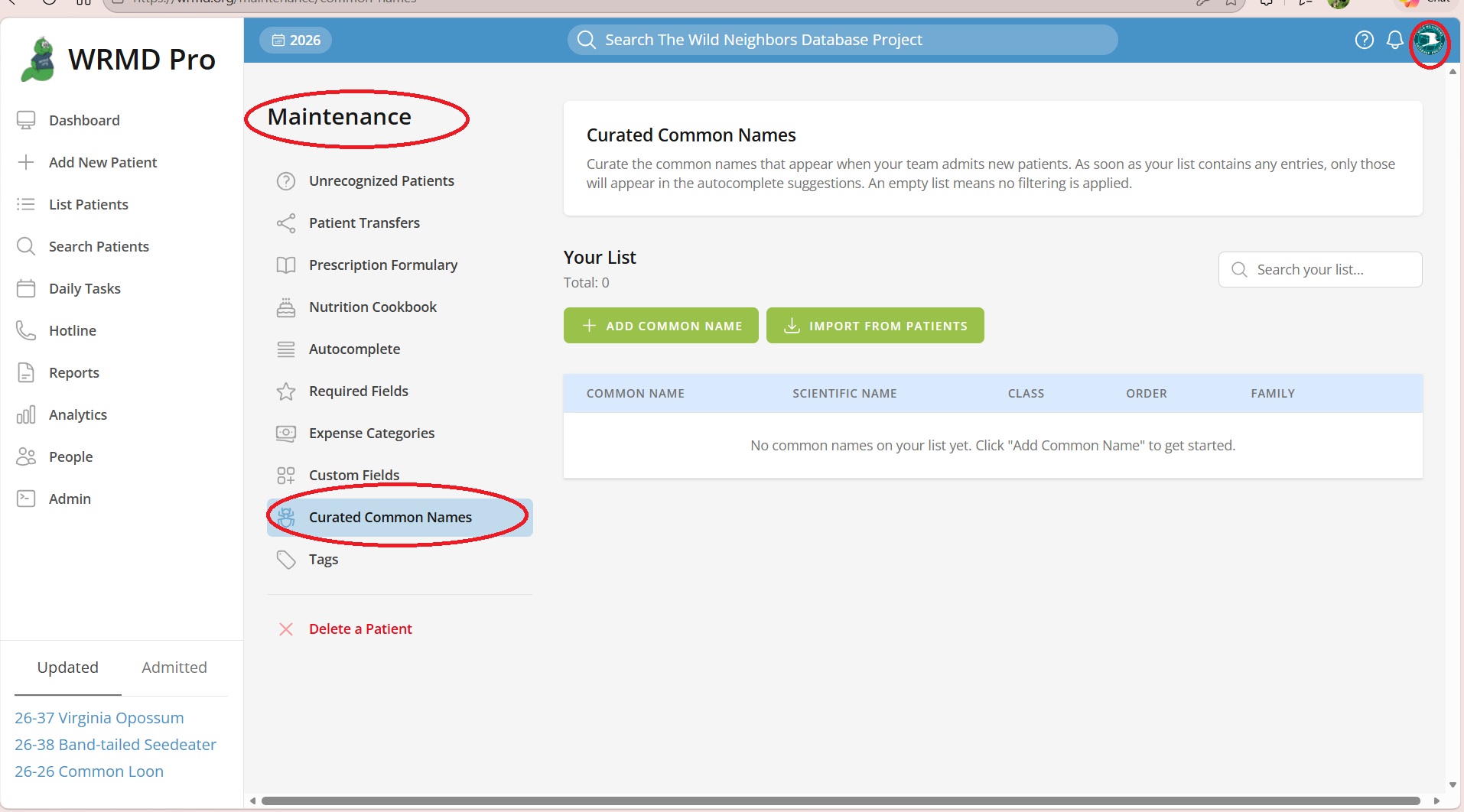
Where to find it
Open the user menu in the top-right corner of any page and choose Maintenance. Then, from the side menu, click Curated Common Names.
How it works
- If your list is empty, the species search behaves exactly as before — every species is available.
- As soon as your list has even one entry, the autocomplete starts filtering to only show what's on your list.
- Want to turn filtering off? Remove every entry from your list.
There's no simple on/off switch. Your list is the filter.
Adding entries
You have two ways to add species. Both buttons are at the top of the page.
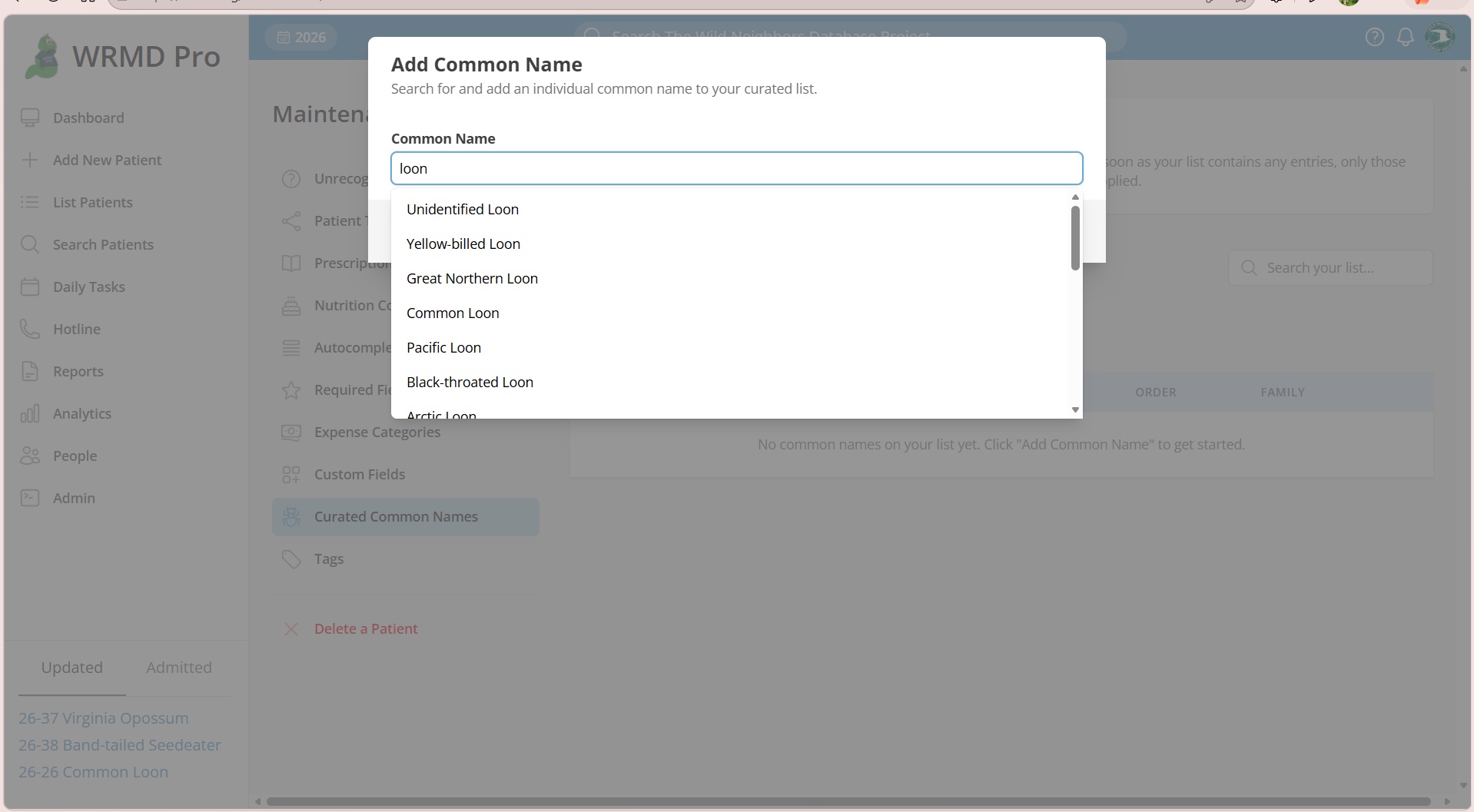
Add one at a time
- Click Add Common Name.
- Type a few letters of the species name (e.g. "robin").
- Pick the species you want from the dropdown.
- Click Add Common Name.
This search looks at every species in our database, not just the ones on your list — so you can always find what you need.
Import from your patient history
If you've used WRMD for a while, you've already admitted many species. This option pulls them in.
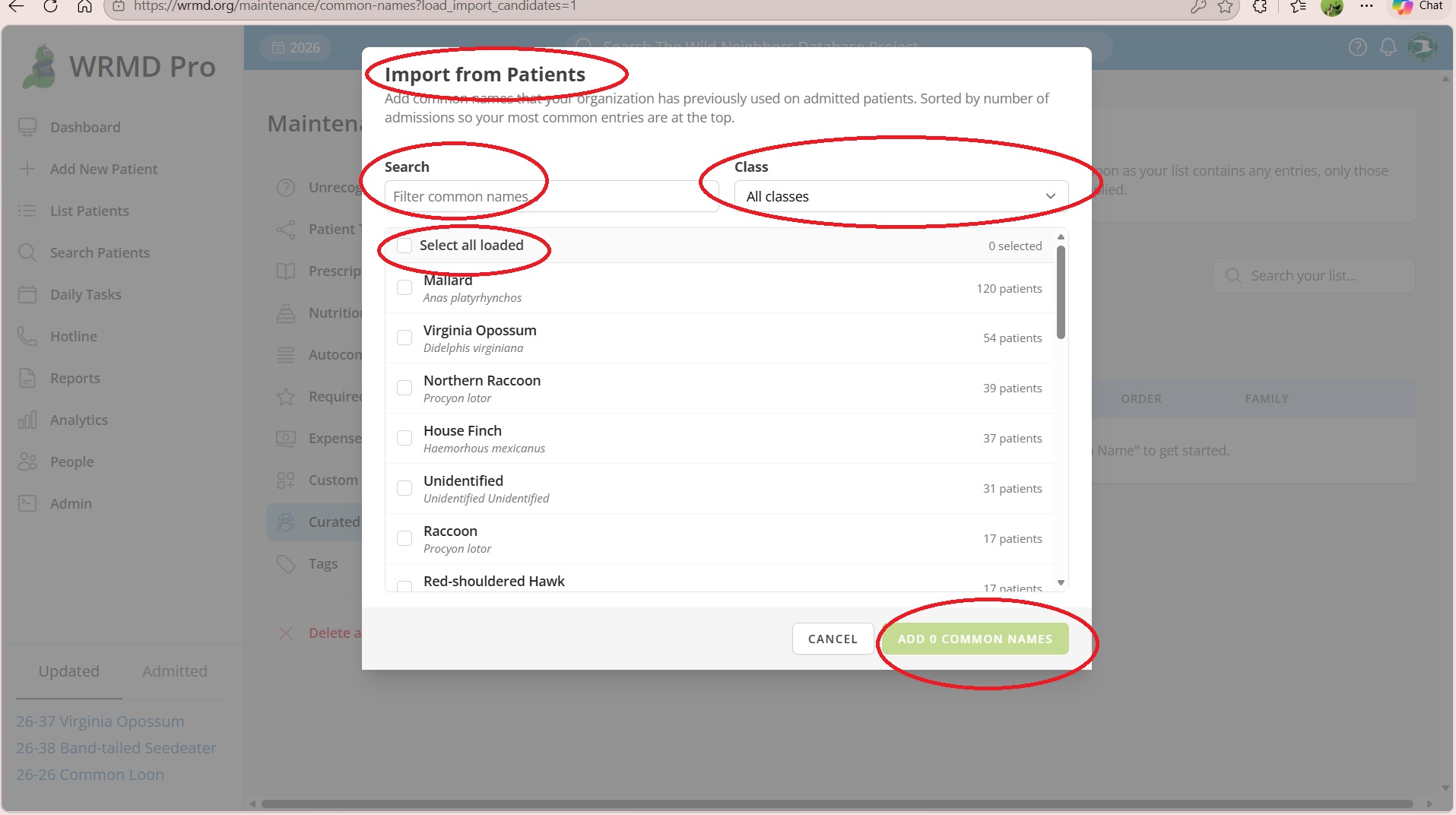
- Click Import from Patients.
- A list opens showing species you've admitted before, with the most admitted at the top.
- Check the boxes next to the species you want to add.
- Click Add X Common Names.
Scroll down to keep loading more species. Use the Search and Class filters at the top of the popup to narrow the list. Species already on your list are dimmed and marked "Already on list".
Removing an entry
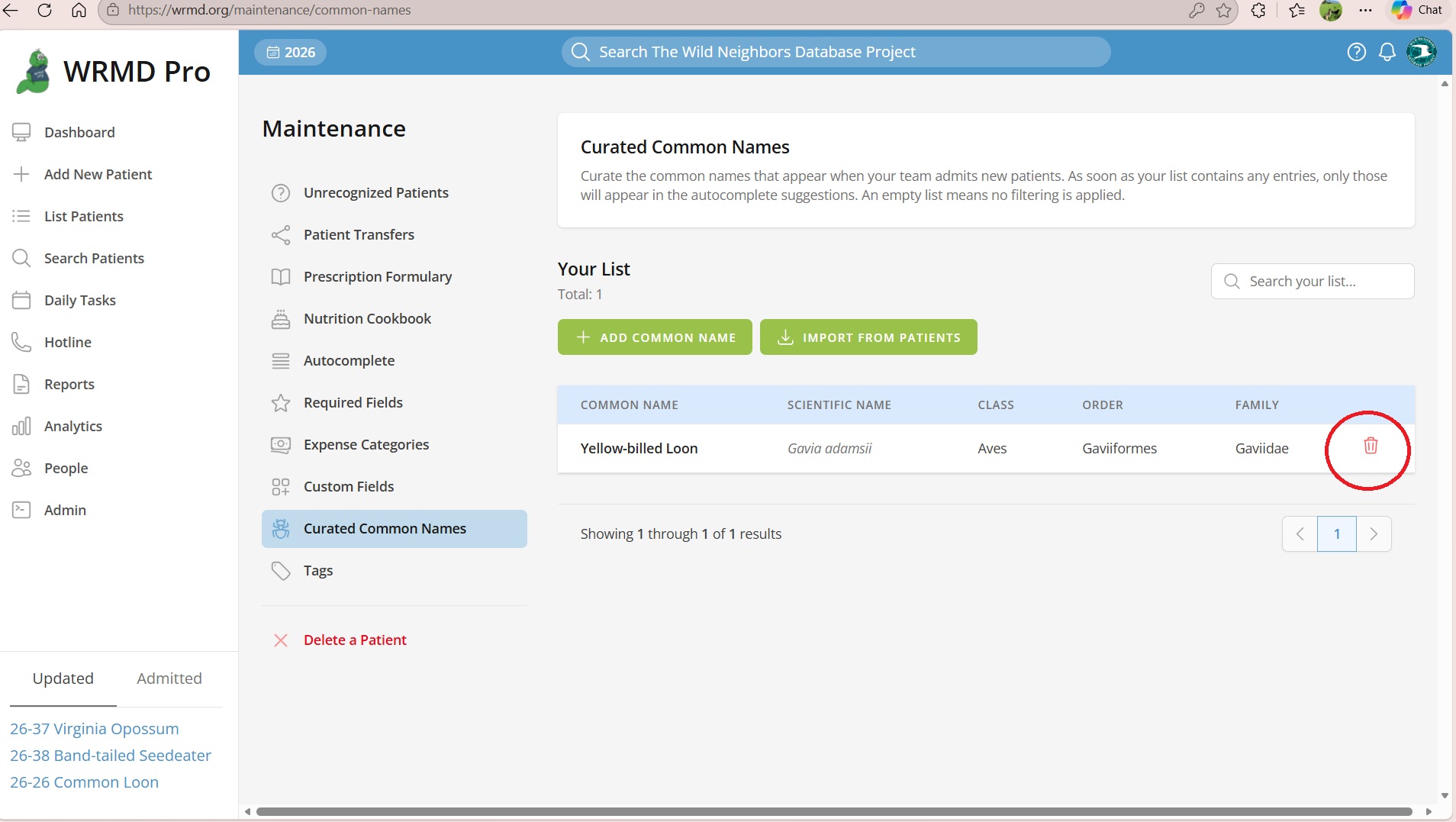
In the table, click the red trash icon on the row you want to remove. Be sure to hit the Confirm button and that species is gone.
Removing an entry only affects future patient admissions. Patients you've already admitted keep whatever species name they had.
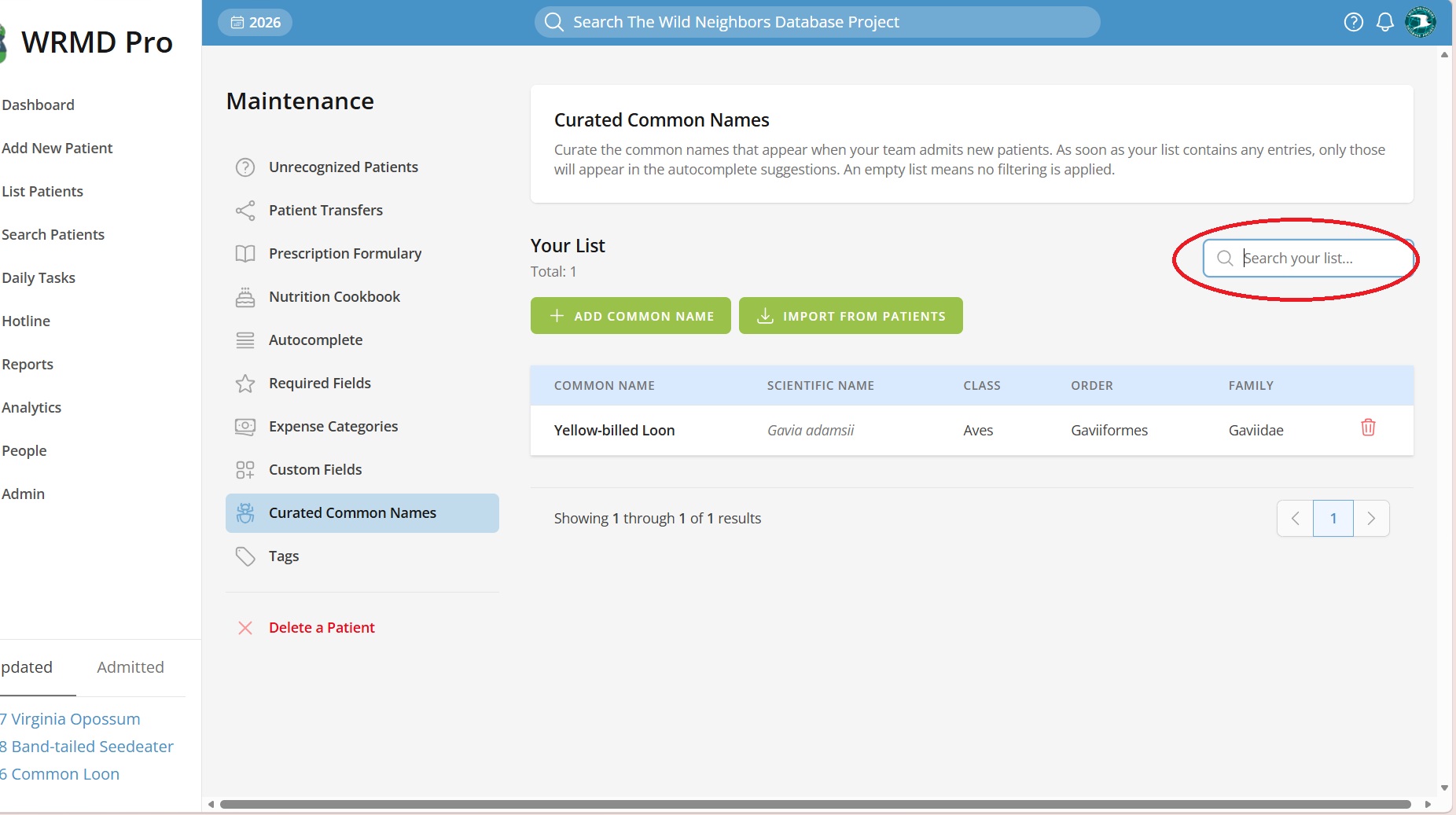
Searching your own list
The Search your list... box at the top of the table filters the table to what you've added. It's forgiving of typos — "amrican robn" still finds "American Robin".
Frequently asked
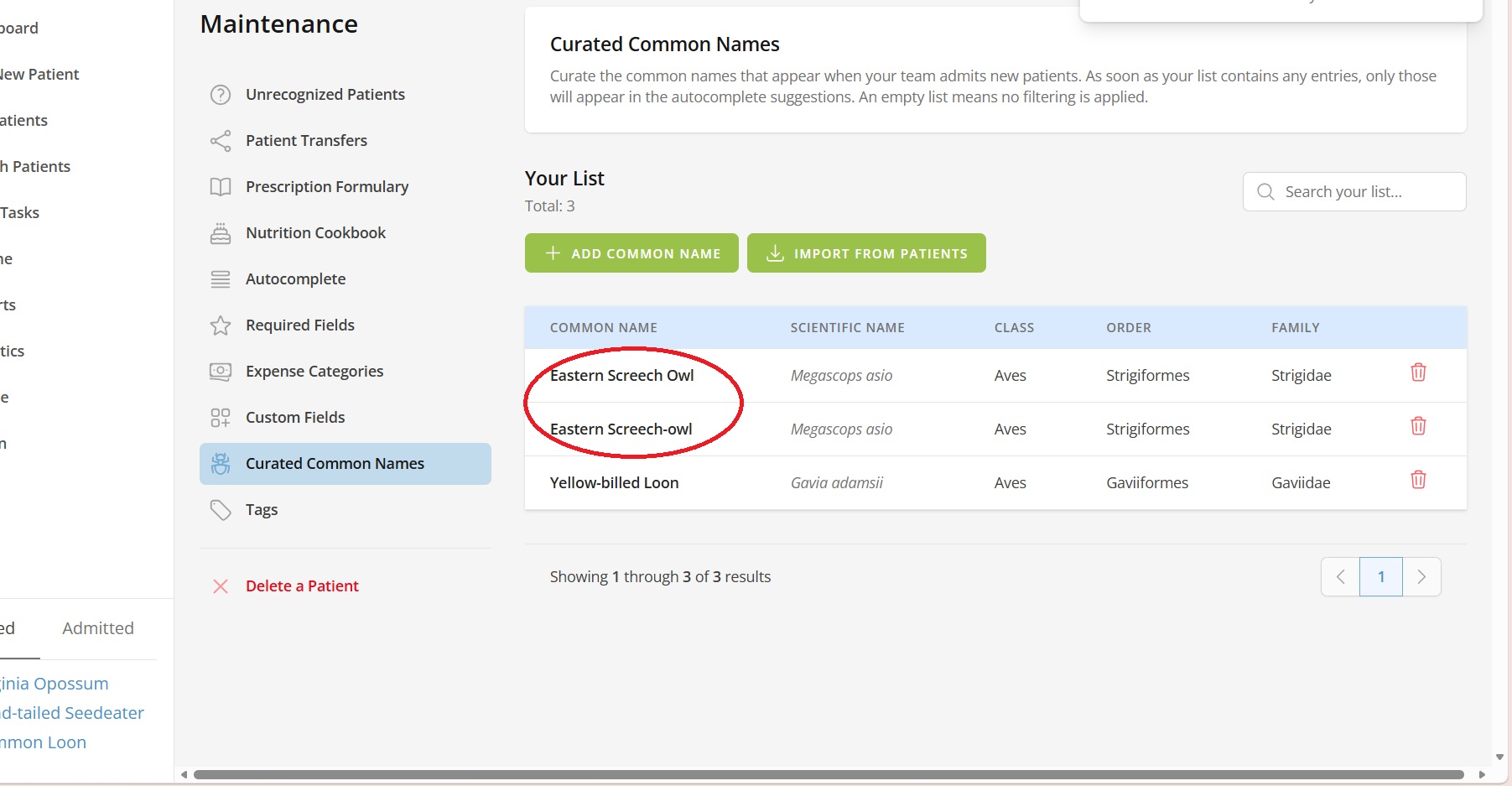
Can I have two spellings of the same species on my list?
Yes. Add both. For example, "Eastern Screech-Owl" and "Eastern Screech Owl" can both be on your list — whoever admits a patient can pick whichever spelling they prefer.
Can I rename an entry?
Not directly. Remove it and add it again with the new spelling.
Will this change my old patient records?
No. The list only affects the species autocomplete on new patient admissions. Existing records are untouched.
A patient came in and the species I need isn't on my list. What now?
Just type the species name into the admit form anyway. The curated list only filters what the dropdown suggests — it doesn't stop you from typing whatever you need.
Periodically, check Maintenance → Unrecognized Patients to see patients that have been admitted but aren't yet recognized. From there you can add them so they show up in the autocomplete next time.
We're a sub-organization. Which list do we use?
A sub-organization uses its master organization's curated common names together with its own list. If the master organization doesn't allow the sub-organization to manage its own curated common names, the sub-organization uses only the master organization's list. Its Curated Common Names page then shows the master organization's list with the message This list is managed by [master organization] and can't be changed here.