Using the Wildlife Health Dashboard
In this tutorial, you will learn how to open the Wildlife Health dashboard, filter it, save the views you use most, and read each of its cards, including the alerts WildAlert is tracking in your state.
What is the Wildlife Health Dashboard?
The Wildlife Health dashboard compares the patients your organization admits with wildlife health across your state. It is powered by WildAlert, a system for the early detection of wildlife illness and death events, and it brings together two kinds of information:
- Your patients against your state. Most cards show a figure for your organization next to the same figure for the other organizations in your state that share their data with WildAlert. These are labelled Statewide Participating Organizations, or Statewide for short. Your own patients are never included in the statewide figure.
- WildAlert's alerts. The Alerts card shows the signals WildAlert's models are raising in your state right now.
The statewide figures are refreshed every hour, so a patient you admitted a few minutes ago may not be counted yet.
Note: to protect each organization's data, a statewide figure is only shown when at least three other organizations in your state contributed to it. When too few did, the figure shows a dash (—) instead. No card ever shows another organization's figures on their own.
Opening the Dashboard
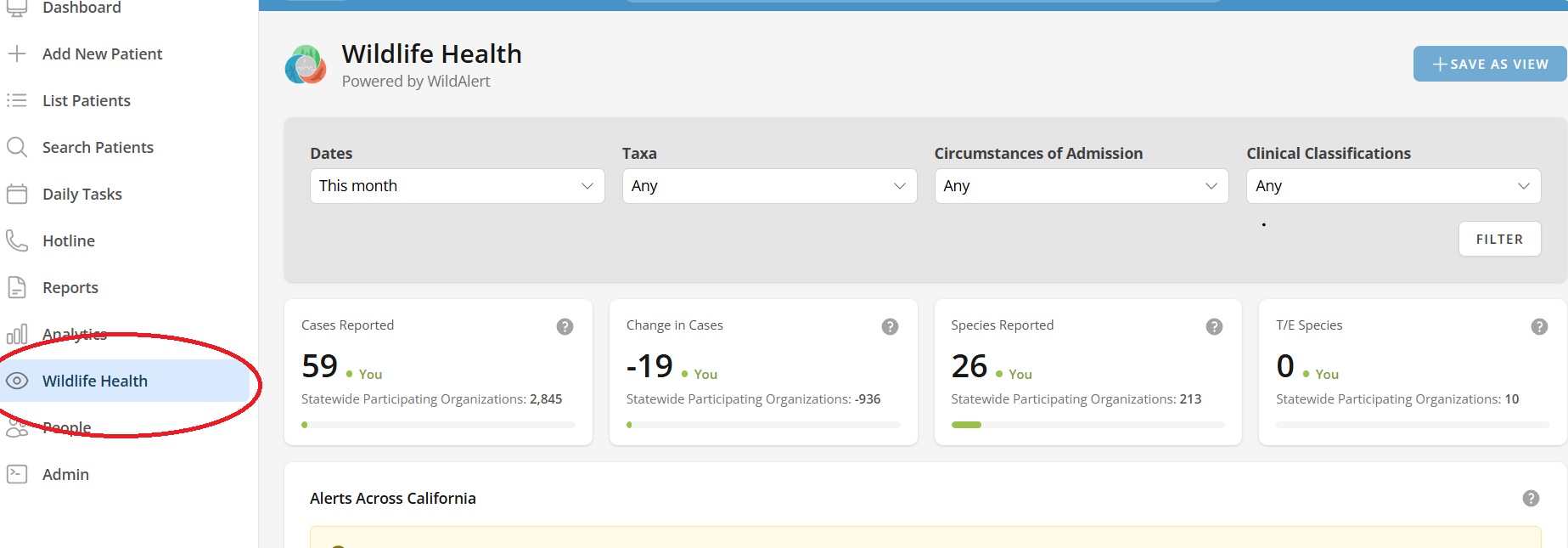
The dashboard is available once WildAlert is active in your organization's state. When it is, Wildlife Health appears on the sidebar, just below Analytics.
Step 1
On the sidebar, click on Wildlife Health.
Filtering the Dashboard
The filters at the top of the page apply to every card at once.
Step 1
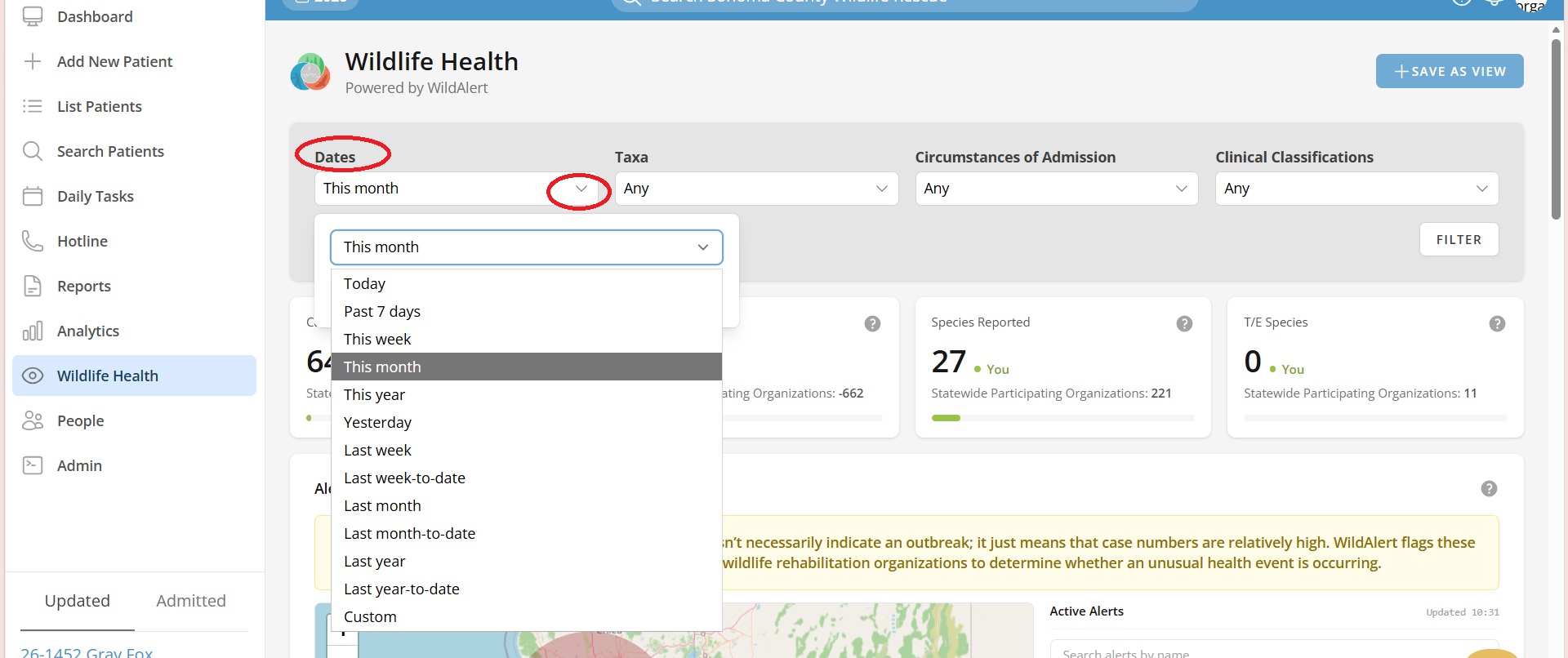
Choose the period you want to look at from Dates. It starts on This month, and offers ranges such as Past 7 days, Last month and This year. Choose Custom to pick your own start and end dates.
Step 2
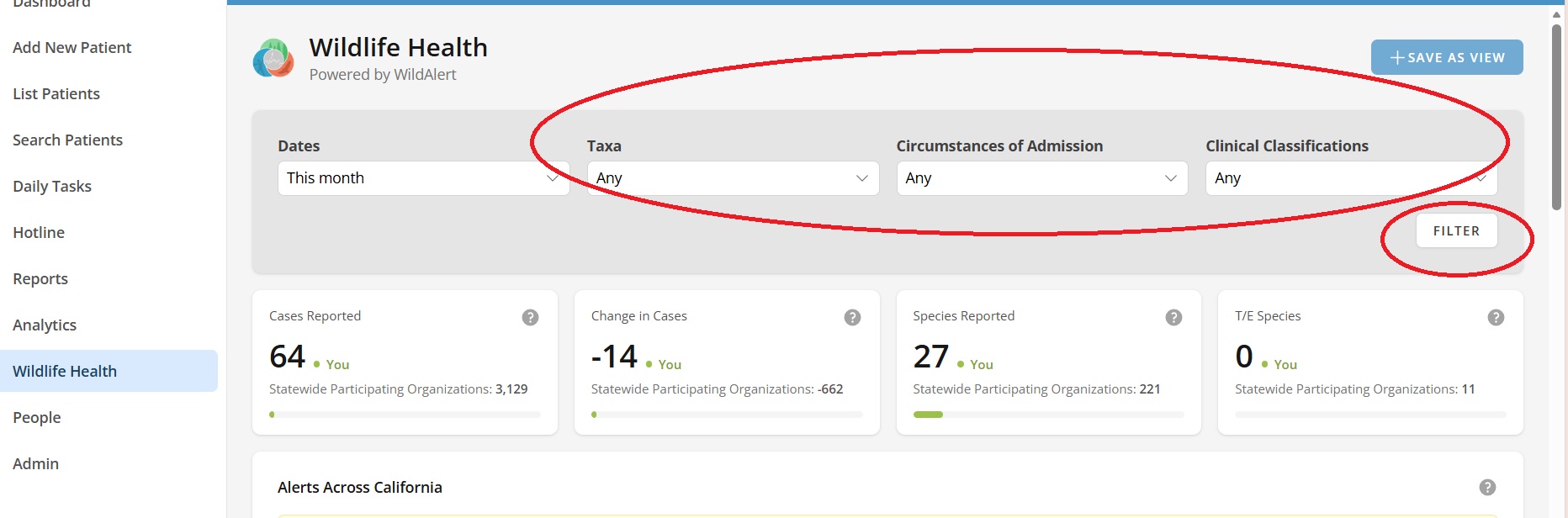
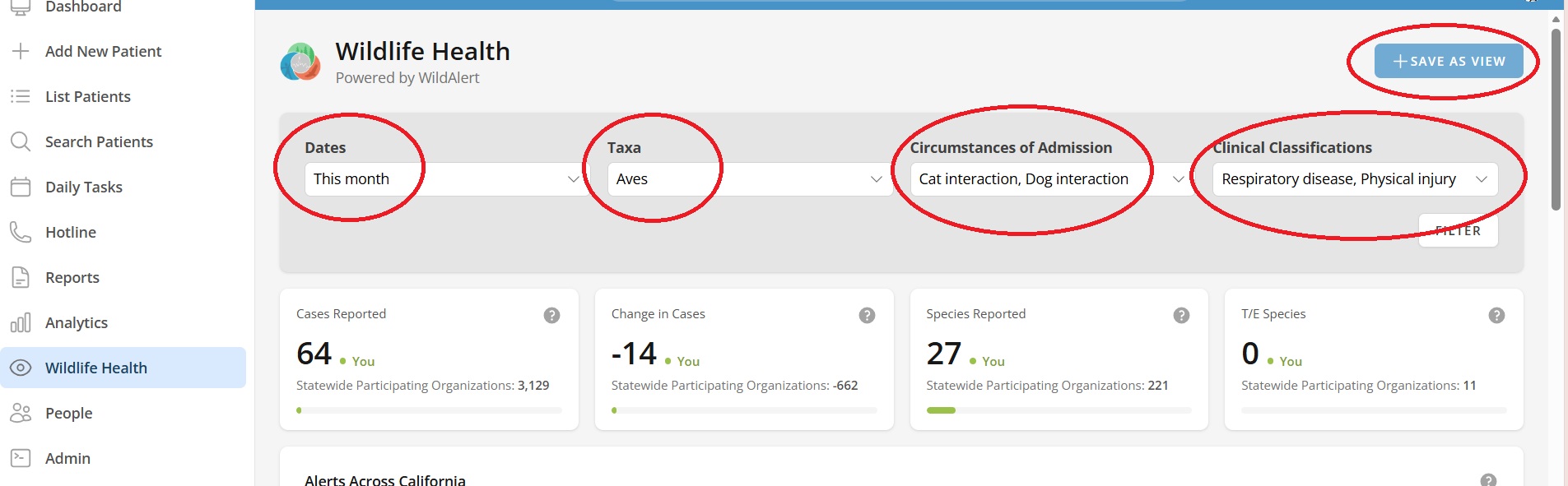
Use Taxa, Circumstances of Admission and Clinical Classifications to narrow the patients counted. You can check more than one option in each. A filter that reads Any has nothing checked and does not narrow the results at all.
Step 3
Click Filter. Every card reloads with your choices.
Saving a View
A saved view remembers a set of filters so you can return to it in one click.
Step 1
Set the filters you want to keep, then click Save as View in the upper right of the page.
Step 2
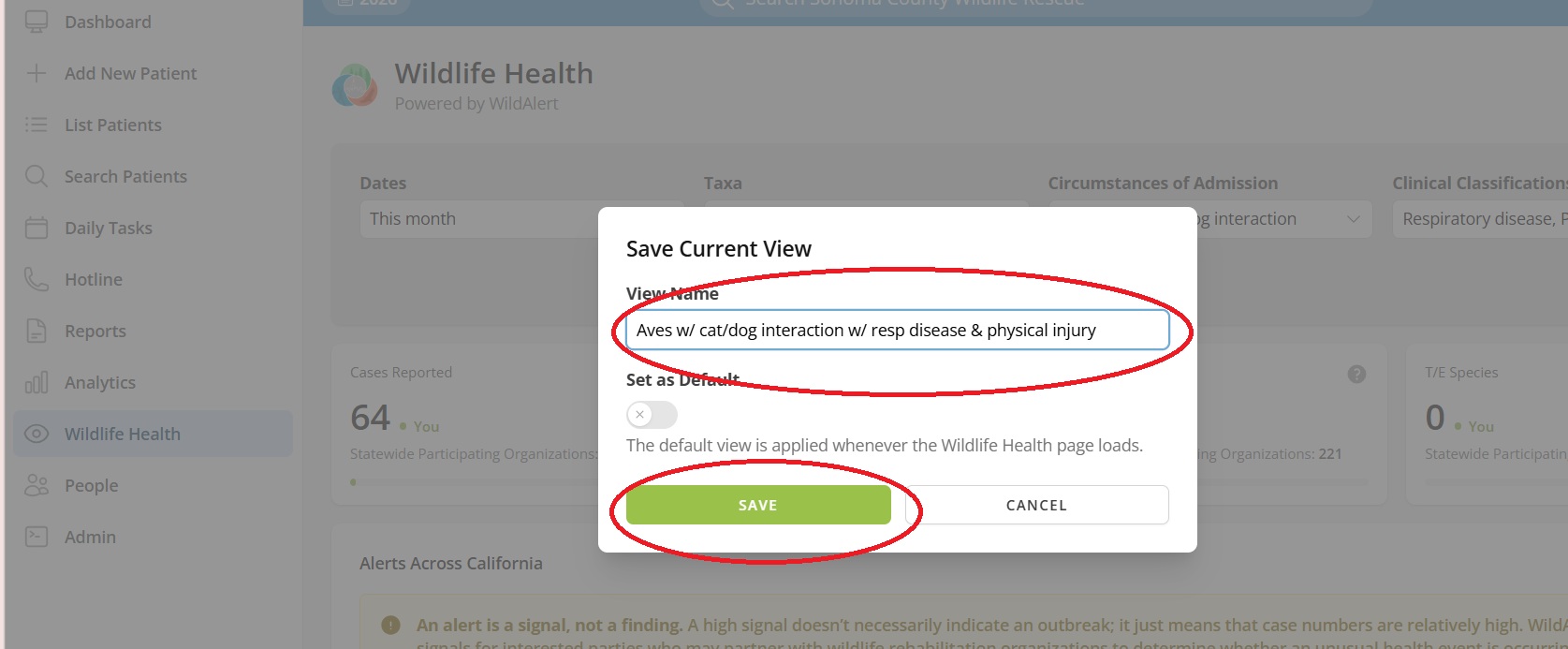
Type a View Name. Check Set as Default if you want this view applied every time the Wildlife Health page loads. Click Save.
Step 3
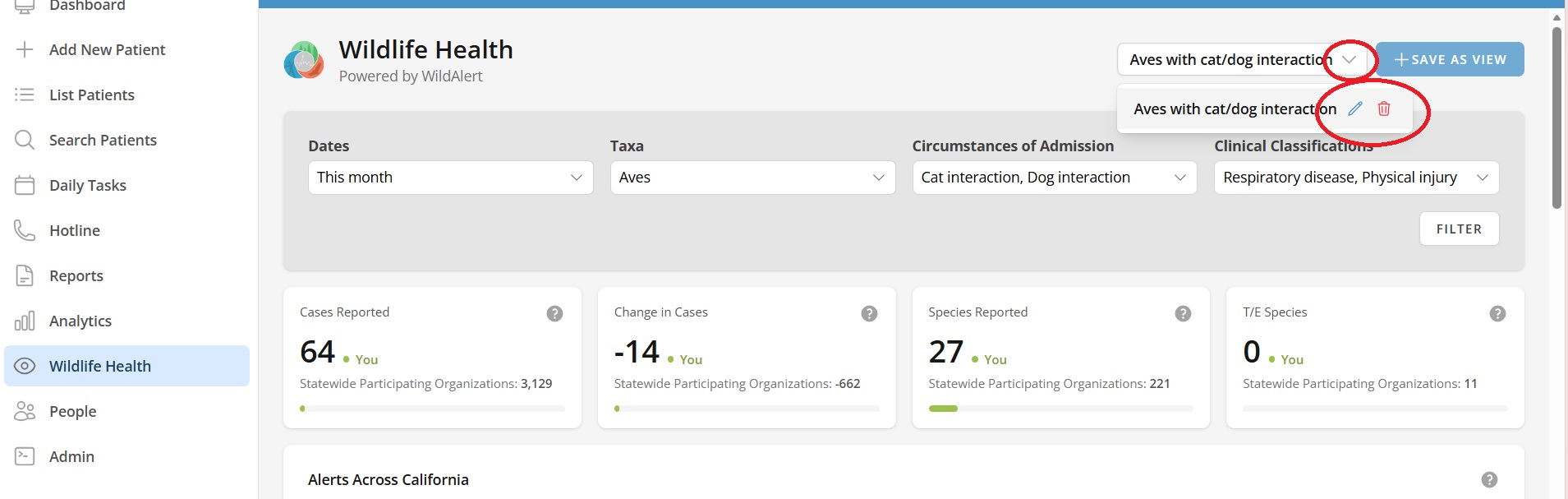
To use a saved view later, open the Saved Views drop-down and choose it. From the same drop-down you can edit a view, update it to your current filter selections, or delete it.
The Summary Cards
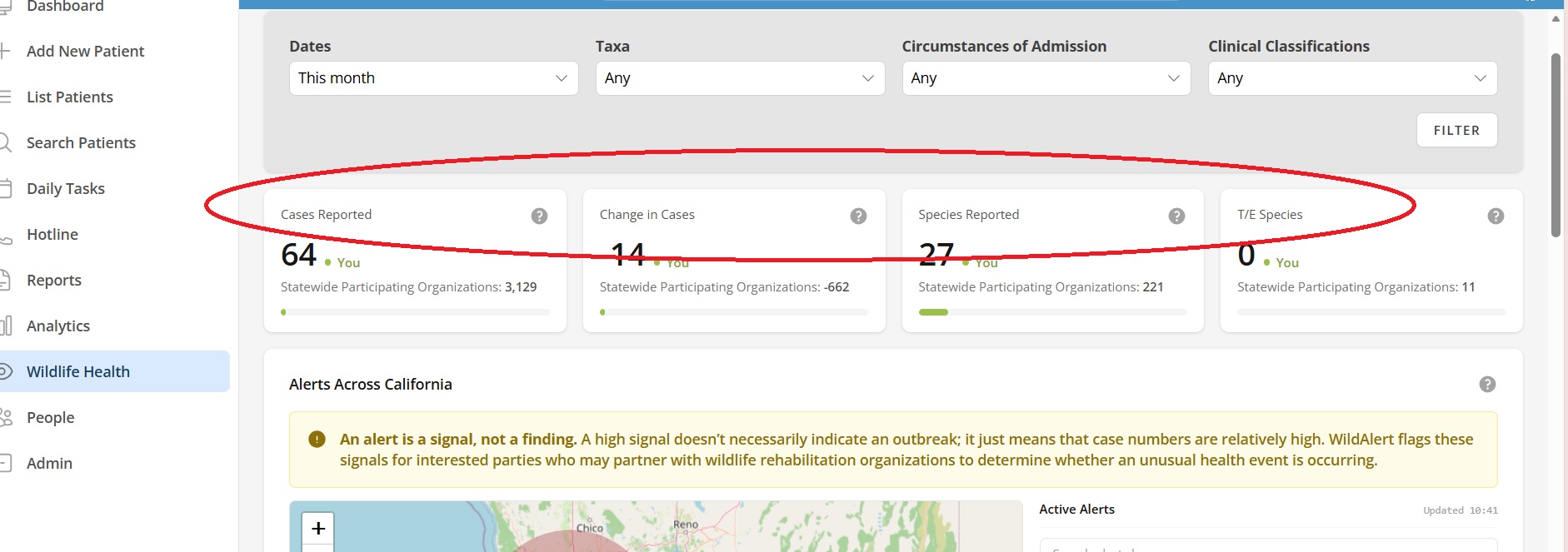
Four cards across the top give the headline figures for your filters. Each shows your figure, marked You, and the statewide figure beneath it.
- Cases Reported: how many patients you admitted in the selected dates, next to the total admitted by the other participating organizations in your state.
- Change in Cases: how many more or fewer patients you admitted than in the previous period of the same length. For example, with This month selected on the 16th, the previous period is the 16 days before the 1st. A rise shows with a plus sign (+12) and a fall with a minus sign (-1).
- Species Reported: how many different species you admitted in the selected dates.
- T/E Species: how many of the species you admitted are on the IUCN threatened list.
The bar at the bottom of each card shows your share of the state's total. Hover over it to see the exact percentage. On Change in Cases, the bar shows your share of the state's total in the previous period.
The Alerts Card
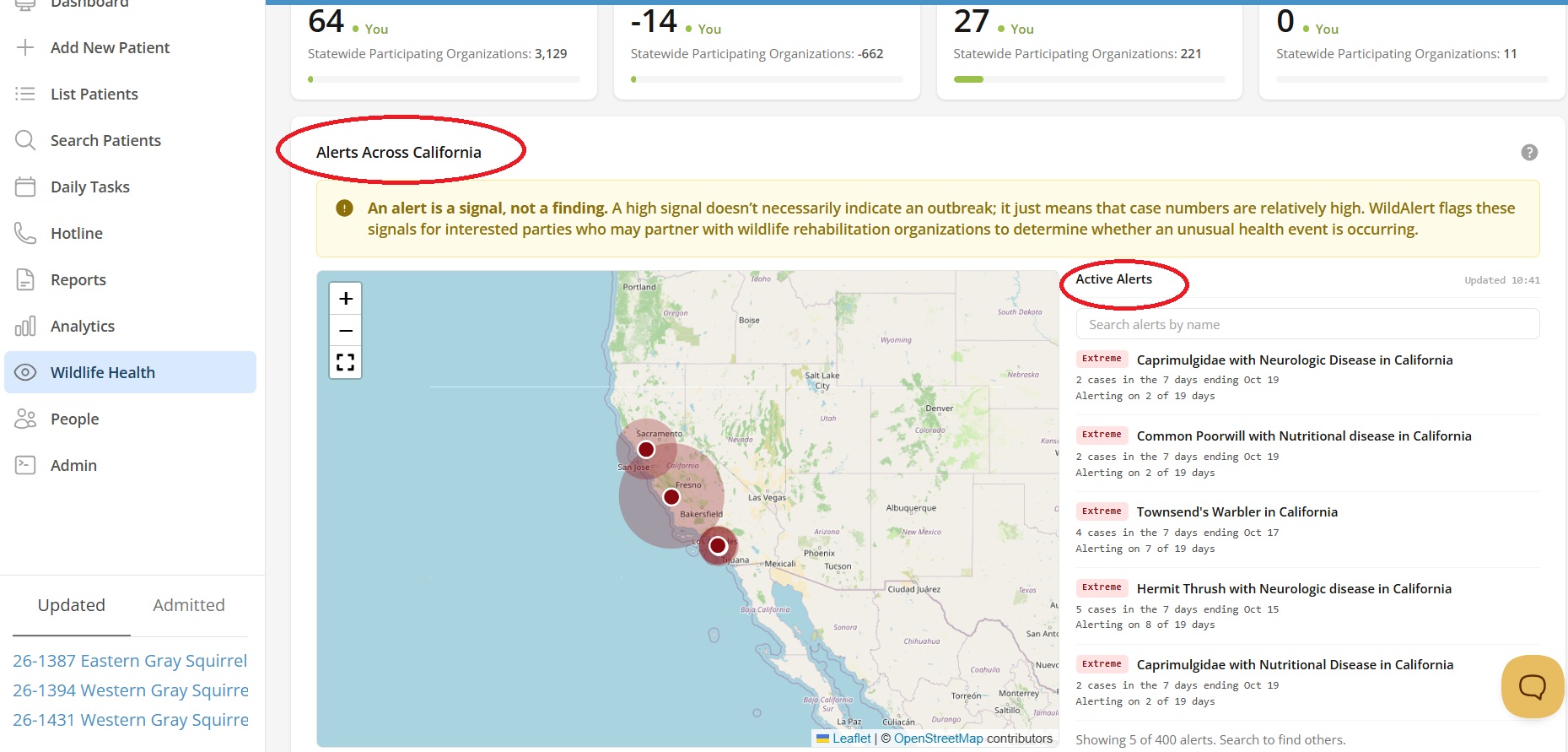
The Alerts Across card shows the alerts WildAlert is raising in your state. An alert is a signal, not a finding: a high signal means that case numbers are relatively high, not that an outbreak is confirmed. WildAlert flags these signals so that interested parties can work with wildlife rehabilitation organizations to find out whether an unusual health event is occurring.
Each alert names what it is tracking, such as a species or family, a clinical classification and an area. It carries a signal strength of Extreme, High, Moderate or Low, and two lines beneath:
- Cases in the 7 days ending a date: the number of cases in the alert's busiest week within your selected dates.
- Alerting on a number of days: how many of the days in your selected dates the alert was active.
WildAlert reads your filters to decide which alerts to show. The numbers on each alert are always WildAlert's own count for that alert, not just the patients that match your filters. For date ranges longer than 90 days, WildAlert is asked about the most recent 90 days only.
Using the Alerts Map
- The list shows the five strongest alerts, and the map shows each of them as a pin with a shaded area that reaches its farthest case. A line under the list tells you how many more alerts there are.
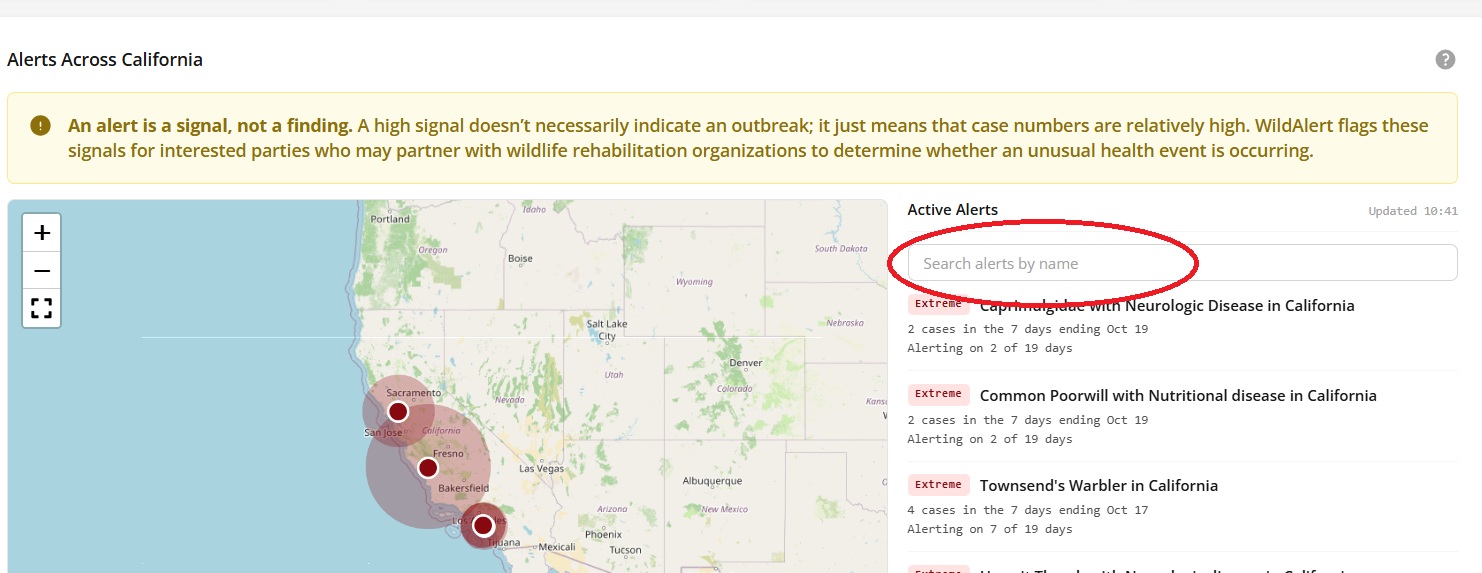
- Type in Search alerts by name to look through every alert, not just the five on show.
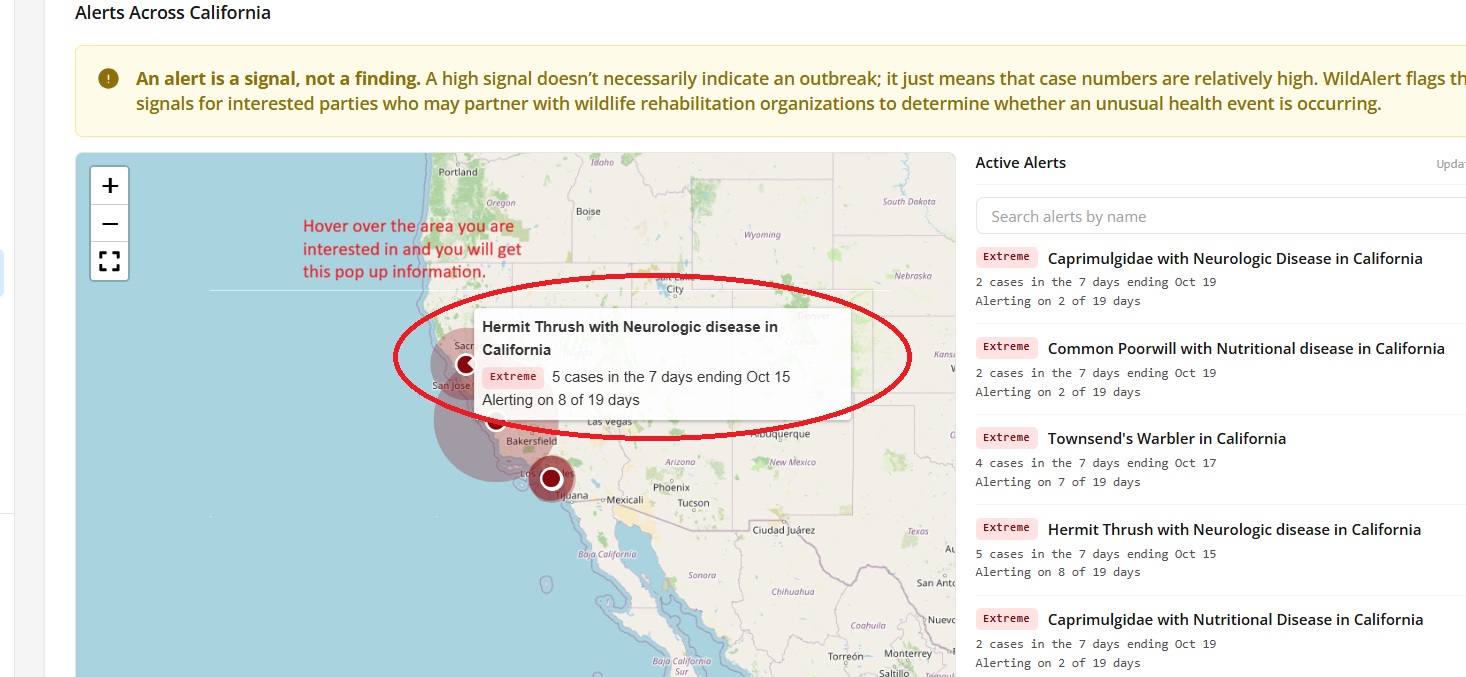
- Hover over a pin to see the details of its alert. When several alerts share a location, the pin lists each of them.
- Hover over an alert in the list to highlight its pin and area on the map. Click the alert to zoom the map to it.
- Click the full screen button below the zoom controls to enlarge the map. In full screen, a legend in the upper right lists every alert on the map.
Updated, in the upper right of the list, shows when the alerts were last read from WildAlert.
The Charts
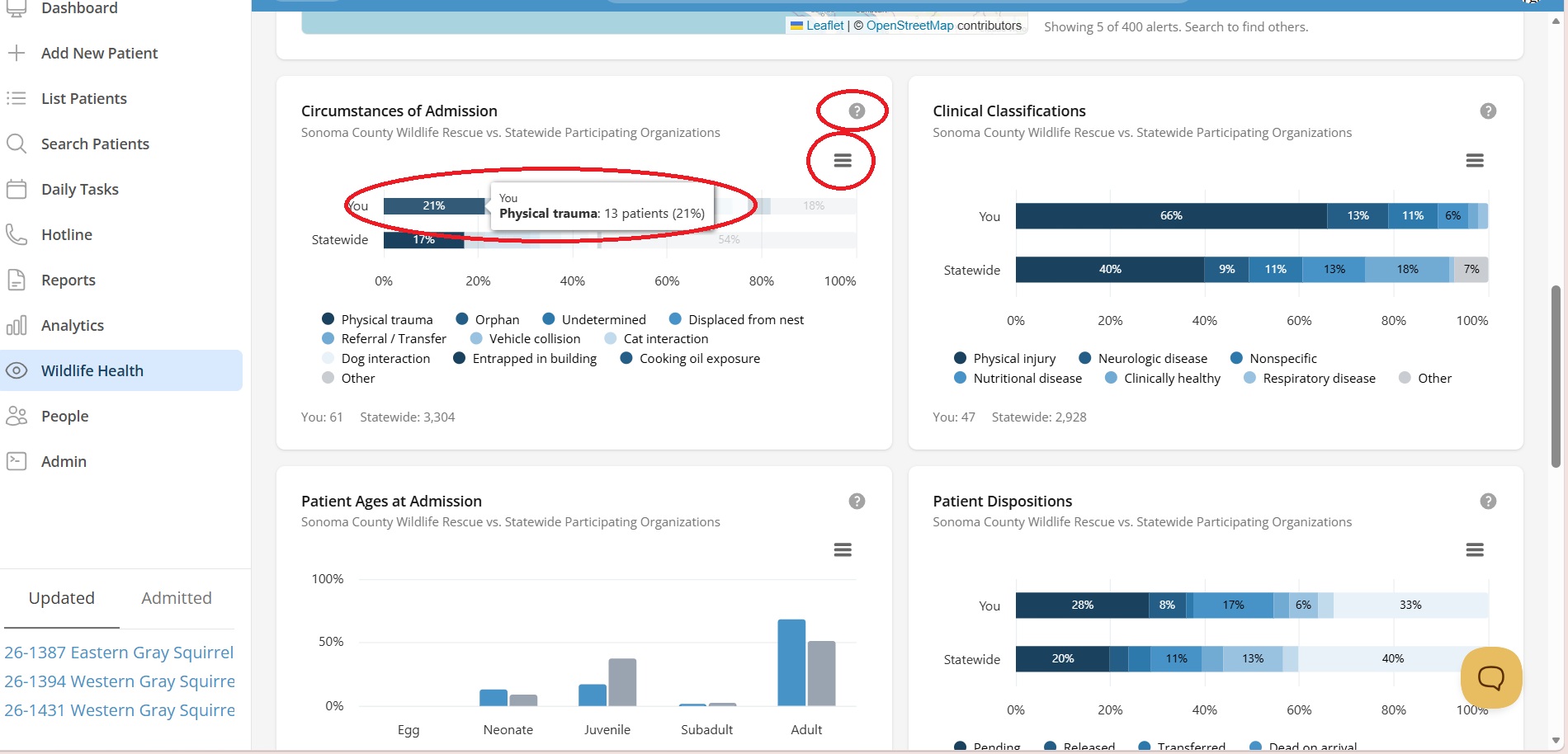
Hover over any bar, line or point to see its exact numbers, or over the ? icon beside a chart's title for a short description.
- Circumstances of Admission: the reasons patients were brought in. The ten most common are shown, and the rest are grouped under Other.
- Clinical Classifications: what was found to be wrong with patients on arrival, shown the same way.
- Patient Ages at Admission: how old patients were when admitted. Birds, mammals, reptiles and amphibians each record age differently, so their ages are grouped into five stages: Egg, Neonate, Juvenile, Subadult and Adult. Patients with no age recorded are not counted.
- Patient Dispositions: what happened to patients in the end, such as released, transferred or died.
- Cases Over Time: how many patients you admitted over the selected dates. The dashed line is the statewide median, a typical organization in your state.
- Top 10 Species: the ten species you admitted most, ranked next to the ten admitted most across your state. Lines link the species that appear on both lists.
- Outcomes by Taxa: for each class of animal, the percentage of your patients that reached an outcome, next to the same percentage for the rest of your state. Use the tabs to choose the outcome: Released, Died, Euthanized, Transferred or Dead on Arrival.
Exporting a Chart
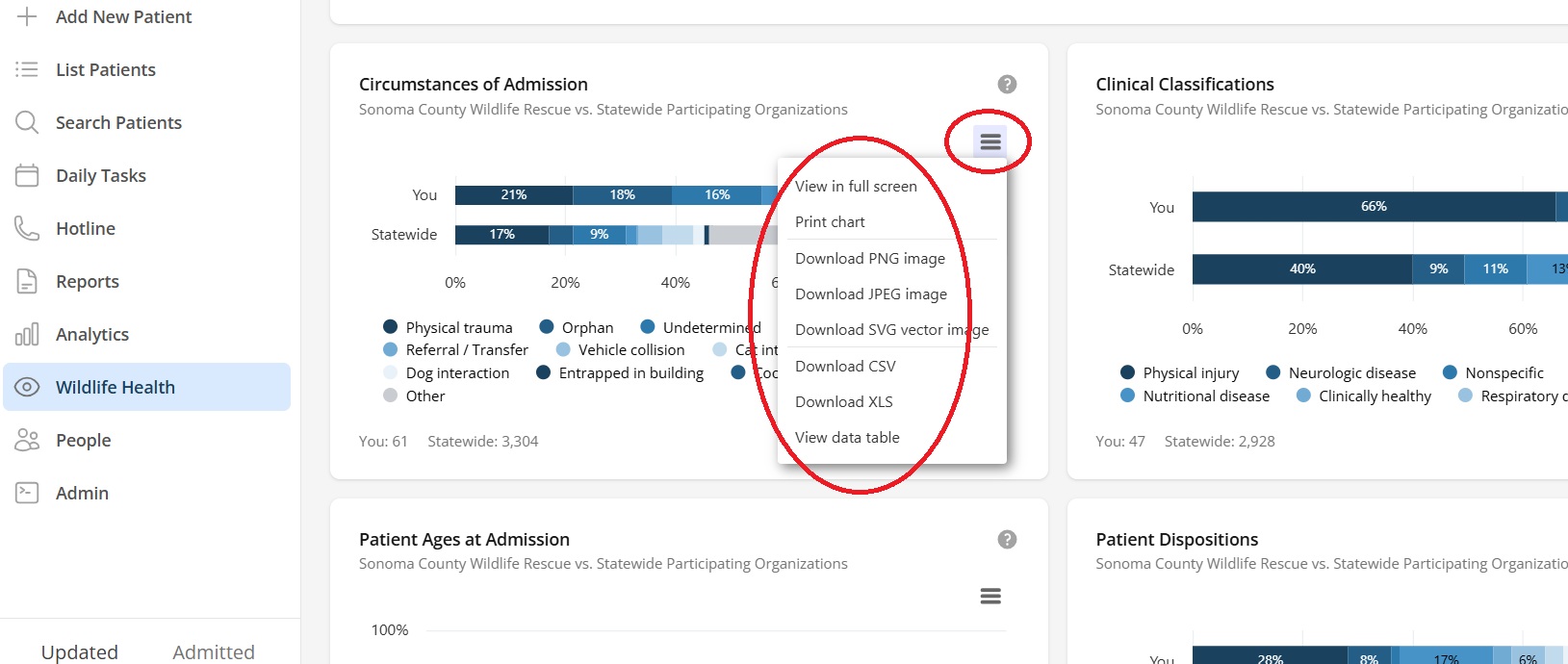
Click the menu icon in the upper right corner of a chart to view it in full screen, print it, or download it as an image, a PDF or a spreadsheet of its data.