Using Your Public Animal Report Form as a Front Desk Kiosk
In this tutorial, you will learn how to turn on Kiosk Mode so walk-in visitors can fill out your Public Animal Report Form on a computer or tablet at your front desk – and how to lock the device down so the kiosk is all they can use.
What is Kiosk Mode?
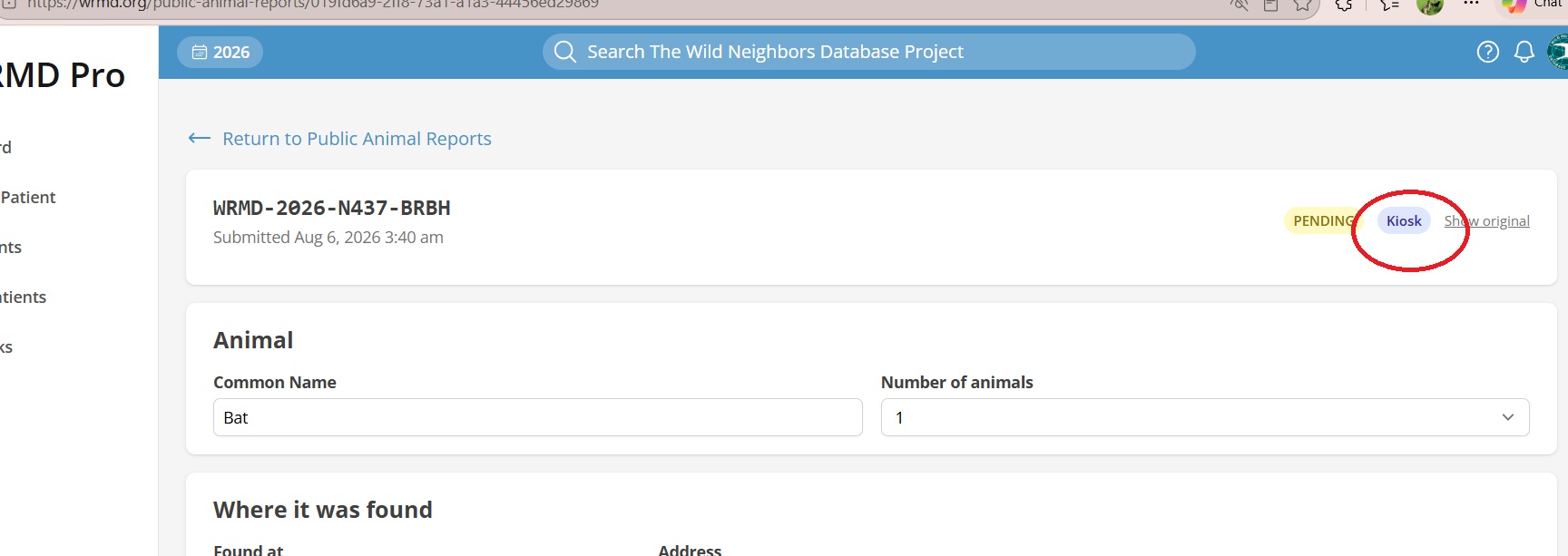
Kiosk Mode runs your Public Animal Report Form on a device your organization controls – a tablet or computer at your reception desk – so a visitor who walks in with an animal can report it themselves while your staff keep working. Kiosk submissions land in the same private review queue as every other public report, marked with a Kiosk badge so you can tell walk-ins from web submissions at a glance.
The kiosk shows the same fields, branding, and messages you configured for your form (see Setting Up Your Public Animal Report Form), but it behaves differently because the device is shared by strangers: it never offers autofill suggestions from a previous visitor, it contains no links that could lead someone away from the form, and it clears itself between visitors.
Turning Kiosk Mode On
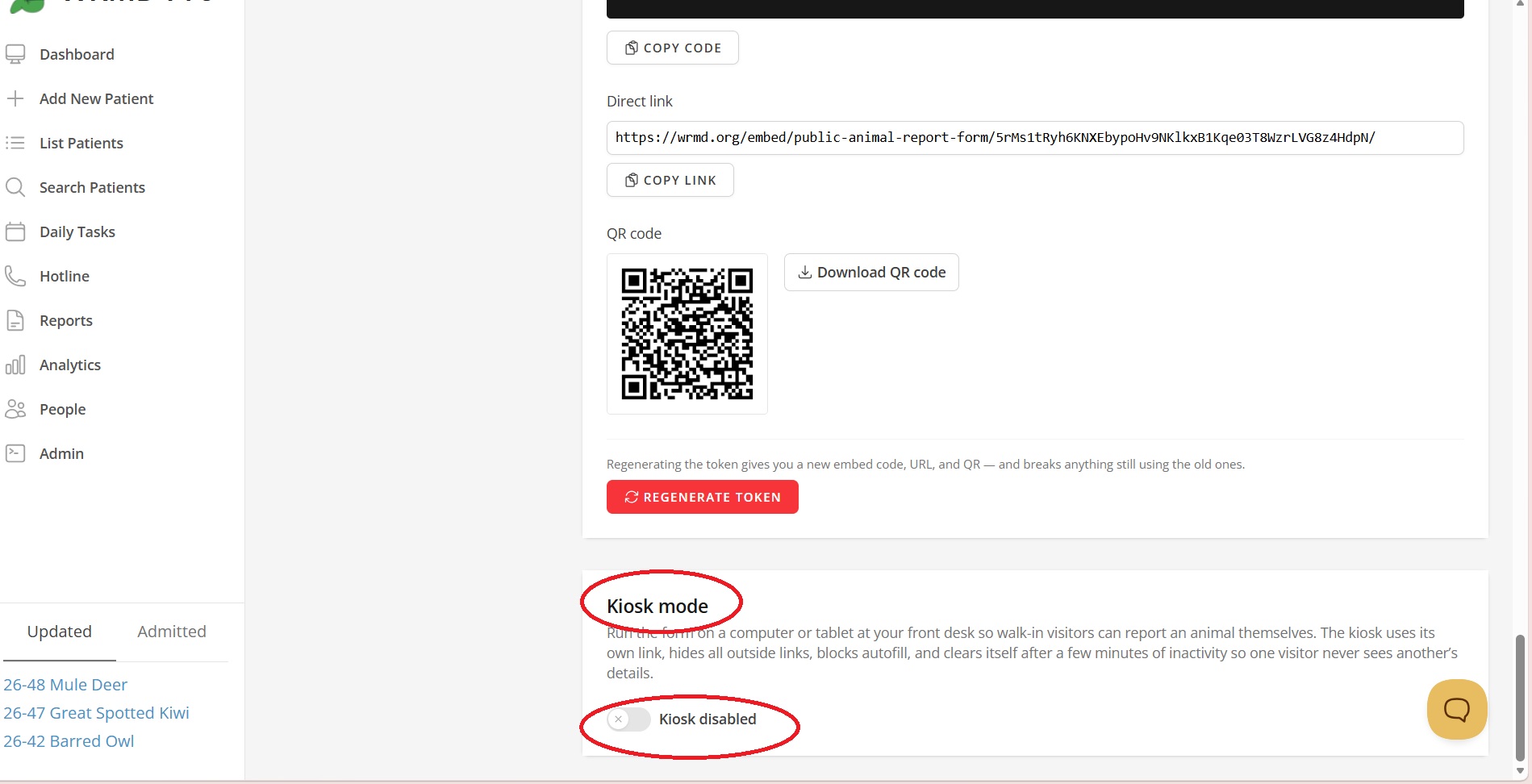
Click on your organization's avatar, open Settings and choose Public Animal Report Form. Scroll to the Kiosk mode section and flip the toggle to Kiosk enabled. WRMD generates a unique kiosk link the first time you enable it.
The kiosk runs independently of the embedded form – you can run a front desk kiosk even while the embedded website form is turned off, and turning the kiosk off later does not affect your website form. If you pause the kiosk and re-enable it, the link stays the same, so a device that is already set up simply starts working again.
Opening the Kiosk on Your Device
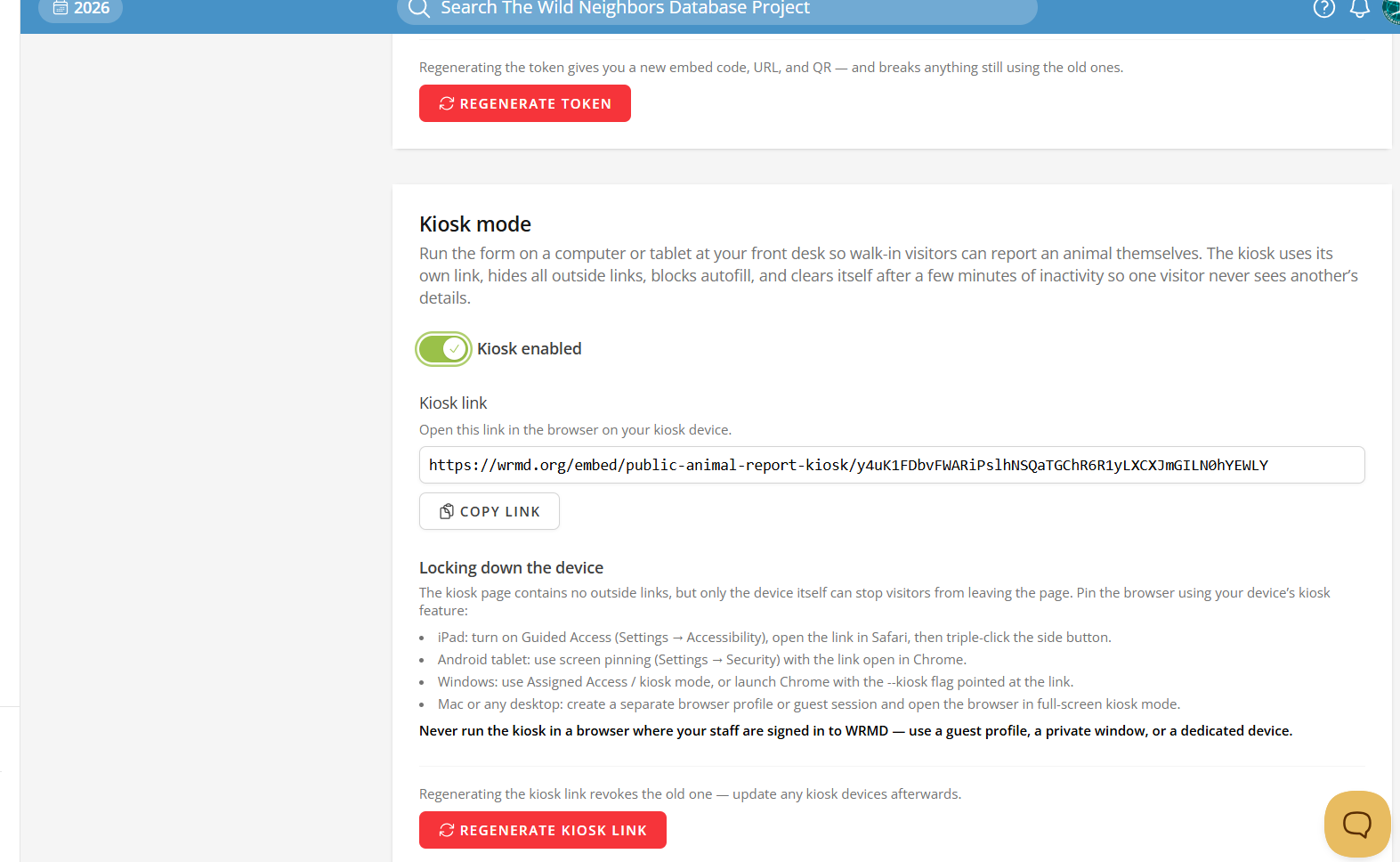
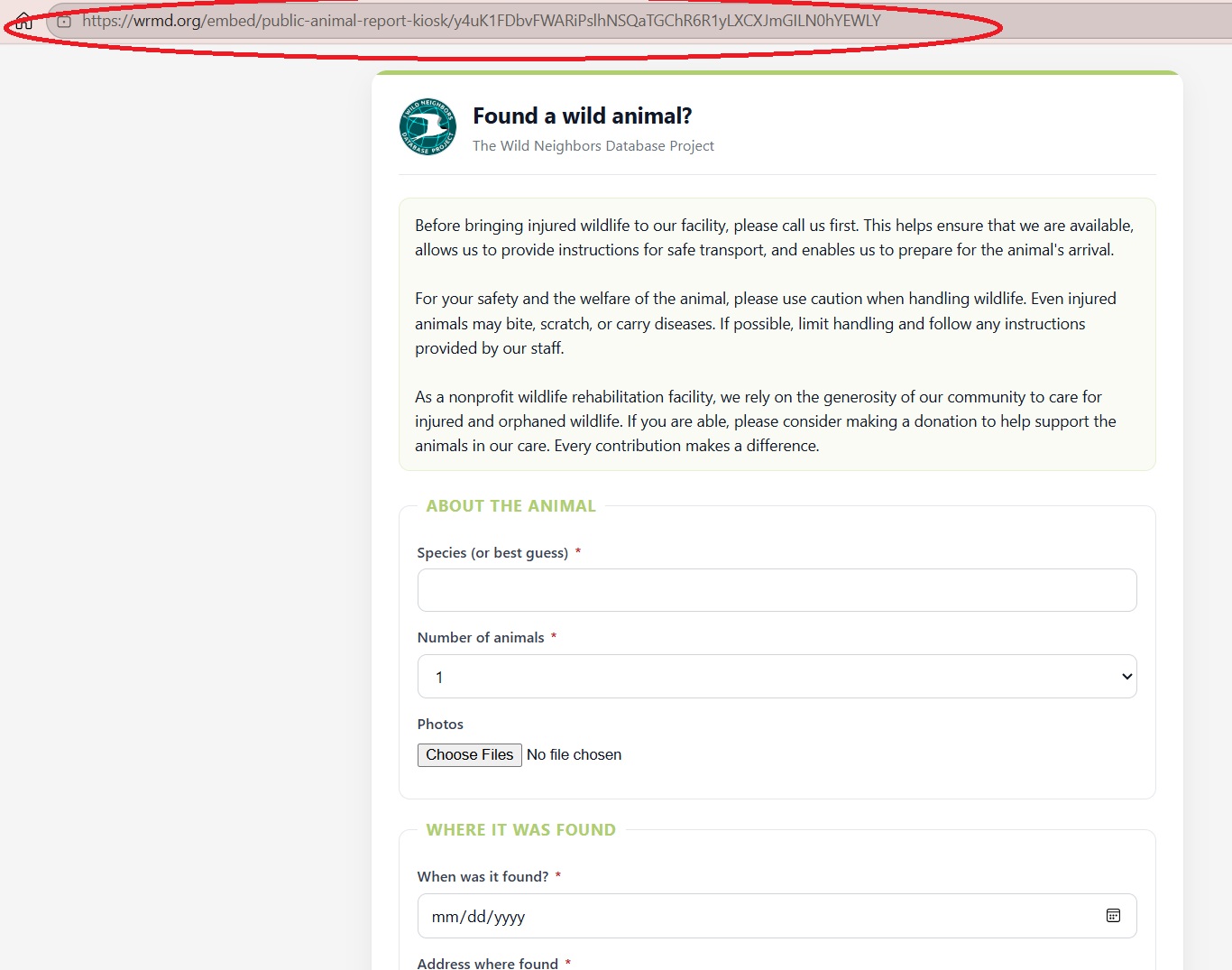
In the Kiosk link field, click Copy link, then open that link in a web browser on the kiosk device. That is the whole software setup – the page is self-contained and ready for the first visitor.
Locking Down the Device
The kiosk page itself contains no outside links, but only the device can stop a determined visitor from leaving the page or opening something else. Pin the browser using your device's built-in kiosk feature:
- iPad: turn on Guided Access (Settings > Accessibility), open the kiosk link in Safari, then triple-click the side button to lock the session to that page.
- Android tablet: use screen pinning (Settings > Security) with the kiosk link open in Chrome.
- Windows: use Assigned Access (kiosk mode), or launch Chrome with the
--kioskflag pointed at the kiosk link. - Mac or any desktop: create a separate browser profile or guest session and open the browser in full-screen kiosk mode.
Important: never run the kiosk in a browser where your staff are signed in to WRMD. A visitor could use the back button or address bar to reach your patient records. Always use a guest profile, a private window, or a dedicated device.
What Visitors Experience
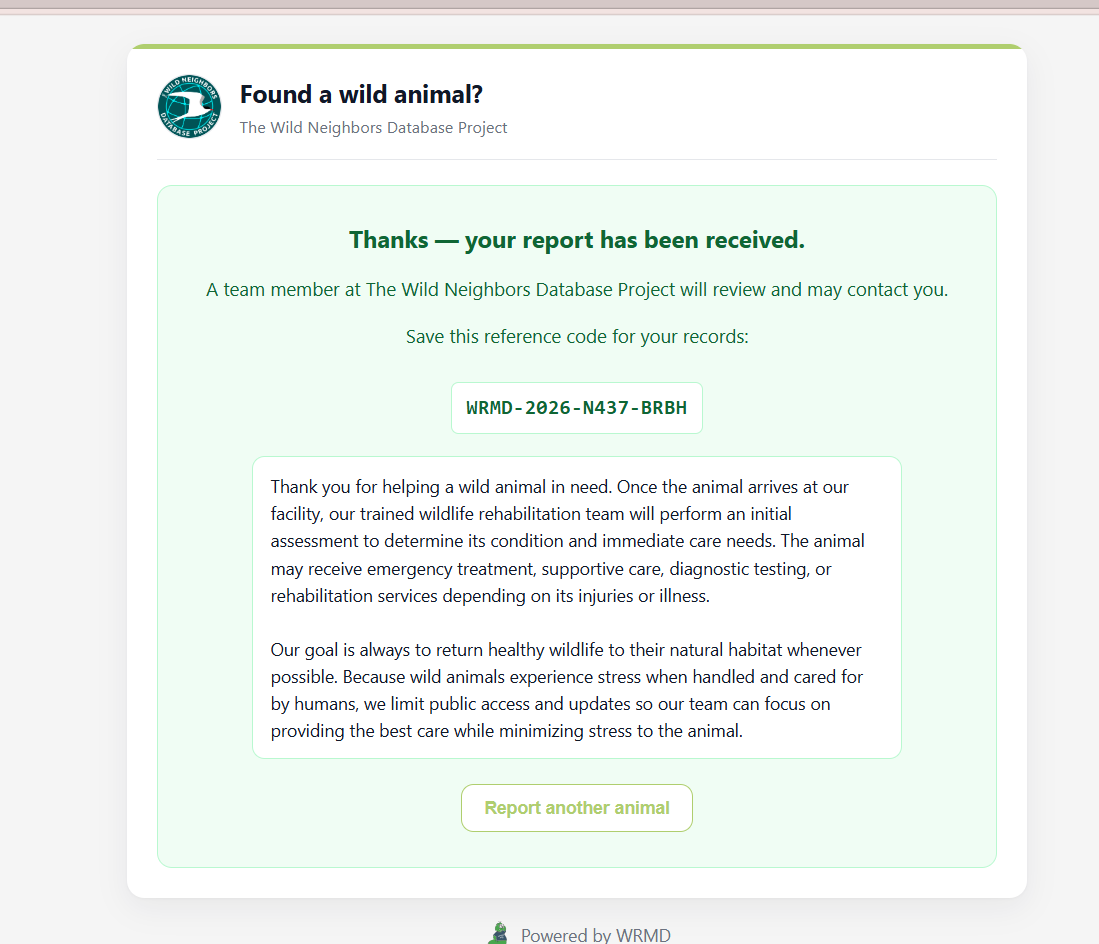
A visitor fills out the form just as they would on your website and receives a reference code when they submit. The kiosk then takes care of itself between visitors:
- If someone starts filling out the form and walks away, the kiosk asks Are you still there? after a few minutes of inactivity. If nobody responds, a short countdown runs and the form clears itself – so the next visitor never sees the previous person's name, phone number, or story.
- After a successful submission, the thank-you screen (and its reference code) automatically resets to a fresh, empty form after a short pause.
- Autofill is disabled, so the browser never suggests a previous visitor's details.
- The donate button and all outside links are hidden, keeping the device on task.
Kiosk Submissions in Your Review Queue
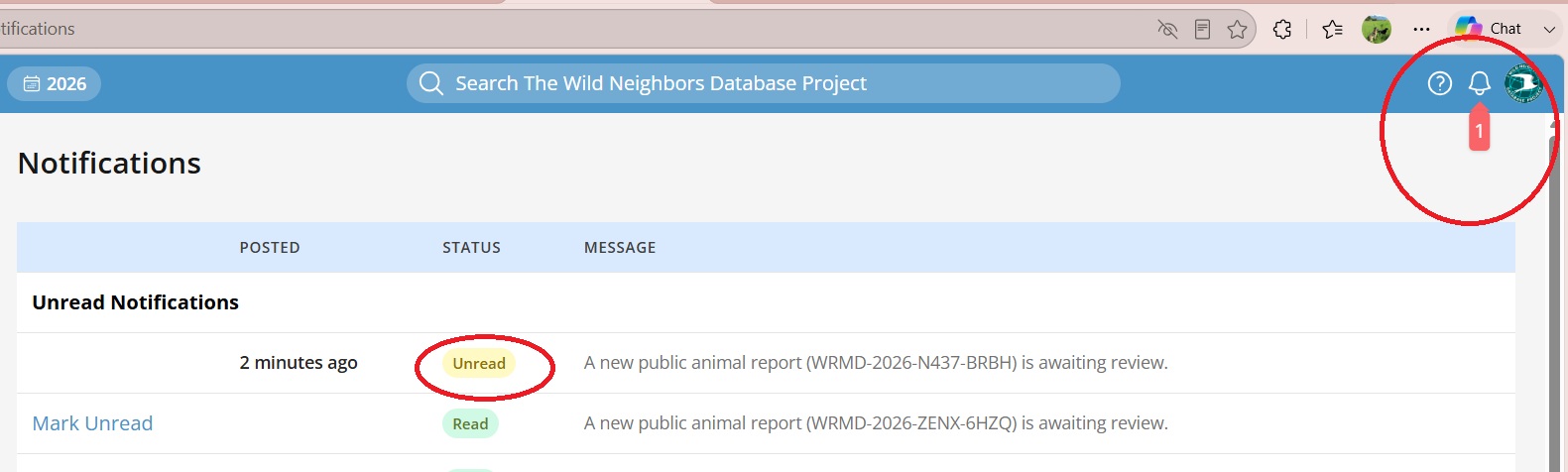
Kiosk reports appear in your Public Animal Reports queue alongside web submissions, marked with a Kiosk badge on both the list and the report itself. Review, edit, and approve them exactly as described in Reviewing and Approving Public Animal Reports.
Regenerating the Kiosk Link
The kiosk has its own link, separate from your embed code and QR code, so you can retire one without breaking the other. If the kiosk link is ever exposed – or a device with it configured goes missing – click Regenerate kiosk link in the Kiosk mode section. The old link stops working immediately, so update the browser on your kiosk devices with the new link afterward.