How to Batch Transfer Patients to Another WRMD Organization
In this tutorial, you will learn how to transfer several patient records to another WRMD organization at the same time.
You need specific permissions to share patients in order to transfer records. If you do not see the Transfer Selected Patients option, ask an administrator at your organization to update your authorizations.
What is Batch Transferring?
When you need to move more than one patient to another center that also uses WRMD, batch transferring lets you send a transfer request for many patients at once instead of opening each record one at a time. You choose the receiving organization, decide whether the records should be collaborative or copied, and WRMD sends a transfer request for every patient you selected. The receiving organization still reviews and accepts each request before the patients appear in their account.
For background on why you might transfer a patient, and a fuller explanation of collaborative versus copied records, see How to Transfer a Patient to Another WRMD Account.
Step 1
Visit https://www.wrmd.org/signin and log into your account using the username and password that you registered with.
Step 2
Designate the patients you wish to transfer by either performing a patient search or utilizing the list patients feature on the dashboard.
Step 3
Once your list is generated, click the checkboxes next to the patients you want to transfer. If the patient list spans several pages, click on the page advance buttons at the bottom of the page — you will not lose any of your checkmarks. Then click Actions and, from the dropdown, select Transfer Selected Patients.
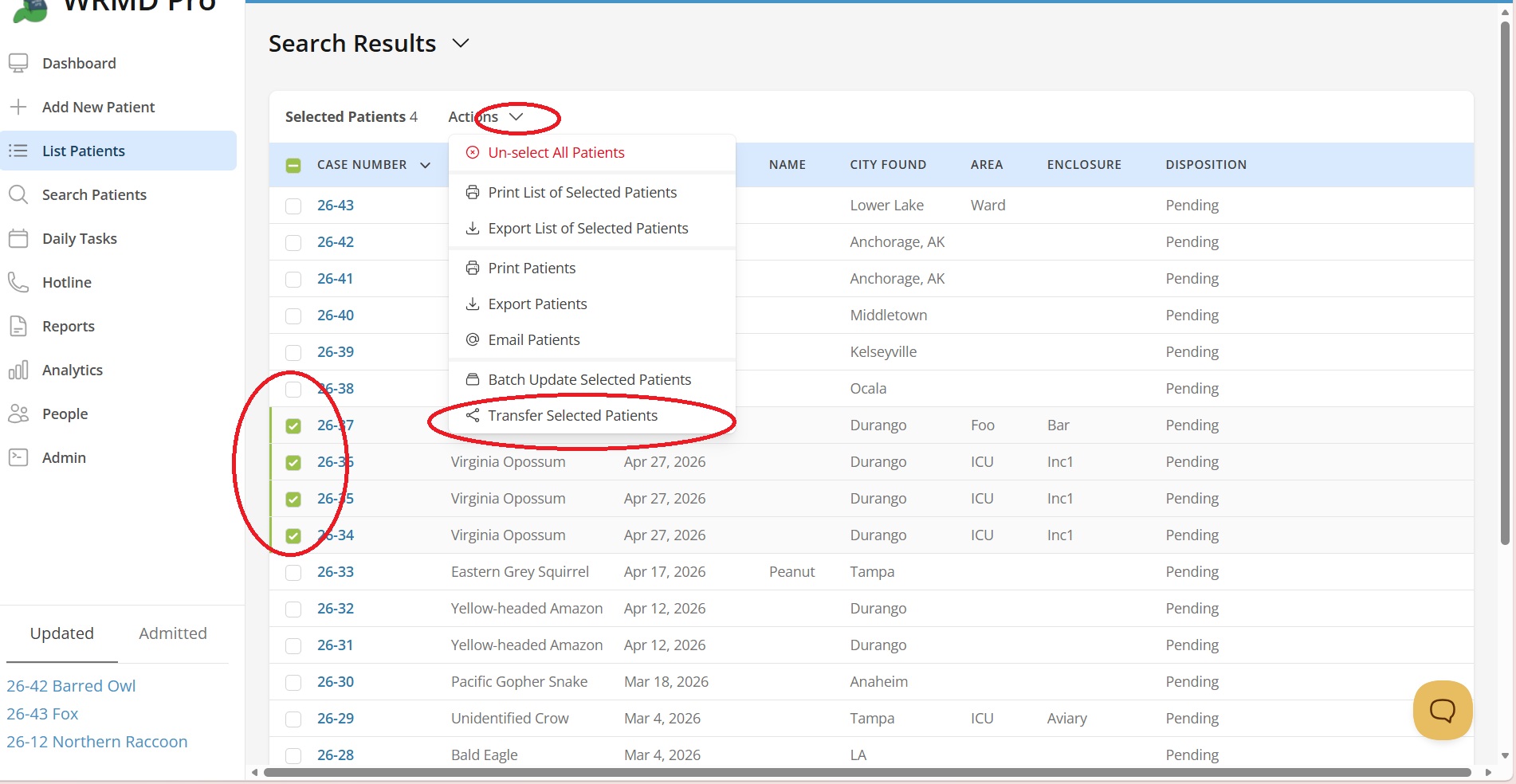
If you need to clear your selection at any point, click the Actions link and, from the dropdown menu, select the red-colored text: Un-select All Patients. This removes all of the patients you have selected so you can start over.
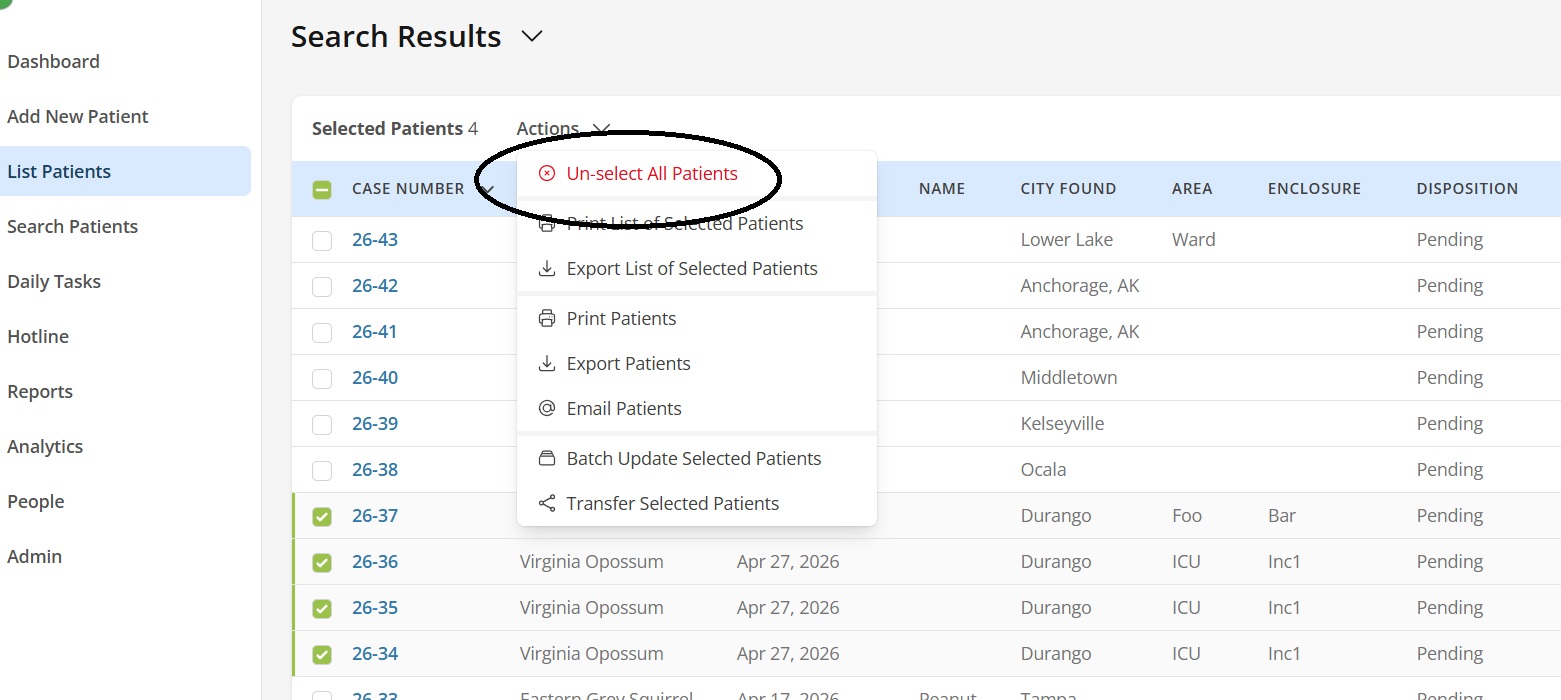
Double- and triple-check that you have chosen the correct patients before transferring. The patients you selected will each have a transfer request sent to the organization you choose.
Step 4
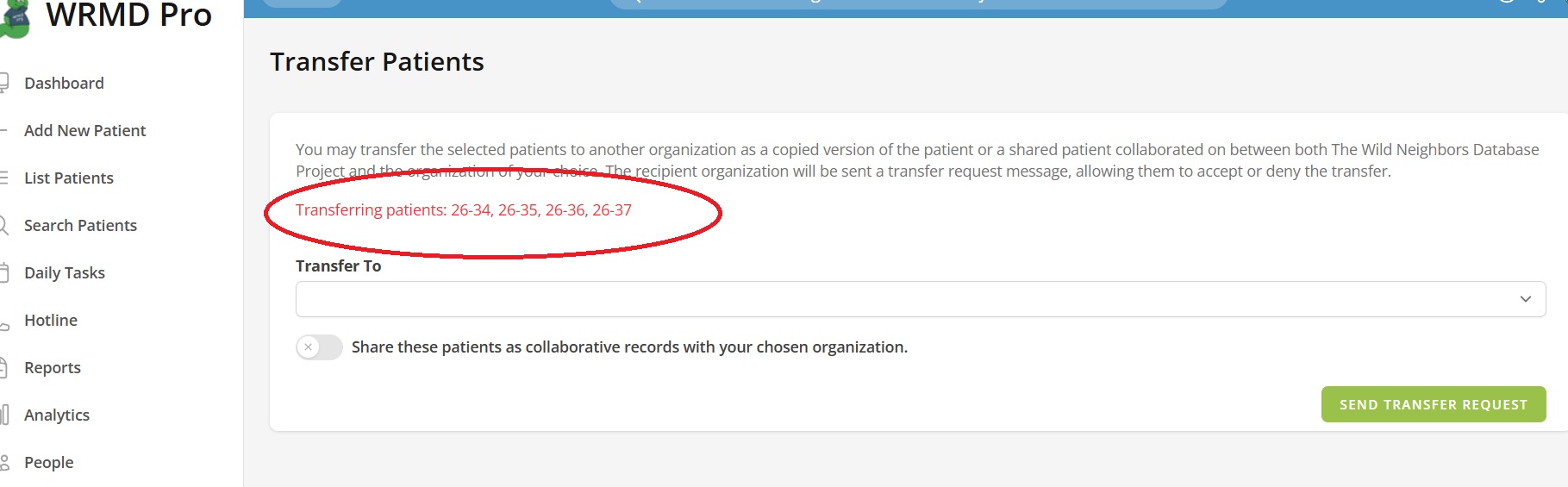
At the top of the new screen, WRMD lists the case numbers of the patients being transferred. Verify that the displayed patient numbers are correct before continuing.
Step 5
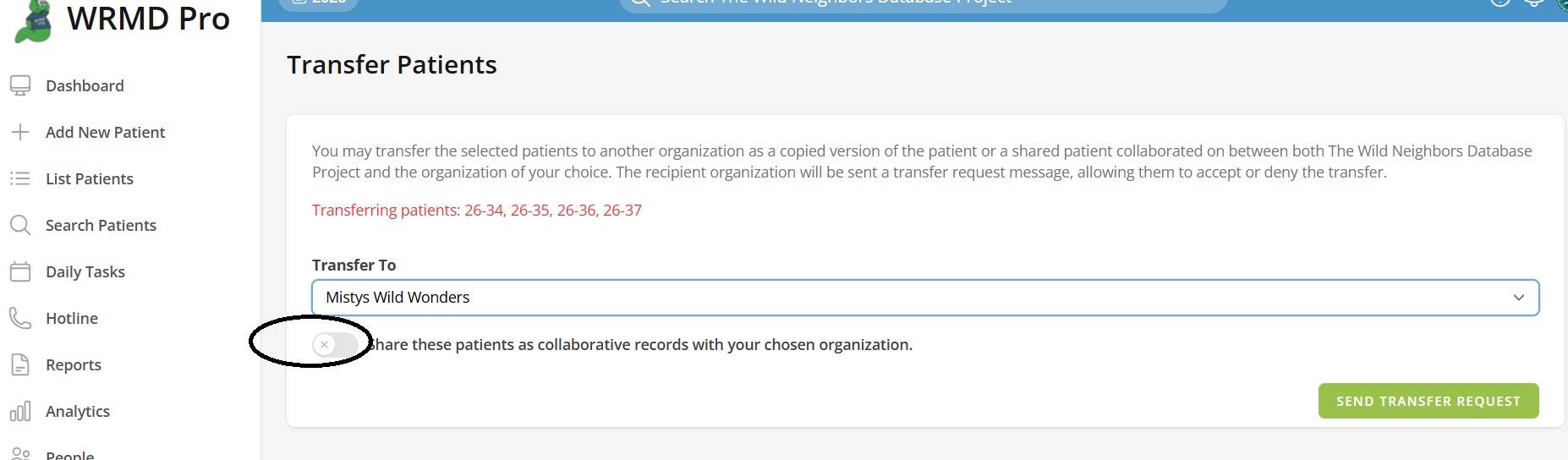
Use the Transfer To dropdown to choose the organization you are transferring the patients to. The organizations closest to you appear at the top of the list.
Step 6
Use the toggle below the dropdown to indicate whether this transfer is collaborative or not.
It is important to understand the distinction between a collaborative record and a copied one.
- Leaving the toggle off:
- WRMD makes an exact copy of each record in the other organization's account. Your records and the other organization's records will be two separate sets of records. When the other organization makes changes to a patient, they do so on their copy — you will not see those updates, and your records are not affected.
- Turning the toggle on:
- WRMD shares each record. There is only one copy of each patient, and both your organization and the other organization have access to it. Any change either organization makes is visible to the other.
- In both cases, your files keep their case numbers, and a new case number is generated at the receiving organization. For collaborative records, WRMD shows a banner referencing the other organization and its case number whenever anyone opens the file.
Step 7
Click the green Send Transfer Request button. A banner will confirm that the transfer requests were sent. The receiving organization must accept each request before gaining access to the records.
Step 8
Always clear your selection by clicking Un-select All Patients once you have finished, and especially before transferring a new group of patients. Failing to do so may combine your old selection with a new one, leading to unintended transfers.
Clear your selection every time you finish a batch transfer.
Accepting the Transferred Records
The organization you transferred the patients to will receive a transfer request for each patient. They accept or deny each request from the message center in the top-right corner of their account, the same way they would for a single transferred patient. Once a request is accepted, that patient appears in their account with a new case number.