Reading and managing your notification inbox
In this tutorial, you will learn how to read and manage your in-app notifications.
WildAlert has two related but distinct notification surfaces. The Notifications inbox (covered in this article) is your personal list of in-app messages — for example, when one of your targets has exceeded its threshold. The Notifications tab on a target (covered in Setting up Notifications to Receive Alerts) controls which members of your team receive emails for that target. The two work together: the inbox shows you what happened, and the per-target Notifications tab decides who gets emailed when it does.
Step 1 — Open the inbox
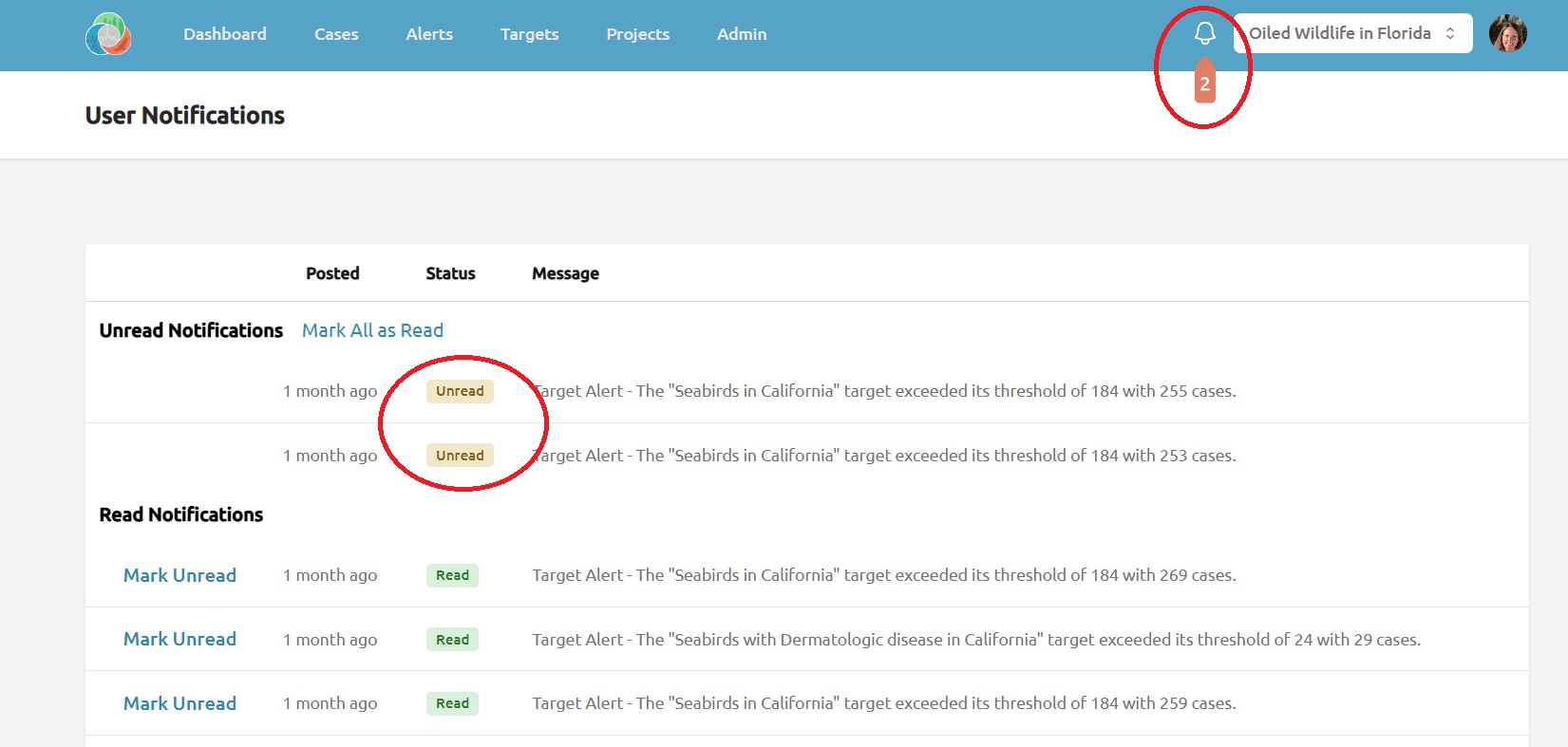
Click the bell icon in the top banner. If you have unread notifications, a badge on the bell indicates the count.
Step 2 — Review unread notifications
At the top of the inbox is an Unread Notifications section listing every notification you have not yet read. Each row shows when the notification was posted, its status, and the message itself. Click a row to open the relevant target page; doing so marks the notification as read.
Step 3 — Mark everything read at once
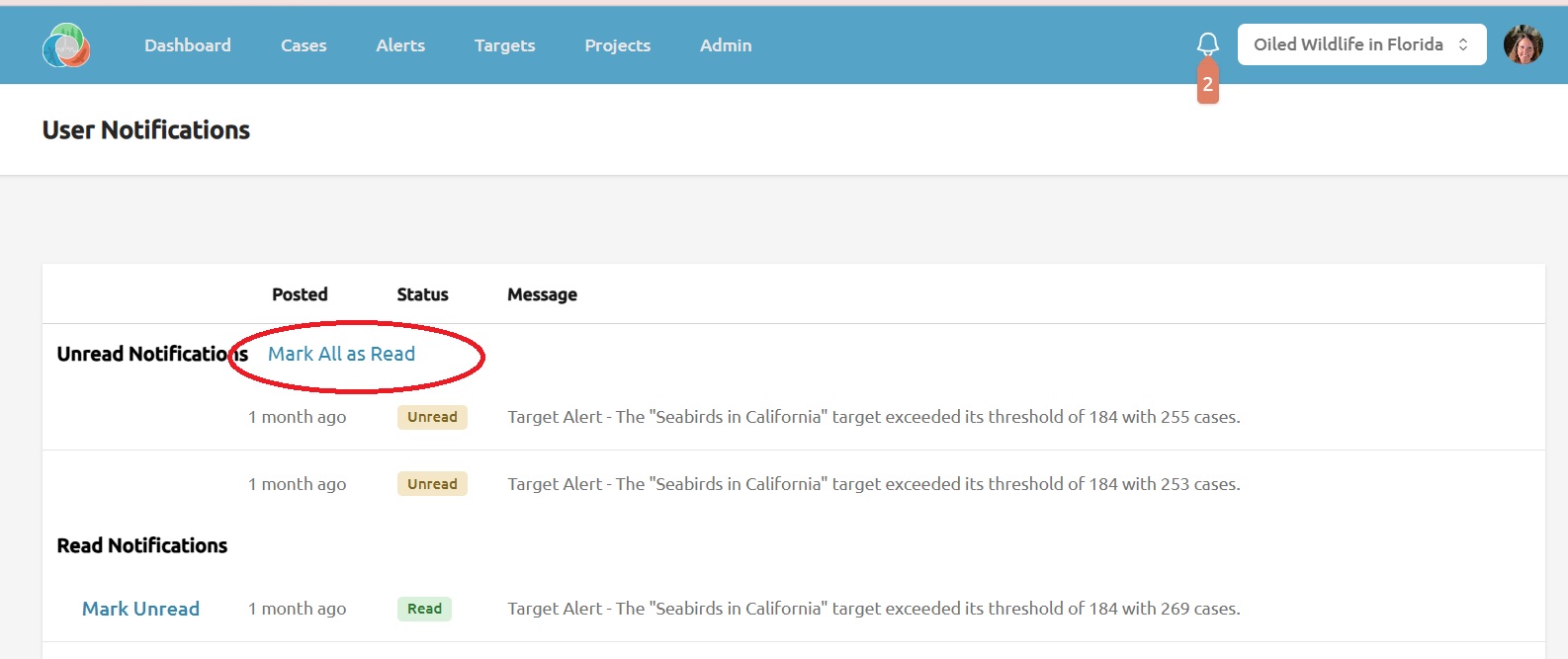
Use the Mark All as Read link at the top of the Unread Notifications section to clear the unread badge in one click. Read notifications remain in your history below.
Step 4 — Browse older notifications
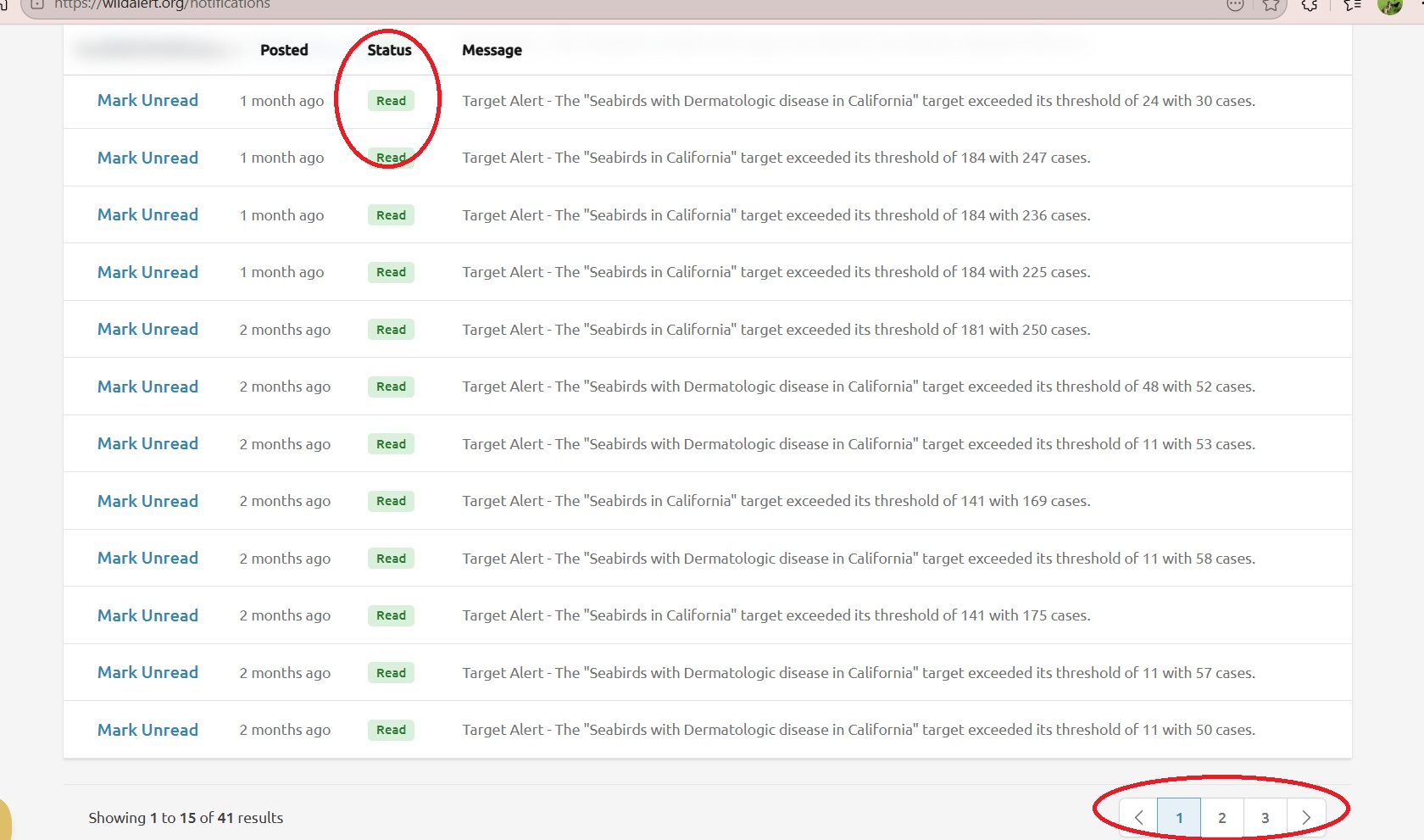
Below the unread section, the inbox lists previously read notifications. Use the pagination controls at the bottom to walk back through your history. Each read notification has a Mark Unread link if you want it to reappear in the unread section.
Step 5 — Your inbox is personal
Notifications cannot be deleted; marking one as read simply moves it into your history. Other members of your team have their own independent inboxes, so marking a notification read or unread only affects your view.