How to use the Cases page
In this tutorial, you will learn how to use the Cases page to browse and filter wildlife cases across your territory.
The Cases page lists individual wildlife cases that have been reported across the network. It uses the same filter controls as the Dashboard, so any selections you make on one carry the same meaning on the other.
Step 1 — Open the Cases page
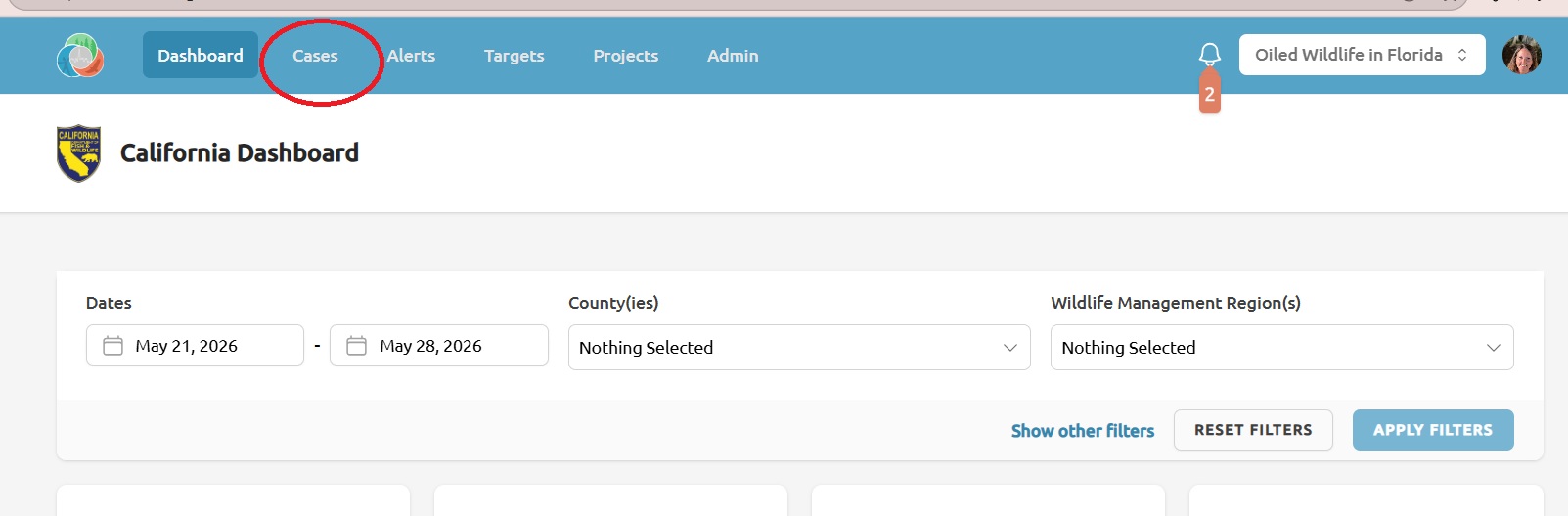
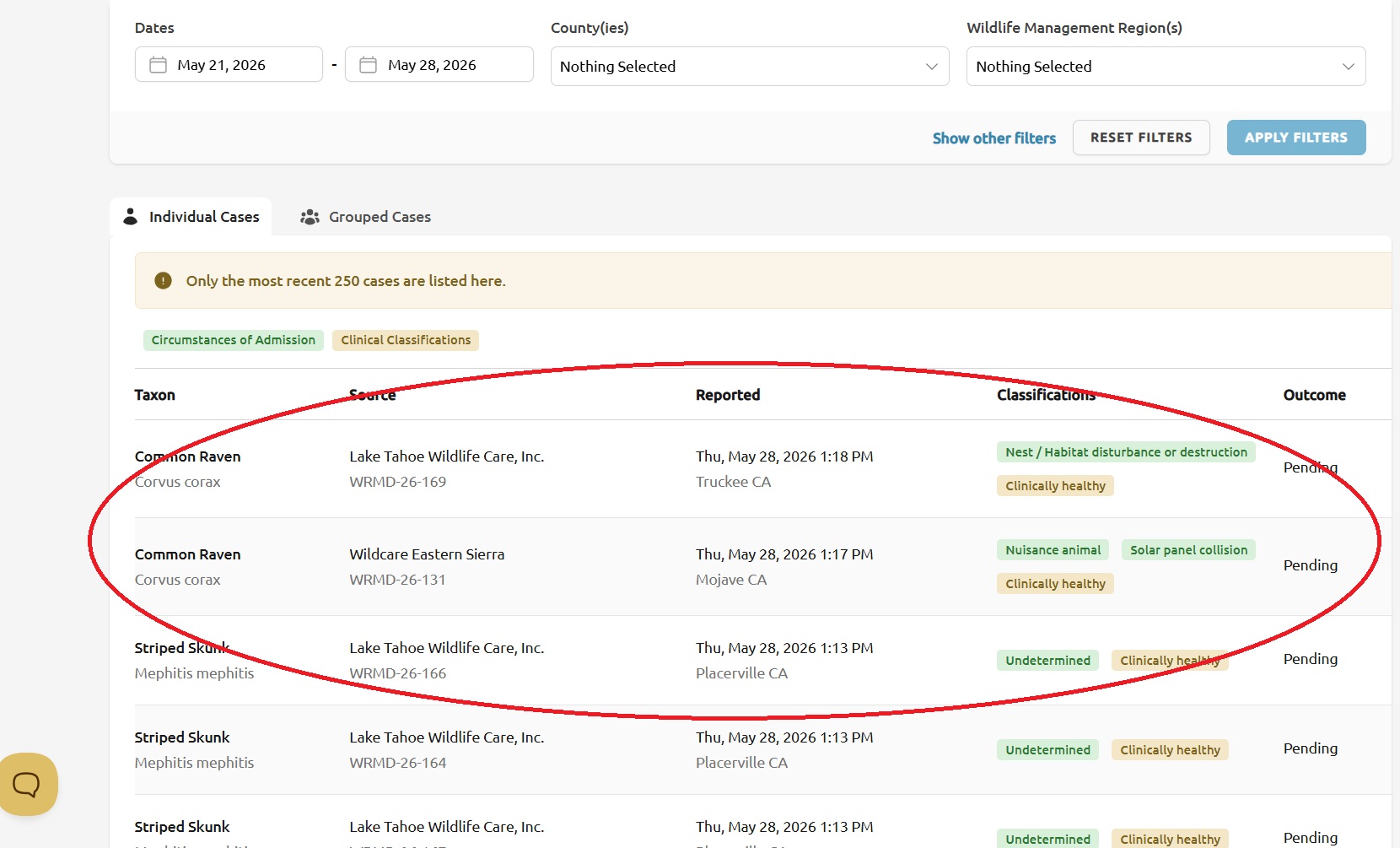
Click Cases in the top banner. The page opens with the most recent cases shown for your territory.
Step 2 — Filter the cases
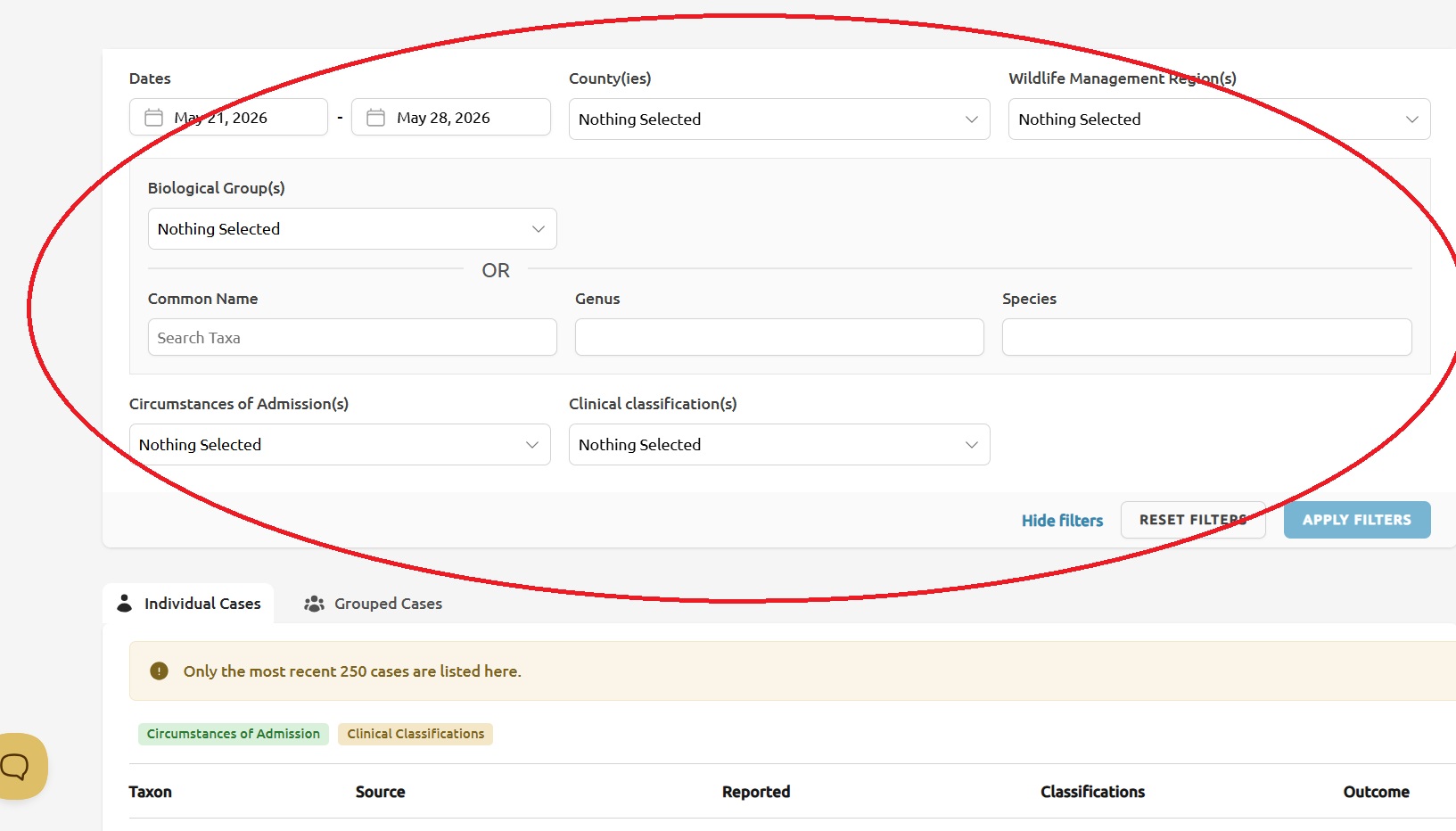
Use the Filters panel at the top of the page to narrow the list. You can filter by:
- Date range
- County(ies) and Wildlife Management Region(s)
- Biological group(s), common name, genus, and species
- Circumstances of admission and clinical classifications
Some of these filters are hidden until you click Show other filters. Click Apply Filters to refresh the table below, or Reset Filters to clear your selections.
Step 3 — Switch between Individual Cases and Grouped Cases
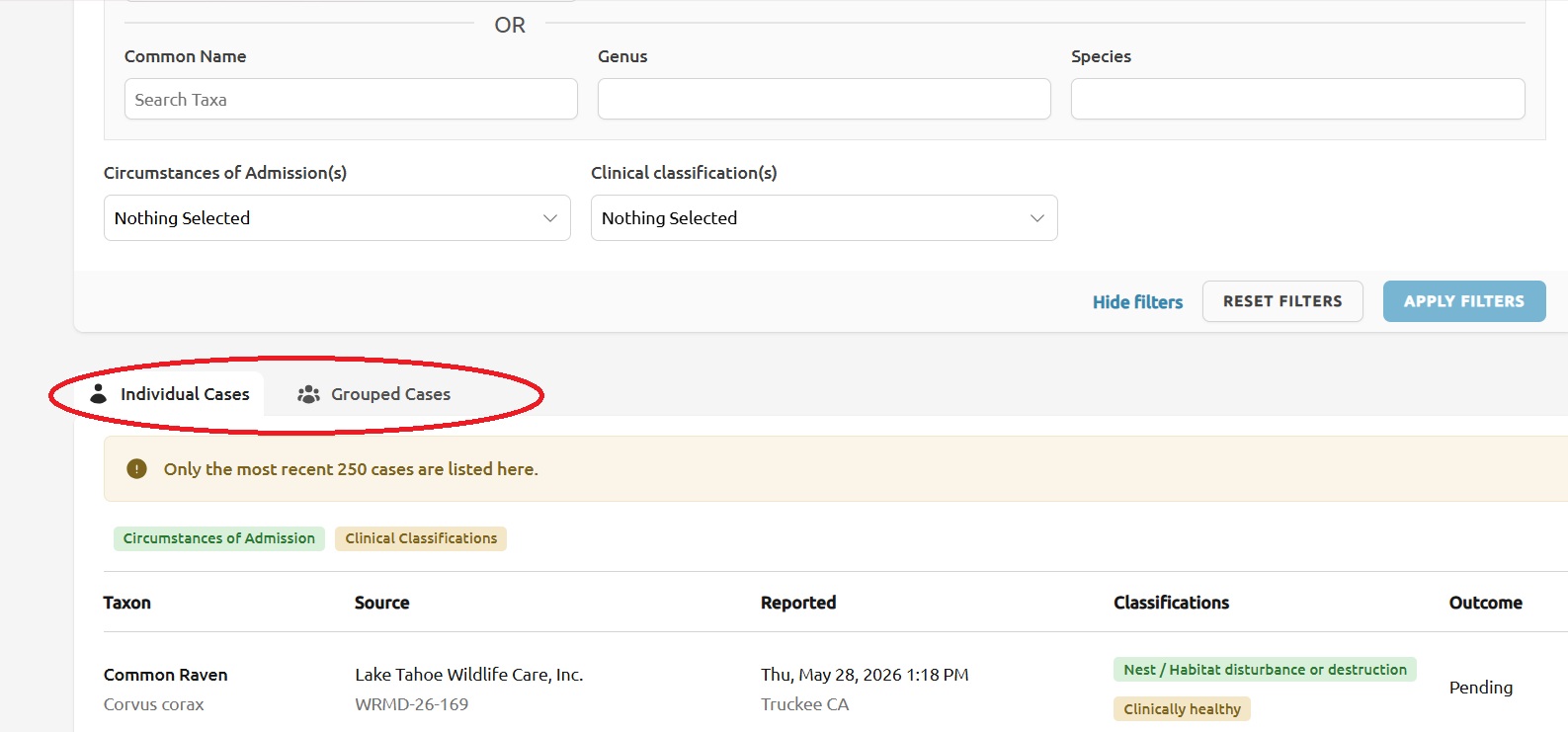
Tabs above the table let you switch between two views of the same filtered data:
- Individual Cases — one row per case, showing taxon, source organization, reported date, outcome, and matched classifications.
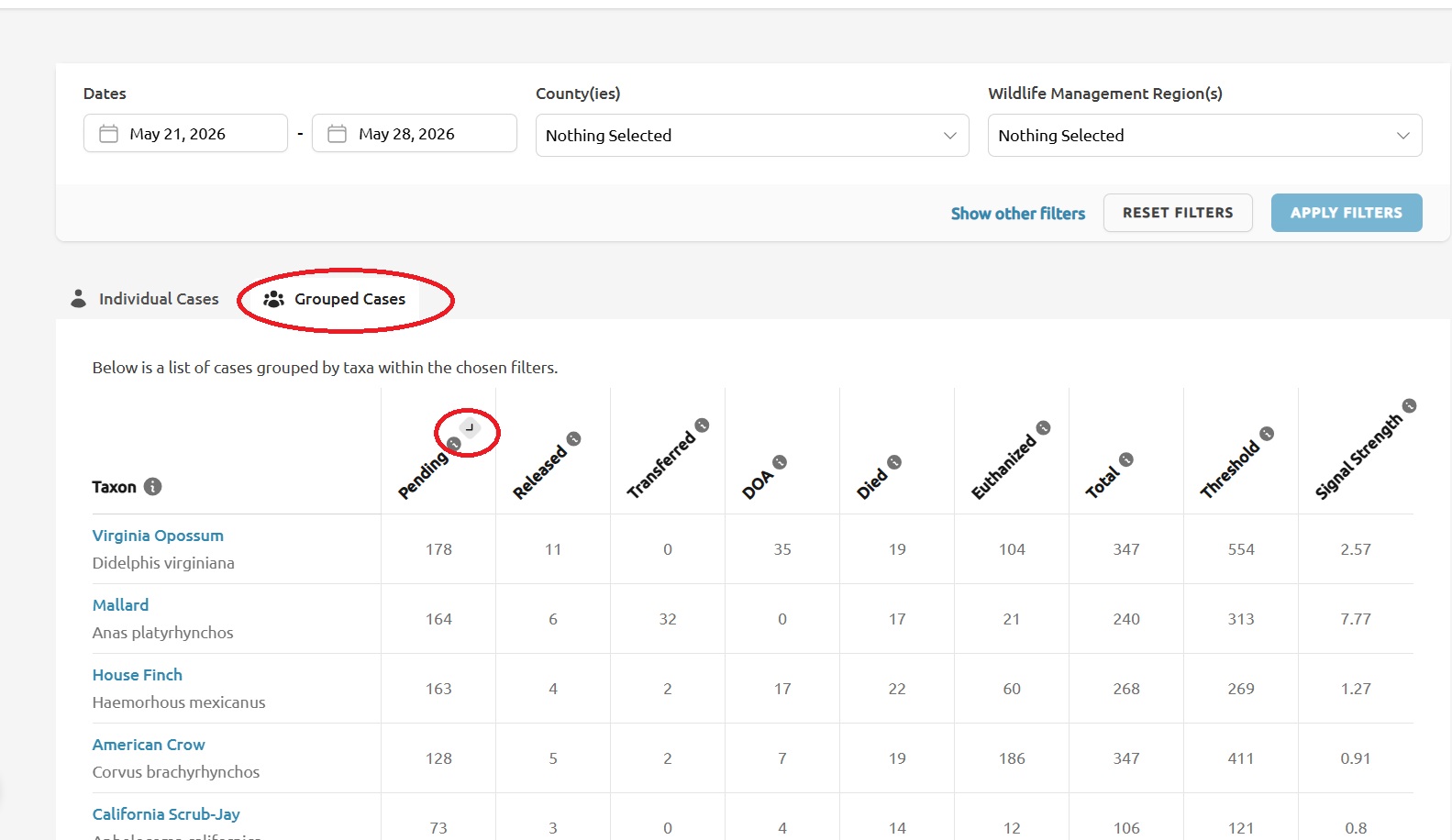
- Grouped Cases — rows grouped by taxon, with totals for each outcome (Pending, Released, Transferred, DOA, Died, Euthanized), a Total, the calculated Threshold, and the Signal Strength, which shows how strongly the latest case count signals an anomaly relative to the threshold.
Step 4 — Sort columns
In the Grouped Cases view, click any column header to sort by that column. Click again to reverse the direction. Your sort and the active tab are kept in sync so the page remembers your view as you switch tabs or refine filters.
Step 5 — Read the row cap notice
The Cases page shows the most recent 250 matching cases at a time. If your filters return more than that, a notice will appear at the top of the table. Narrow the date range or add more specific filters if you need to see a particular case that falls outside the displayed window.