Using the Case Summary Dashboard
This tutorial explains how to use the Case Summary page for oiled wildlife patients. The Case Summary provides an at-a-glance overview of the patient's vitals, evidence photos, clinical status, care logs, and daily tasks.
Accessing the Case Summary Page
- Navigate to an oiled patient's record.
- Click the Case Summary tab in the patient navigation menu.
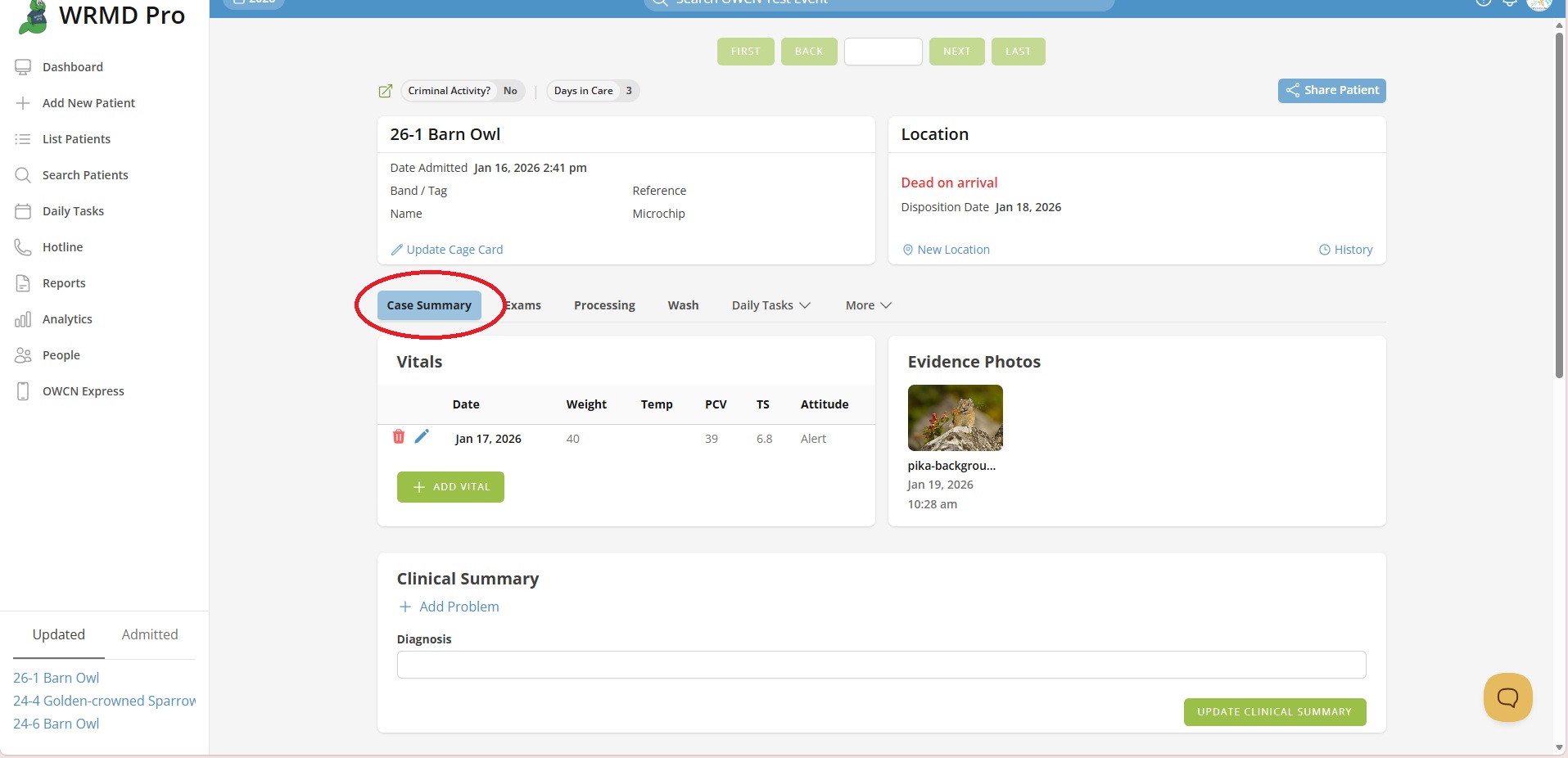
Vitals Table
The Vitals panel displays a chronological record of the patient's vital signs.
Viewing Vitals
The table shows the following measurements for each recorded entry:
- Date - When the vitals were recorded
- Weight - Body weight in grams
- Temp - Body temperature in Fahrenheit
- PCV - Packed Cell Volume (percentage)
- TS - Total Solids (g/dl)
- Attitude - The animal's demeanor/behavior
Adding a Vital Record
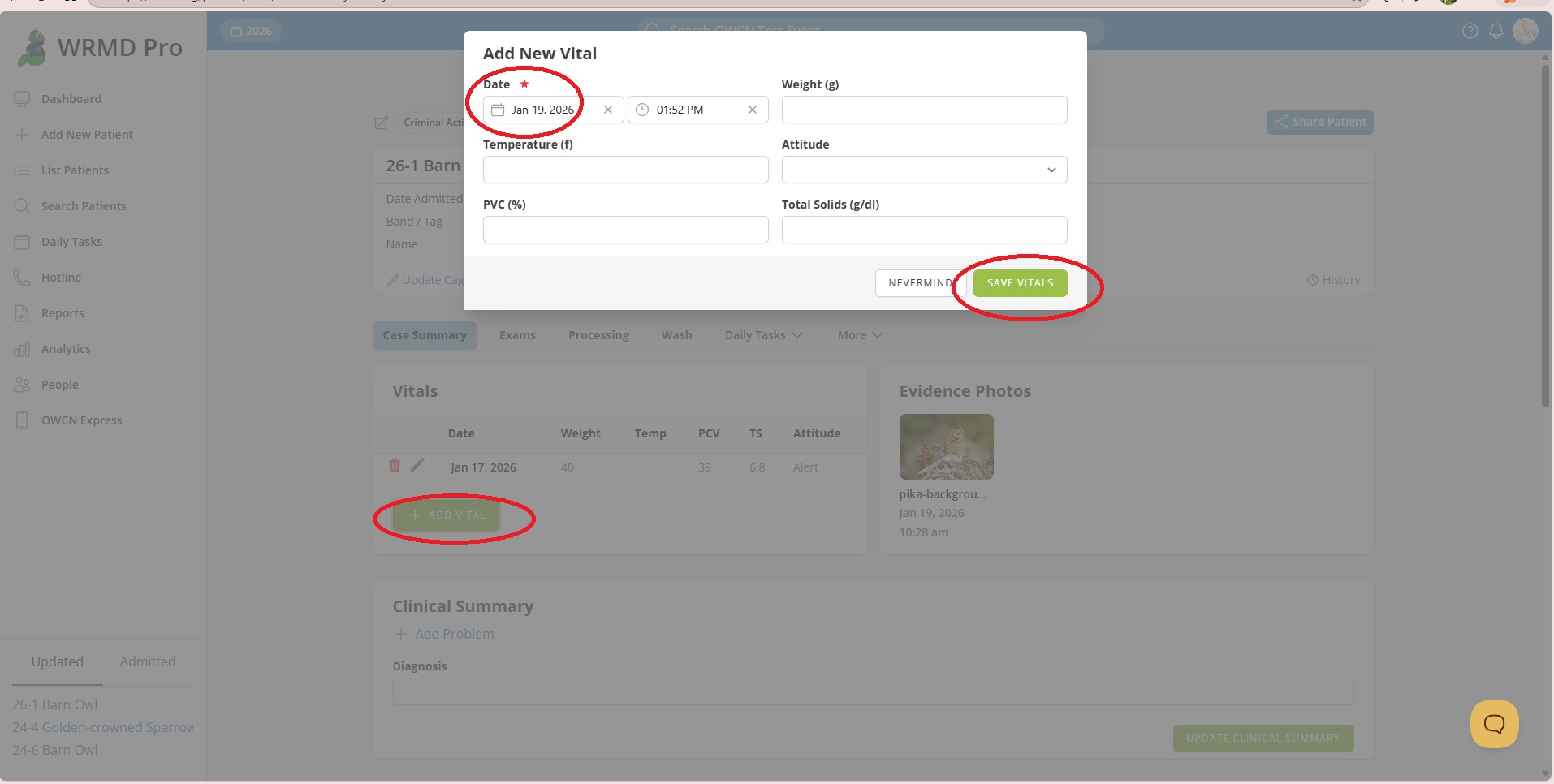
- Click the Add Vital button below the vitals table.
- A modal window will open with the vital record form.
- Enter the Date and time the vitals were recorded.
- Enter measurements for any of the following fields:
- Weight (g) - Body weight in grams
- Temperature (f) - Body temperature in Fahrenheit
- Attitude - Select from the dropdown menu
- PCV (%) - Packed Cell Volume percentage
- Total Solids (g/dl) - Total protein measurement
- Click Save Vitals to create the record.
Tip: You don't need to fill in every field. Record whatever measurements are available for that evaluation.
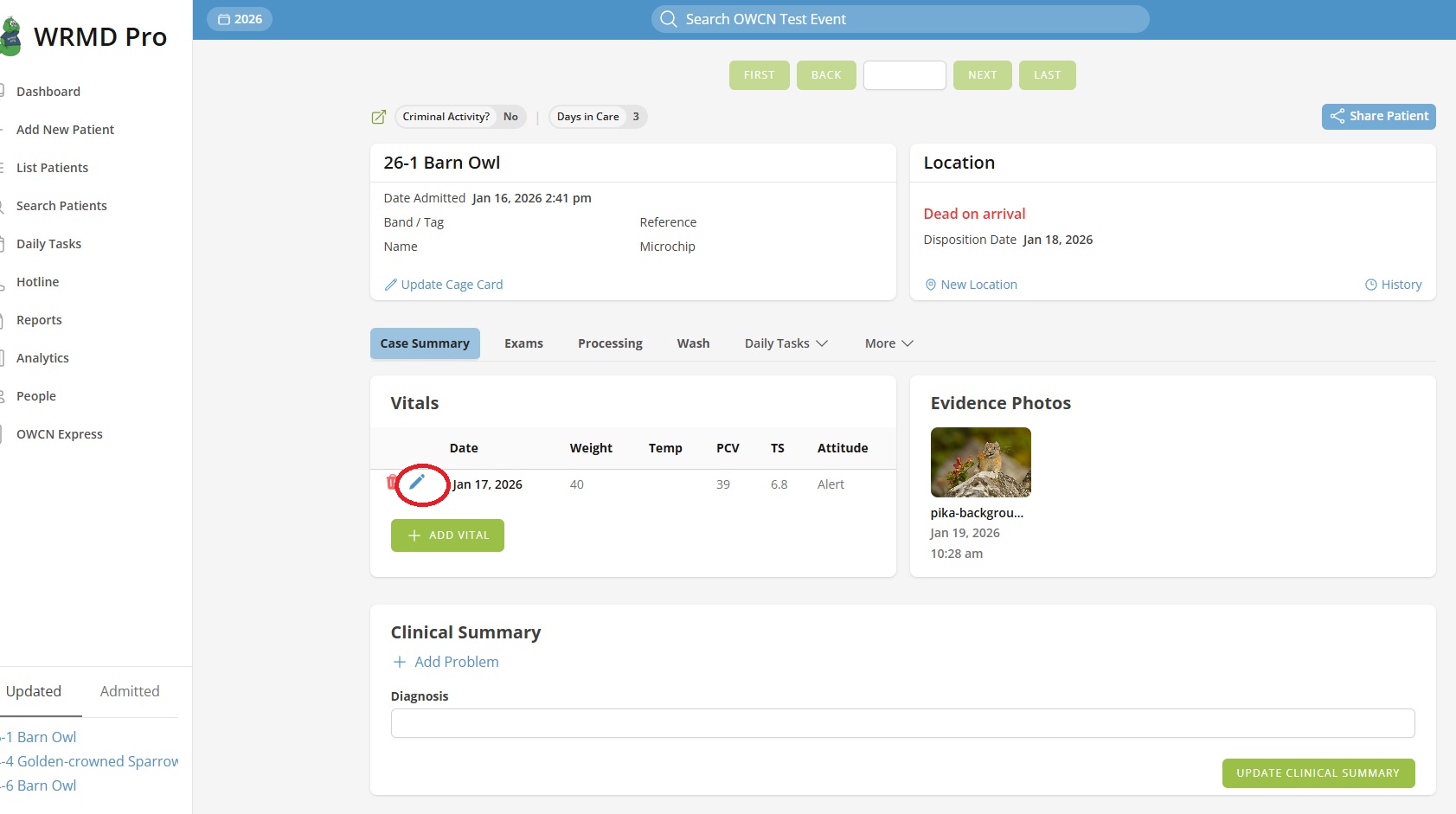
Editing a Vital Record
- Click the edit button (pencil icon) on the row you want to modify.
- Update the values in the modal window.
- Click Save Vitals to save your changes.
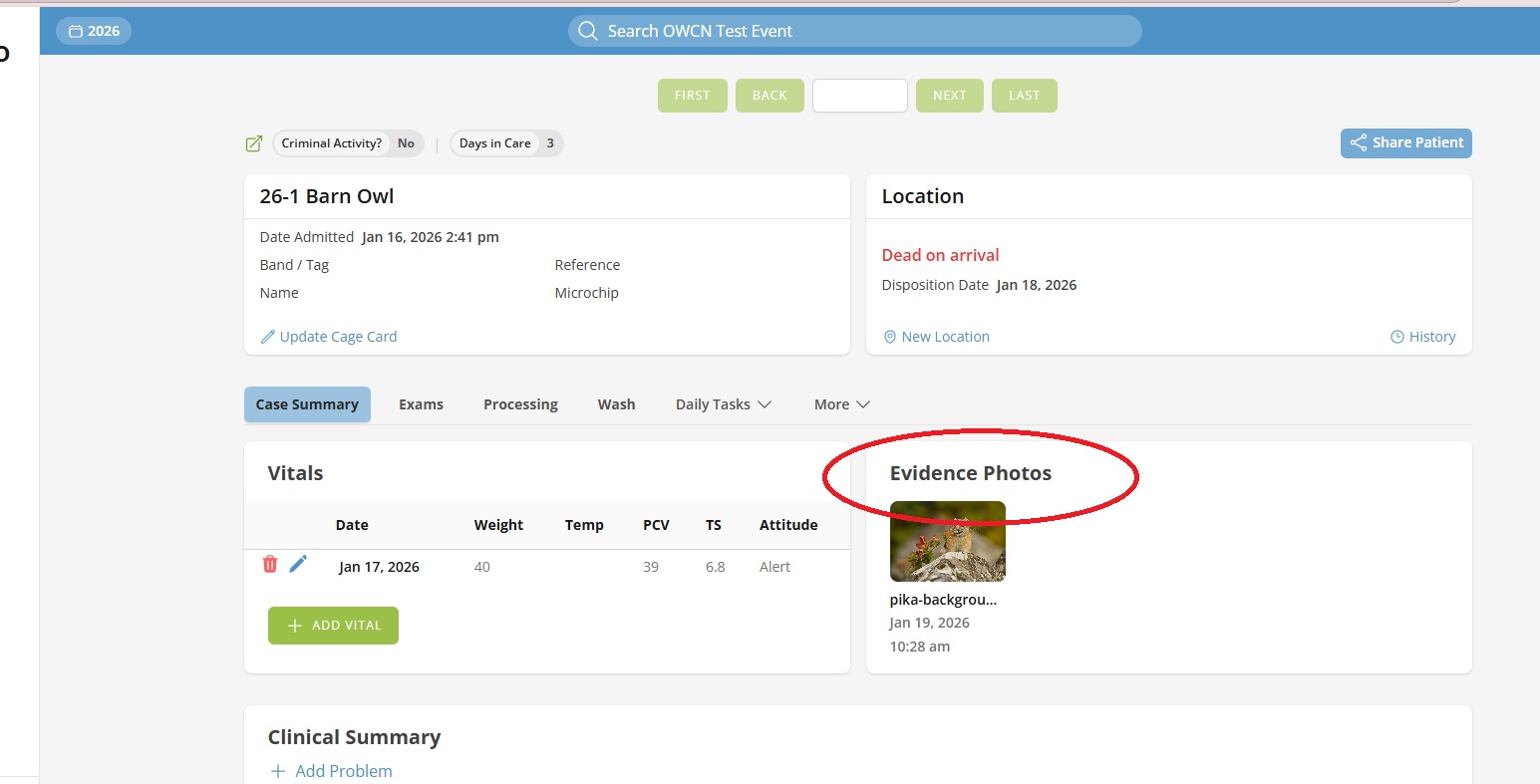
Evidence Photos
The Evidence Photos panel displays all evidence photographs uploaded for this patient. These photos are typically uploaded from the Processing page and serve as documentation of the animal's condition upon intake.
Note: To upload new evidence photos, navigate to the Processing page and use the media uploader in the Evidence section.
Clinical Summary
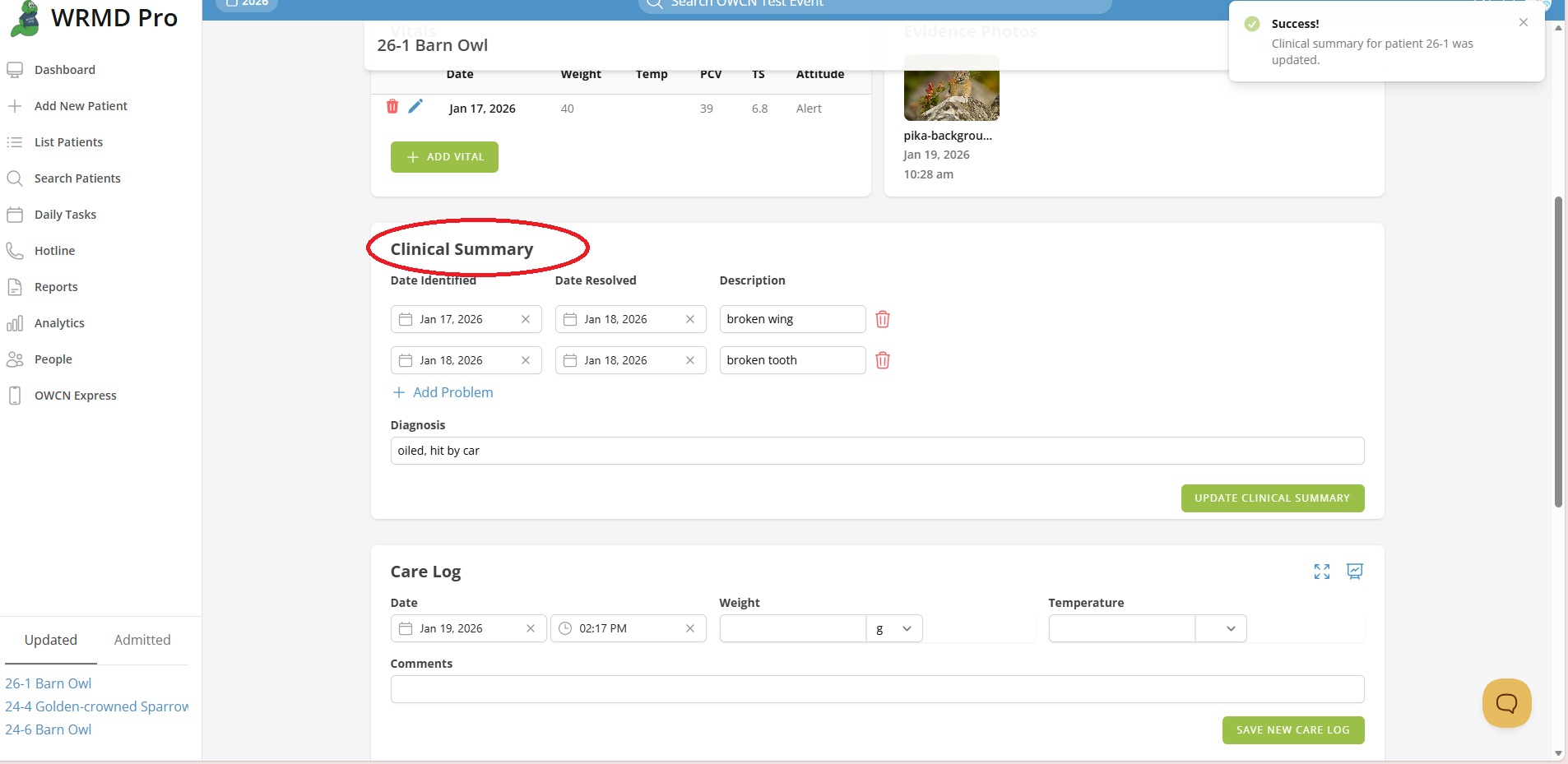
The Clinical Summary section documents the patient's diagnosis and clinical status.
Editing the Clinical Summary
- Update the Diagnosis field with the clinical diagnosis.
- Add any relevant Problems from the available options.
- Select applicable Clinical Classifications to categorize the case.
- Select Categorization of Clinical Signs to document observed symptoms.
- Click Update Clinical Summary to save your changes.
Tip: The Clinical Summary auto-saves when you make changes, but you can also manually save using the update button.
Care Log
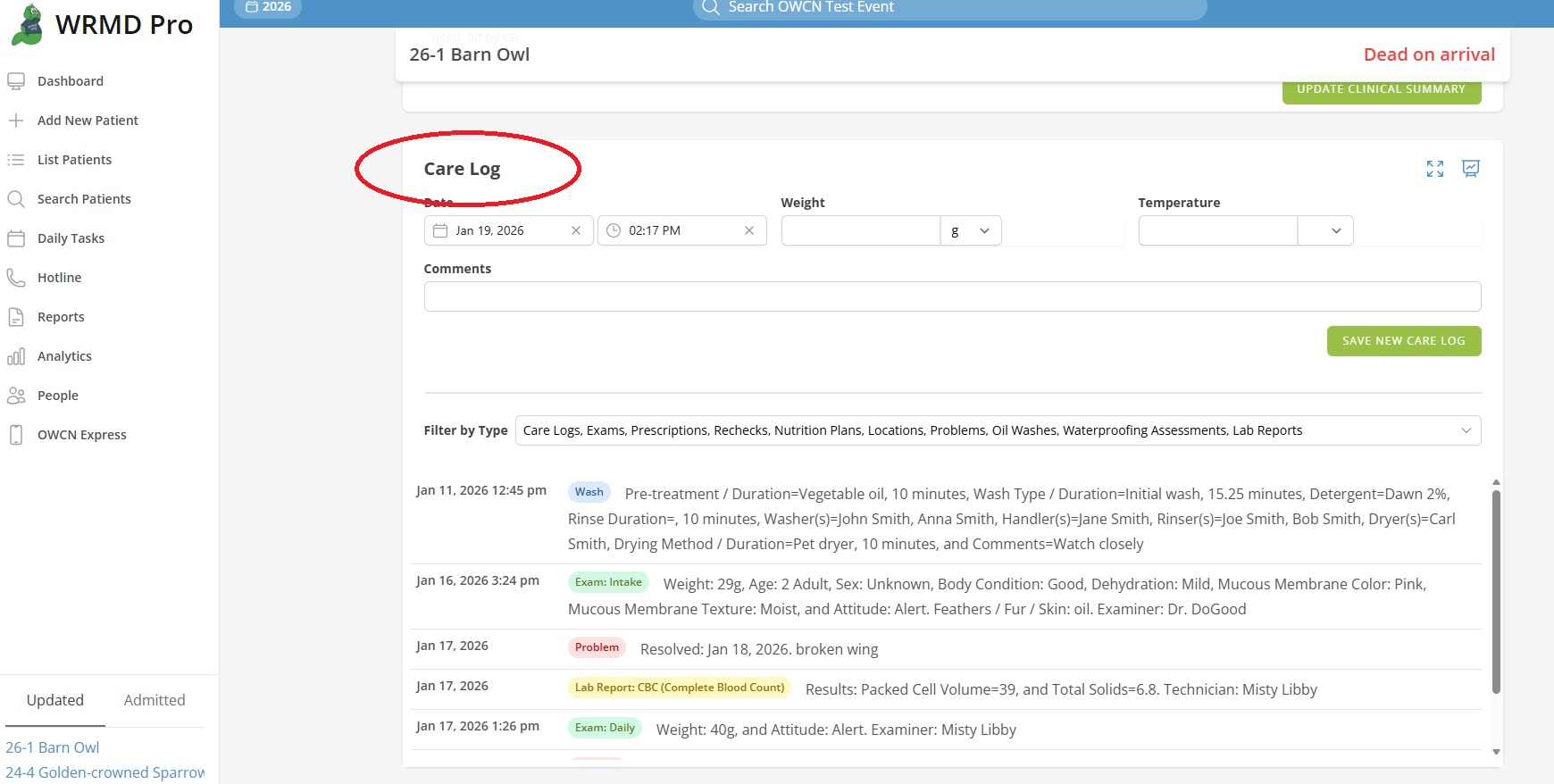
The Care Log section tracks ongoing care activities and observations for the patient.
Viewing Care Logs
Care log entries display:
- Date and time of the entry
- Type of log entry
- Description or notes
- Person who created the entry
Adding a Care Log Entry
- Click the button to add a new care log entry.
- Select the Log Type from the dropdown menu.
- Enter the details of the care provided or observation made.
- Click to save the entry.
Daily Tasks
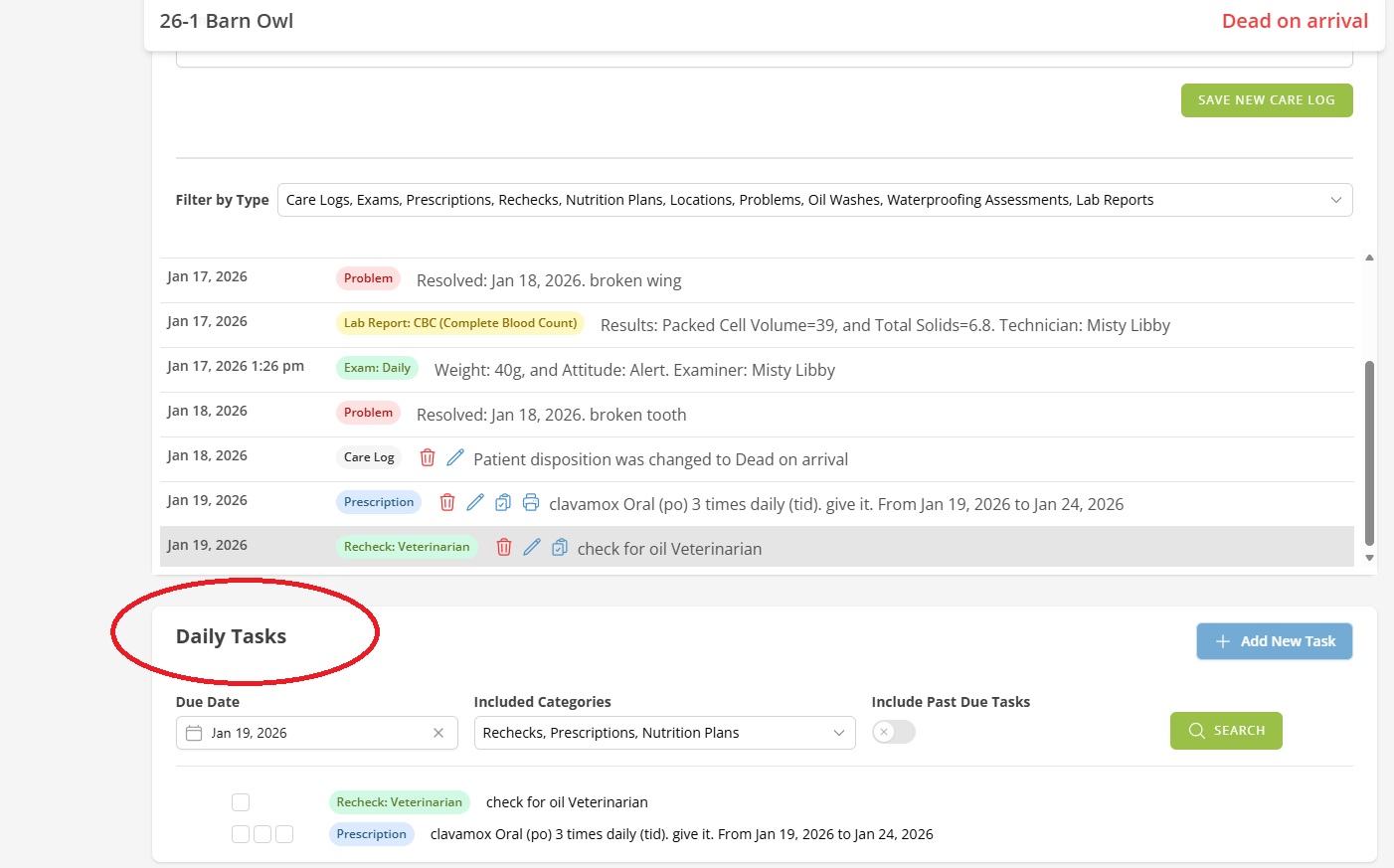
The Daily Tasks section helps manage scheduled tasks and treatments for the patient.
Viewing Tasks
Tasks are displayed with:
- Task description
- Scheduled date and time
- Category
- Completion status
Filtering Tasks
Use the available filters to view:
- Tasks for specific dates
- Tasks by category
- Completed or pending tasks
- Past due tasks (highlighted for attention)
Managing Tasks
- Mark tasks as complete when finished.
- Review past due tasks and address any missed items.
- Add new tasks as treatment plans evolve.
Summary
The Case Summary page serves as a central hub for monitoring an oiled patient's progress. Use it to:
- Track vital signs over time to monitor health trends
- Review evidence documentation
- Maintain clinical diagnosis and problem lists
- Log ongoing care activities
- Manage daily treatment tasks