Indicating Daily Task Status
In this tutorial, you will learn how to indicate your daily task status.
Indicators of Daily Tasks
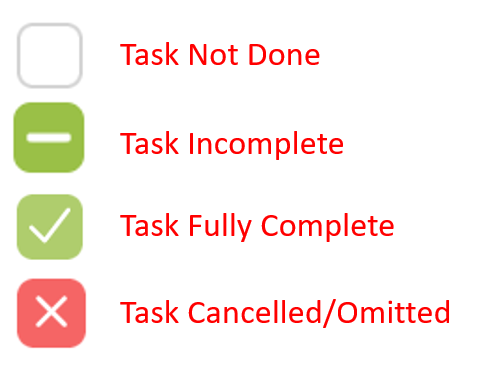
The checkbox next to the patient's name or action in the Daily Task list offers a convenient way to denote a task's status as complete, incomplete, or canceled. You can click in the box one to three times to access the following indications:
Marking Completed Actions
Clicking the box one time next to any task will display a checkmark for that action indicating that it is complete. Marking the box next to the patient's name will automatically mark all actions related to that patient with a checkmark indicating all tasks associated with that patient have been completed.
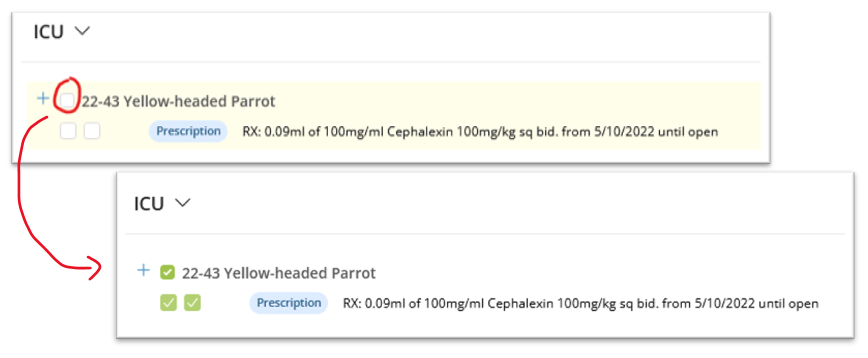
Completed and Pending Actions
For tasks that occur multiple times a day, check-marking a single action in the series will show a single action taken is complete, but others remain pending. A pending task for a patient is represented by a horizontal line next to the patient's name and an empty box still awaiting action.

Cancelling Actions
Clicking twice in a box will display a Red X, indicating that it was determined that the action was no longer needed. It does not delete the action or change the future action.

Resetting Marks
Clicking on the box a third time will clear all the marks.
Hiding Completed Tasks
You can click the Hide Completed Patients toggle switch as you work through your daily tasks and mark patients as complete. This action removes from view the patients you've finished working on. This feature helps you stay focused on the patients who still need your attention.
