Editing a Current Daily Task
In this tutorial, you will learn how to edit a task from the Daily Tasks feature.
Only Admin and designated individuals have access to editing functions.
WRMD does not allow you to delete rechecks, prescriptions, nutritional plans, or notes from the Daily Tasks menu. However, you can make reasonable edits should you make a mistake.
Option 1: Editing an Action on the Daily Task List
Step 1
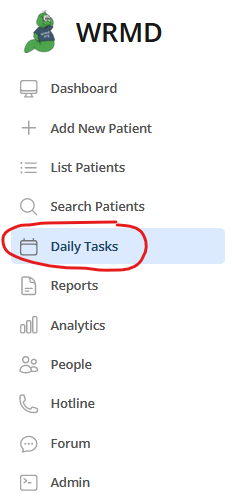
After you have logged in, navigate to the Daily Tasks link in the left sidebar.
Step 2
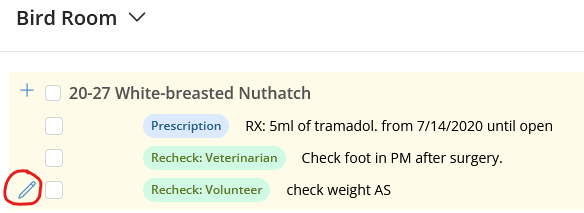
To access the editing function, hover above a task to be edited and click the pencil icon.
Step 3
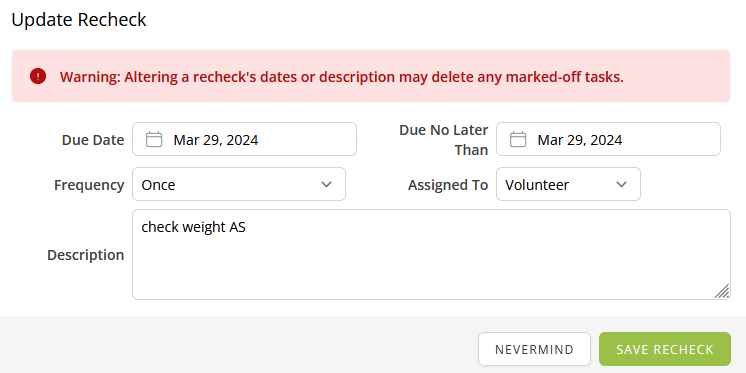
You will receive a warning, indicating that altering an action or description may delete any marked-off tasks. If you still wish to continue, make your changes and click the Save Button.
Option 2: Cancel the Action on the Daily Task List
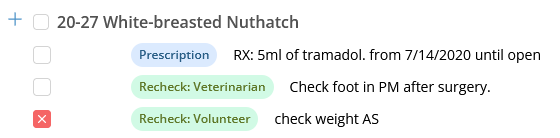
An alternative method of editing an action is simply to cancel it with a Red X and create a new task. This will not make
Step 1
Navigate to the action you want to modify under the patient's name. Click on the checkbox three times until you see a Red X.
Option 3: Edit the Daily Action on the Patient Record
Step 1
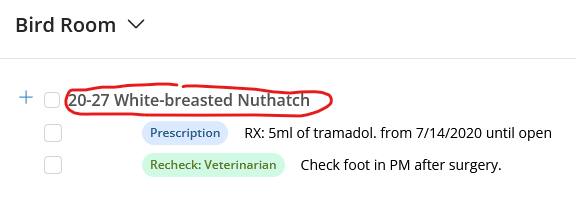
Navigate to the patient's record by clicking on the patient's name.
Step 2
Navigate to the patient's record by clicking on the patient's name.
Step 3
Navigate to the Continued Care tab in the patient's record. Daily Tasks are displayed within that tab.
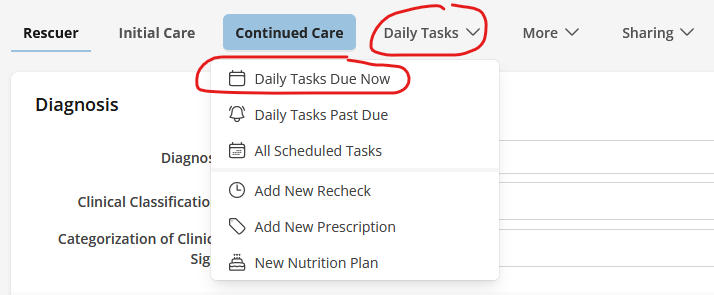
Step 2
To access the editing function, hover above a task to be edited and click the pencil icon.
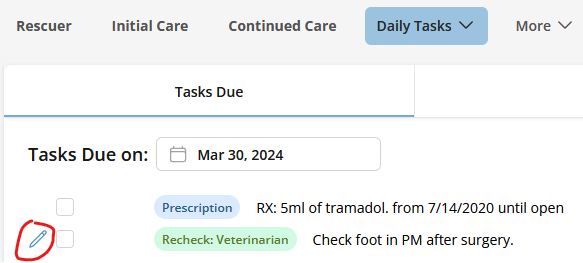
Step 3
You will receive a warning, indicating that altering an action or description may delete any marked-off tasks. If you still wish to continue, make your changes and click the Save Button.