Creating a New Care Log Comment from Daily Tasks
In this tutorial, you will learn how to create a New Comment from the Daily Task Menu.
Step 1
Visit https://www.wrmd.org/signin and log into your account using the username and password that you registered with.
Step 2
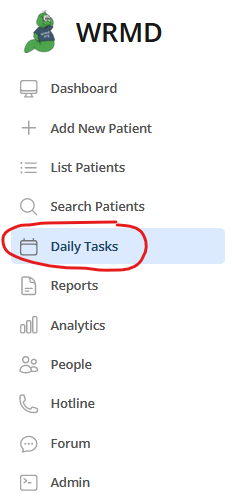
On the left sidebar choose Daily Tasks. This will give you a list of patients with scheduled rechecks.
Step 3
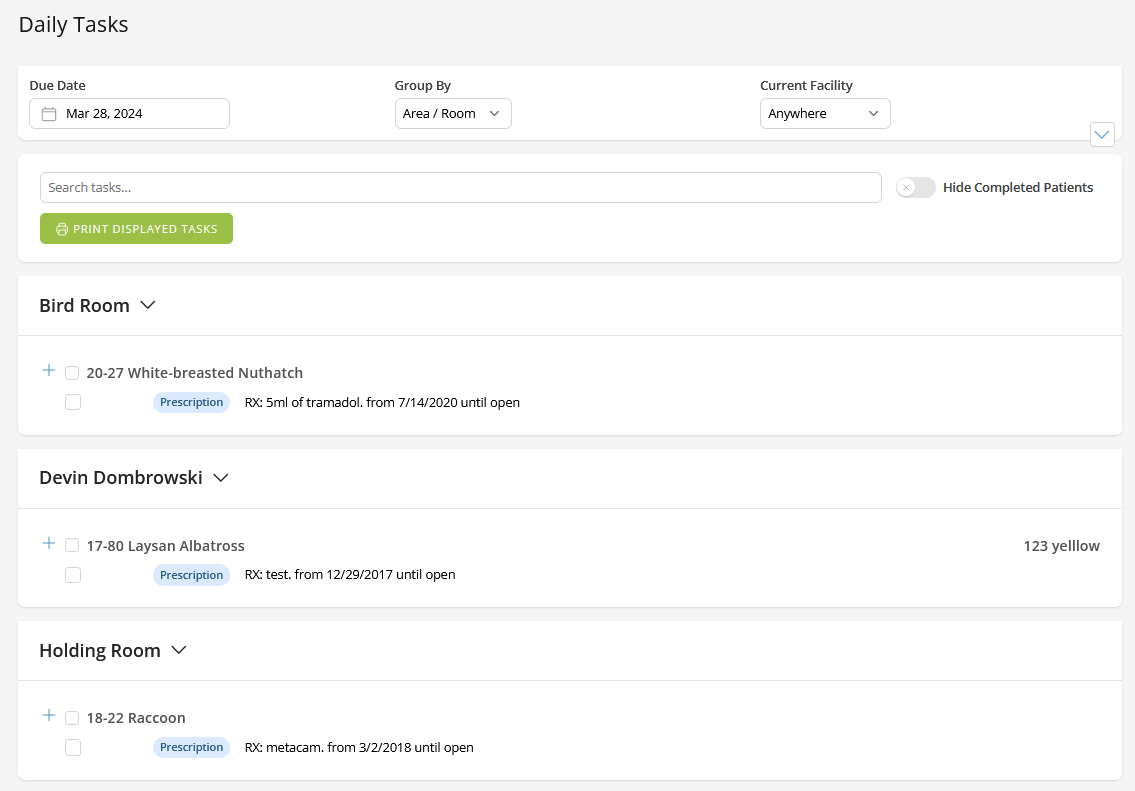
Set your Daily Task list by selecting the parameters for how you want to view them
- The date
- The date will default to the current day, but you can click the calendar to change the date to a point in the future or the past.
- Group by:
- Specify the area/room, enclosure, or type to narrow down which patients to focus on for the day.
- Current Facility
- Narrow down the list of daily tasks by choosing the facility you'd like to view such as the clinic, off-site, home-care, or none assigned.
Step 4
Choose the patient you wish to update.
Step 5
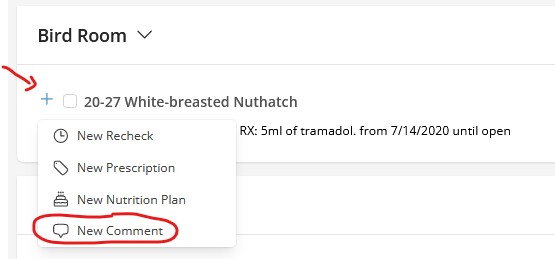
Click the Add Task button next to the patient's name and click Add Care Log Comment from the drop down menu.
Step 6
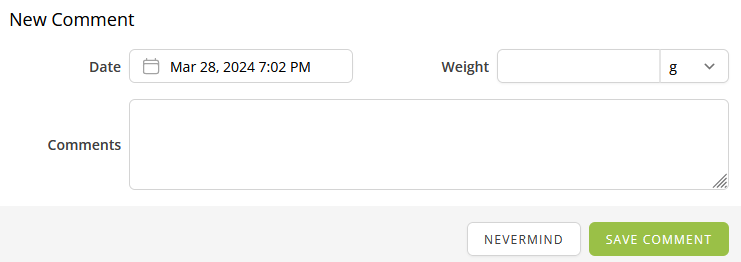
In the popup window, fill in all the necessary fields. The form captures the Date, Time, Weight, Temperature, and Comments for the care log entry.
Step 7
Click the Save Comment button to save your inputs into the patient's record. If you wish to cancel your inputs, click Nevermind.