Creating a New Recheck in Daily Tasks
In this tutorial, you will learn how to create a New Recheck from the Daily Task Menu.
Step 1
Visit https://www.wrmd.org/signin and log into your account using the username and password that you registered with.
Step 2
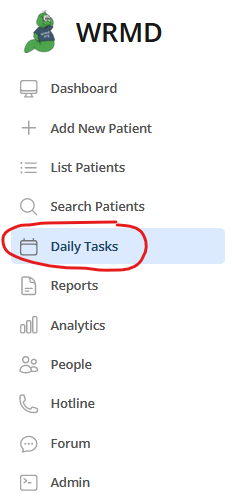
On the left sidebar choose Daily Tasks. This will give you a list of patients with scheduled rechecks.
Step 3
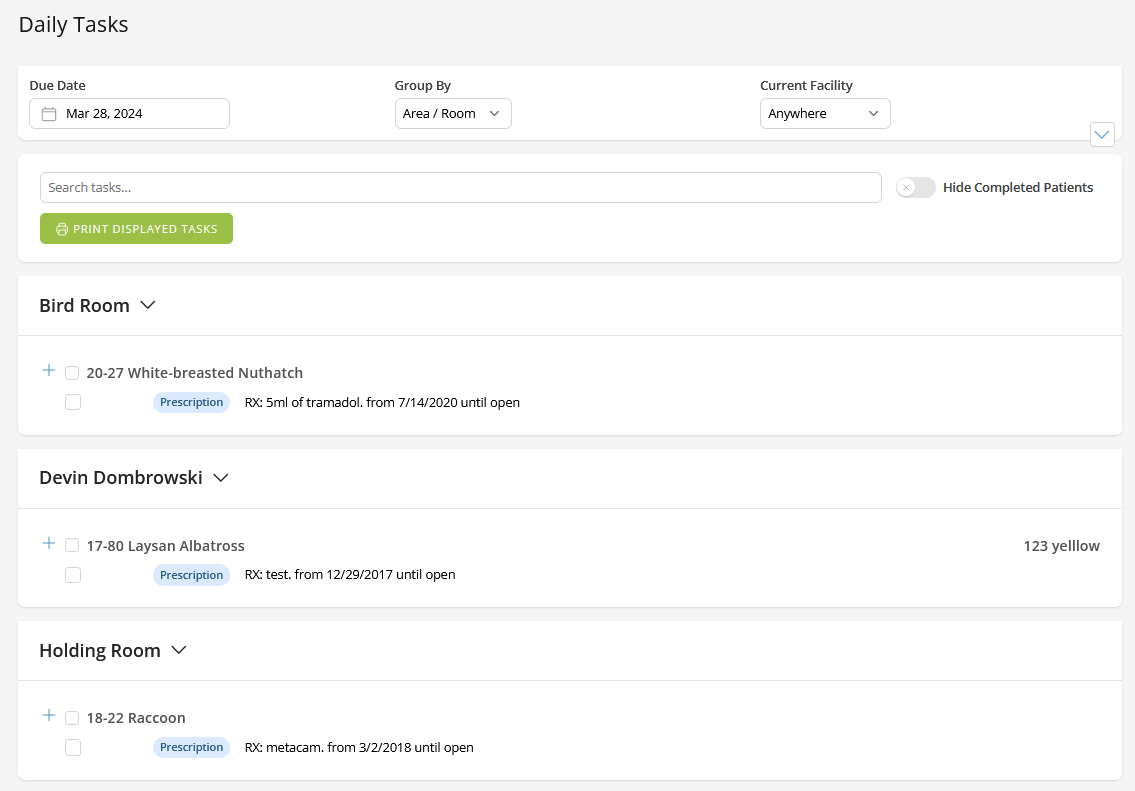
Set your Daily Task list by selecting the parameters for how you want to view them
- The date
- The date will default to the current day, but you can click the calendar to change the date to a point in the future or the past.
- Group by:
- Specify the area/room, enclosure, or type to narrow down which patients to focus on for the day.
- Current Facility
- Narrow down the list of daily tasks by choosing the facility you'd like to view such as the clinic, off-site, home-care, or none assigned.
Step 4
Choose the patient you wish to update and do your evaluation or assessment.
Step 5
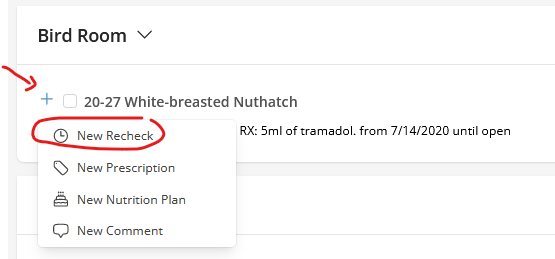
Click the Add Task button next to the patient's name and click Add Recheck from the dropdown menu.
Step 6
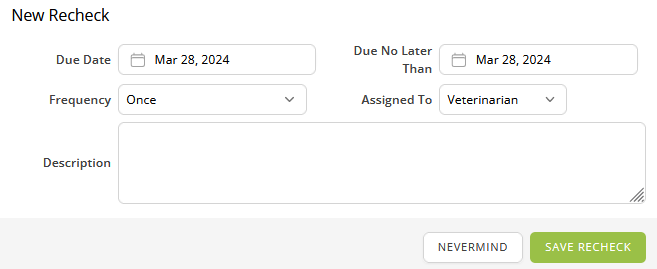
In the popup window, fill in the Due Date for the recheck (defaults to today), set the Frequency at which to administer the action, choose who the recheck is Assigned To, and give a brief Description of the action. If you select a recurring frequency (not a single dose), a Due Until date field will also appear.
Step 7
Click the Save Recheck button to save your inputs into the patient's record. If you wish to cancel your inputs, click Nevermind.