Overview of Daily Tasks
In this tutorial, you will get an overview of the Daily Tasks feature, helping you streamline your patients' daily scheduled tasks.
About Daily Tasks
Daily Tasks is a helpful tool in WRMD that helps you stay organized so that no patient is forgotten when conducting rechecks. You can see all your appointments for the day in one place. From the Daily Task page, you can easily access each patient's details, write notes, update prescriptions, set up follow-up appointments, and mark them as done—all within WRMD.
Overview of Daily Tasks
Step 1
Visit https://www.wrmd.org/signin and log into your account using the username and password that you registered with.
Step 2
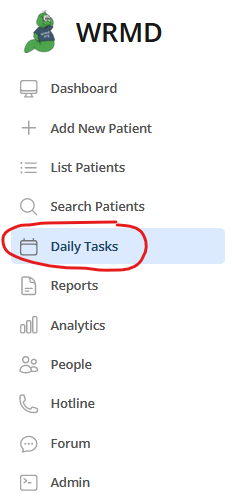
To access Daily Tasks, go to the left sidebar and choose Daily Tasks.
Step 3
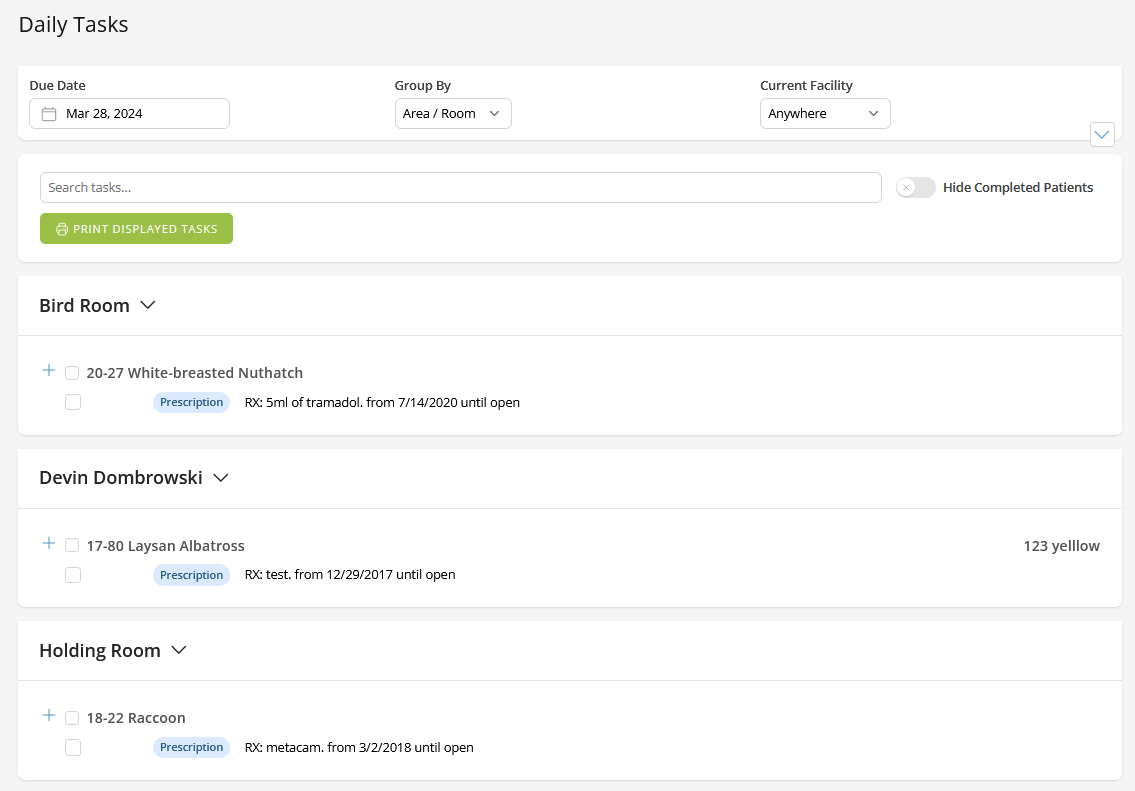
A list of all your tasks for the day will appear. There will be three features you can adjust if you wish:
- The date
- The date will default to the current day, but you can click the calendar to change the date to a point in the future or the past.
- Group by:
- Specify the area/room, enclosure, or type to narrow down which patients to focus on for the day.
- Current Facility
- Narrow down the list of daily tasks by choosing the facility you'd like to view such as your clinic, off-site, home-care, or elsewhere.
Step 4
If your list is long, and you want to access a certain patient or a group of species from the daily list, you can use the search tool to pull up that species or patient's specific scheduled task. You can search by species name (i.e.: raccoon) or their specific file number if you know it (i.e.:18-22). To return to the full list of patients, simply remove the name in the search field.

Step 5
You can click the Hide Completed Patients toggle switch as you work through your daily tasks and mark patients as complete. This action removes from view the patients you've finished working on. This feature helps you stay focused on the patients who still need your attention.

Updating a Patient's Daily Tasks
While you can create rechecks, prescriptions, nutrition plans, and comments directly in the patient's record, the Daily Tasks feature makes it easy to update your patients' records without leaving the Daily Tasks page.
Step 1
When you click the Add Task button next to the patient's name, a dropdown menu appears, showing you five actions you can take: (1) Add Recheck, (2) Add Prescription, (3) Add Nutrition Plan, (4) Add Location, or (5) Add Care Log Comment.

Step 2
Clicking on a new action in the dropdown menu activates a popup box window where you can fill in information related to the action you chose. Your updates will automatically be recorded in the patient's record. You won't need to leave the Daily Tasks list or navigate to the patient record

Marking a Daily Task as Complete
To indicate that a patient's daily task has been completed, click the box next to the specific action or a specific patient. The task's completion status is indicated as follows:
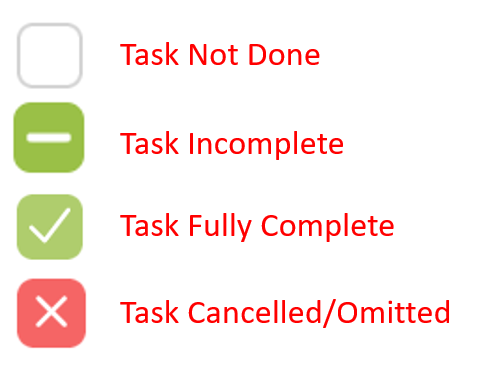
Clicking the box next to the patient's name will automatically mark all actions related to that patient as complete. You will see a checkmark.
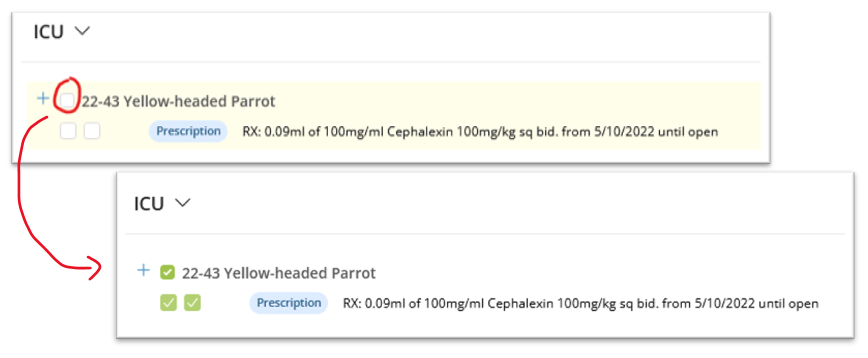
Marking the action under the patient's name will show a single action taken is complete, but others remain pending. This is represented by a horizontal line next to the patient, a checkmark next to the action, and an empty box still awaiting action.

Clicking twice in a box will display a red X, indicating that it was determined that the action was no longer needed. It does not delete the action or change the future action.

Clicking on the box a third time will clear all the marks.
Accessing the Patient Record Through Daily Tasks
You can easily access a specific patient record by clicking on the patient's name in the Daily Task list.

Accessing Daily Tasks from the Patient Record
In the Patient Record, you can find a patient's current, past, and upcoming scheduled tasks within the Daily Task Tab. While accessing this tab will be covered in another tutorial, reviewing it is an excellent way to verify that the updates you made in the daily task list have been properly inputted.

Printing Daily Tasks
If you would rather work in a paper-based format or have a paper list of Daily Tasks available should you anticipate a loss of power, you can print out the Daily Task list by clicking the Print displayed tasks button. You could work off the paper list and input patient information later on.

This will open a popup window where you can print or download a PDF of your daily scheduled tasks.
