Custom Fields
In this tutorial, you will learn how to create custom fields to record unique bits of data on your patients that may not be included or do not quite fit into any Native Wildlife Rehabilitation MD fields.
About the Custom Fields Extension
It is important for us to mention that you should NOT reach for creating a custom field just because you want to record something in a slightly different manner than the way WRMD does it. We strongly encourage you to use WRMD's built-in fields so that data is used in the same way among all WRMD users. When everyone uses the software in the same way, data across the entire system is normalized and standardized. You should only use a custom field if there is something very unique or specific to your organization that is necessary for you to record so that you can take better care of your patients.
Activating the Custom Fields Extension
Note: Users with Admin status are able to access the Extension Features in Settings.
Step 1
Visit https://www.wrmd.org/signin and log into your account using the username and password that you registered with.
Step 2
Access your account settings. Click on the circle picture in the top right corner and choose Settings from the drop-down menu.

Step 3
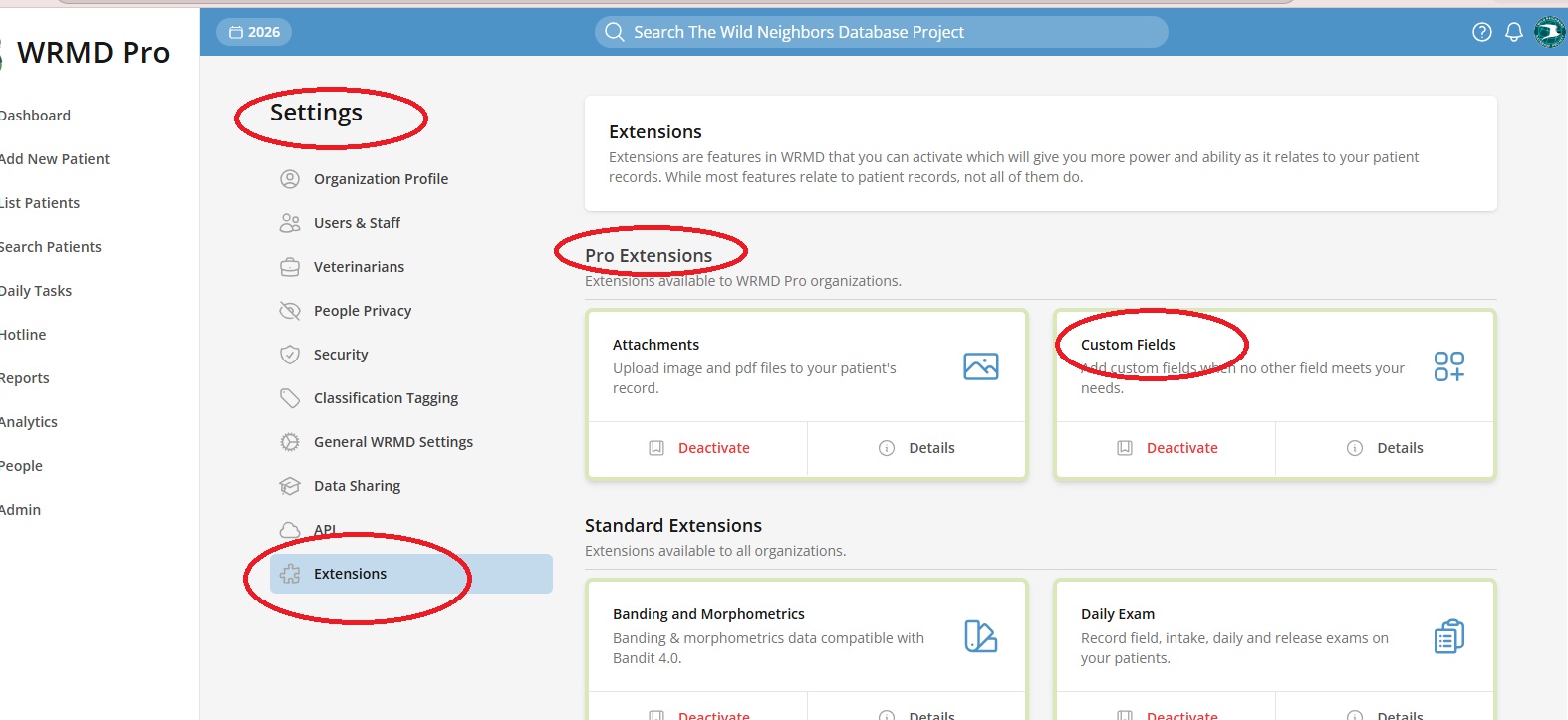
On the Settings sidebar, click on Extensions. Find the Custom Fields extension and click Activate.
Creating Custom Fields
Step 1
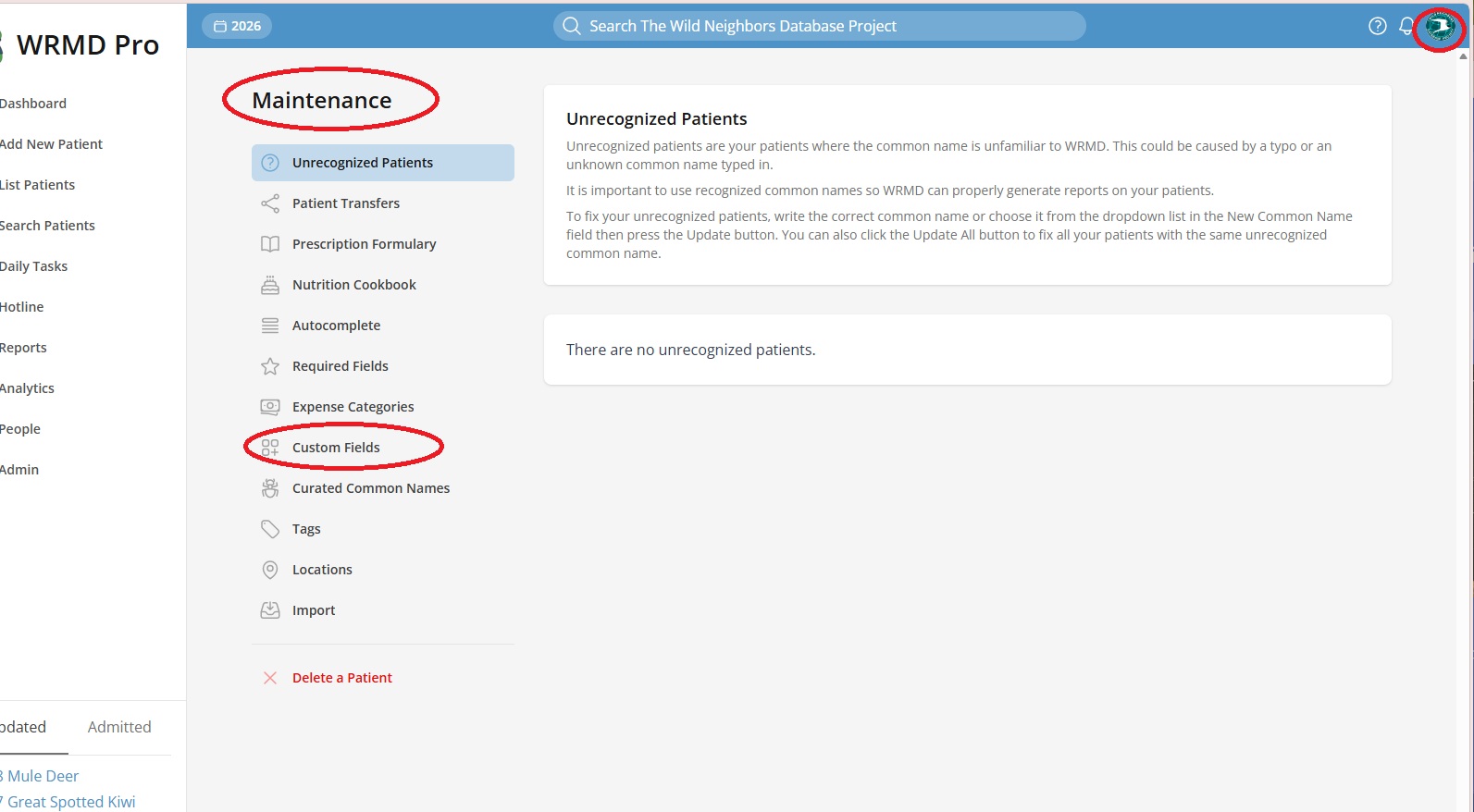
Once the extension is activated, go to Maintenance (click your avatar in the top right and choose Maintenance) and then click Custom Fields in the sidebar.
Before creating your custom field, please be aware that you may only create up to the number of custom fields allowed by your plan. Before creating your custom field, make sure that you are not replicating a field that already exists in WRMD. It is better to have your data following the same standards as other WRMD accounts to ensure consistency of data collected on each patient.
Click on the New Custom Field button.

Step 2
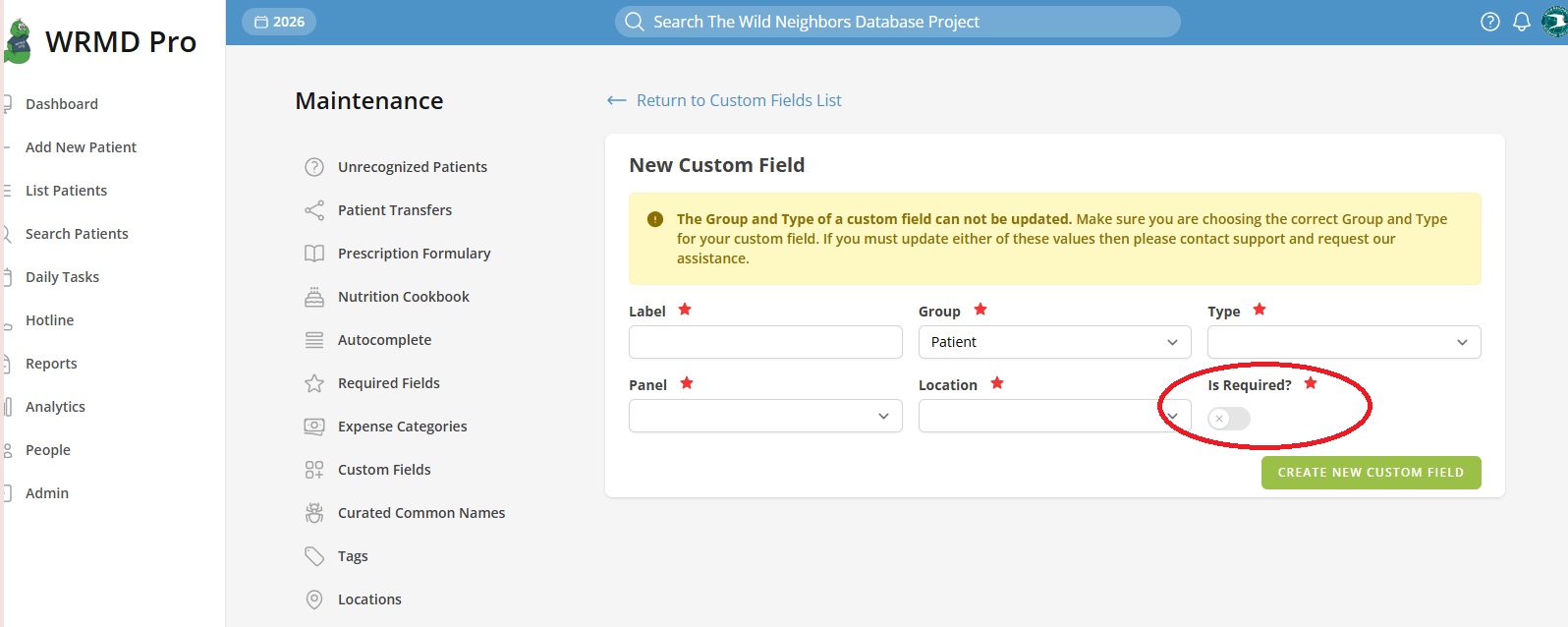
Type a name for your field in the Field Label textbox. This is a required text field.

Step 3
Choose the Type from the drop-down menu. You have several options to choose from:
- text: for small areas of text or combinations of text and numbers
- text area: for large areas of text or combinations of text and numbers
- datetime: for date and time details
- number: for numbers specifically, no text
- select: to select given data. You will need to list specific options in the Options category.
- boolean: represents values of true/false or yes/no
- checkbox-group: multiple choice checkbox. You will need to list specific options in the Options category.
- radio-group: single choice buttons. You will need to list specific options in the Options category.

Step 4
Choose the Group from the drop-down menu. This defines which group of patient data this custom field belongs to. If you select the Patient group, you will also be prompted to choose a Panel — this determines which section of the patient record the field appears in. The panel options are:
- cage card
- diagnosis
- outcome
- intake

Step 5
Choose the Location from the dropdown menu. Location refers to the specific location on the panel you have chosen in Step 4. You can choose at the top or bottom of the panel.

Step 6
If you have indicated a field that requires users to make a selection (selection, checkbox, radiogroup), you will need to type your drop-down choices in the Options textbox as a comma separated list without any spaces. These options should be specific to the field you are creating.

Step 7
Choose if the field is required or not.
Step 8
Click the green Create New Custom Field button.

Deleting Custom Fields
If you have discovered that your custom field is not useful for you or there is a more appropriate place in WRMD to record the information, you can always delete a custom field. However, deleting a field (and all its data, respectively) is 100% permanent and cannot be undone, so be certain that your action to delete the field is in your best interest.
Step 1
Click on Custom Fields in the Maintenance sidebar.
Step 2
Click on the Edit link next to the field you want to delete.

Step 3
On the edit page, scroll down to the Delete Custom Field section. Read the warning carefully — once you delete a custom field, there is no going back. This action cannot be undone, and it will permanently delete the custom field and remove all its saved values.
Click the red Delete Custom Field button. You will be prompted to confirm your WRMD password before the deletion proceeds.

Your field and all its information will be permanently removed.

Editing Custom Fields
Step 1
Click on the Custom Fields link in the Maintenance sidebar.
Step 2
Click on the Edit link for the field name you wish to edit. You will be taken to a dedicated edit page for that field.
Step 3
Make your changes to the custom field details on the edit page.
Step 4
Click on the green Update Custom Field button.
