How to Delete and Restore a Hotline Incident
In this tutorial, you will learn how to delete and restore hotline incidents.
Deleting a Hotline Incident
Step 1
Visit https://www.wrmd.org/signin and log into your account using the username and password that you registered with.
Step 2
Click on the Hotline Link in the Quick Links tab.

Step 3
Locate the incident on the Hotline Index Page under the Open tab or Resolved Tab. You can also search for the incident using the Search Hotline Incident button.

Step 4
Click on the hyperlinked incident number to open the specific incident you are looking for.

Step 5
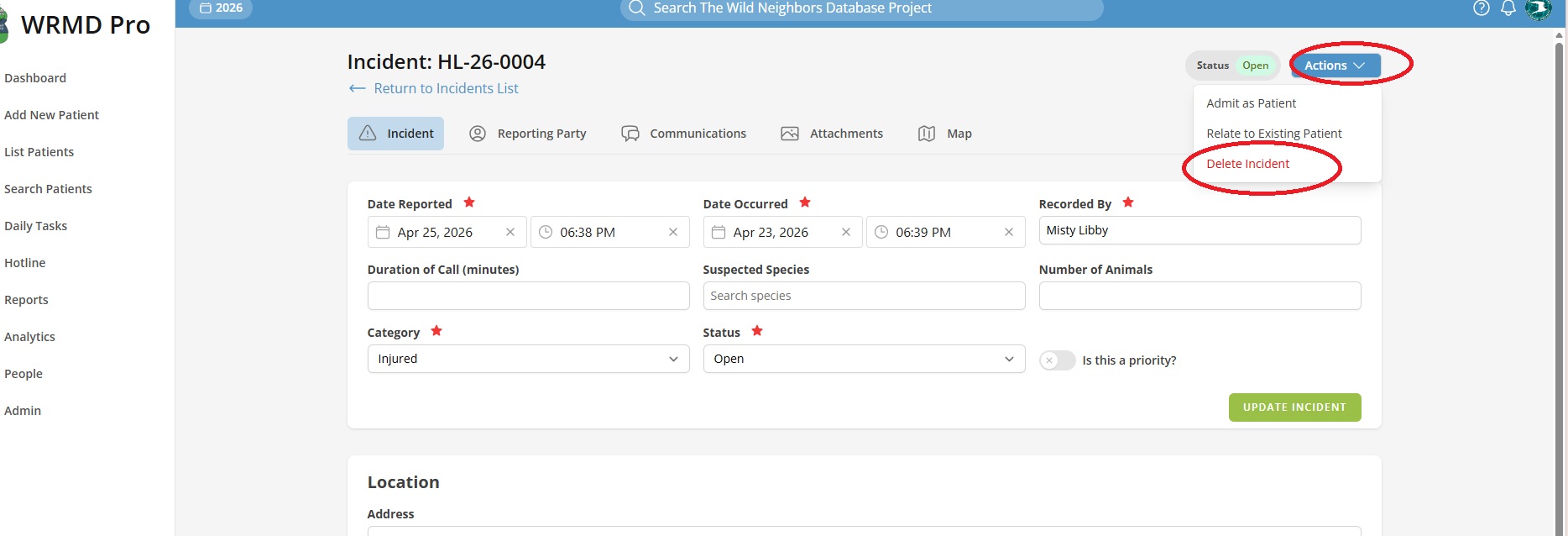
Click the Actions button in the top right corner of the incident report and click Delete Incident.
Only certain people have permission to delete incidents. Those permissions are established by your Admin in the settings area.
Step 6
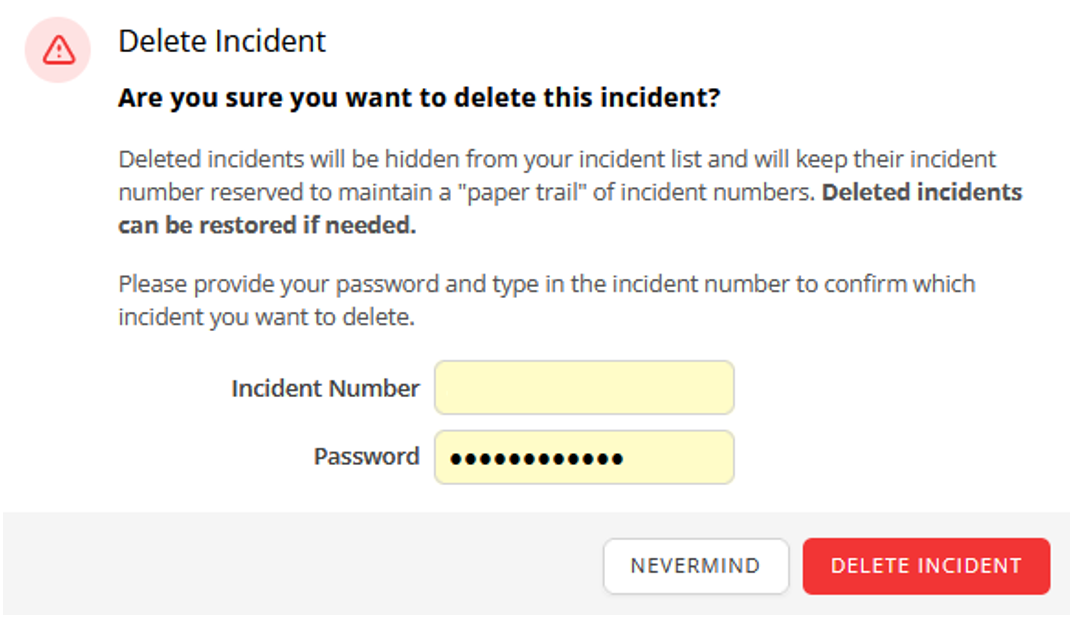
You will come to a warning page confirming if you are sure you want to delete the incident. If you are certain of your action, enter the Incident Number and your WRMD password to authenticate yourself. Deleted incidents will be hidden from your incident list and will keep their incident number reserved to maintain a “paper trail” of incident numbers. Deleted incidents can be restored if needed.
Step 7
Click on the Delete Incident button.
Restoring a Deleted Hotline Incident
If you have accidentally deleted a hotline incident or intentionally deleted one only to later realize you shouldn’t have, there is a way you can bring it back.
Step 1
Follow steps 1-2 from above.
Step 2
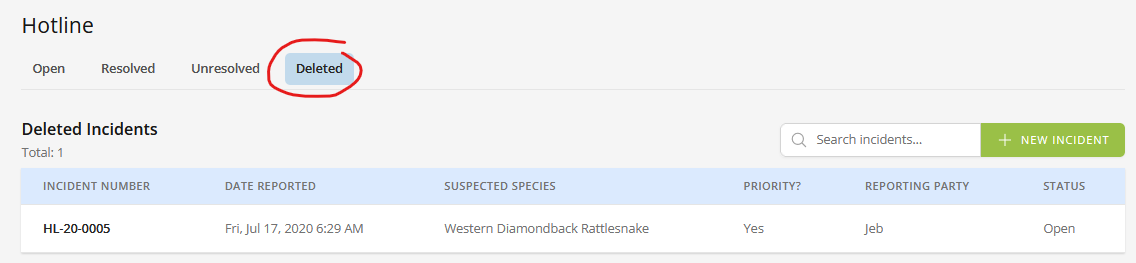
On the Hotline Index Page, click the Deleted Tab. You will see a list of all the Hotline Incidents that have been deleted.
Only certain people will have permission to see this link. Those permissions are set by your Admin in the settings area.
Step 4
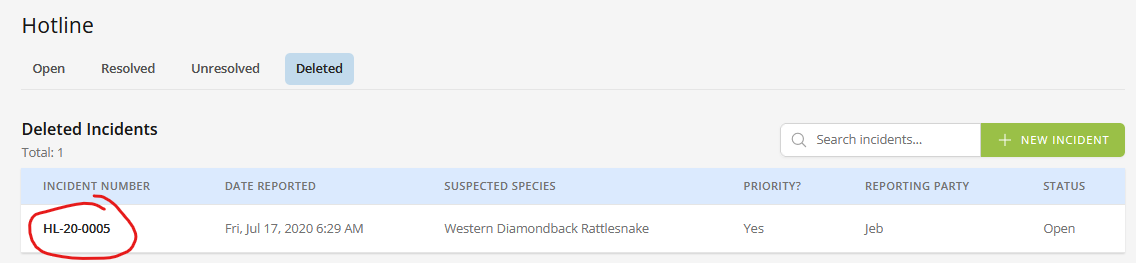
Click on the hyperlinked incident number to open the incident.
Step 5
On the top right of the incident page, you will see an indicator noting the deleted status of the incident. Click the Actions tab and choose Restore Incident from the dropdown menu.

Step 6
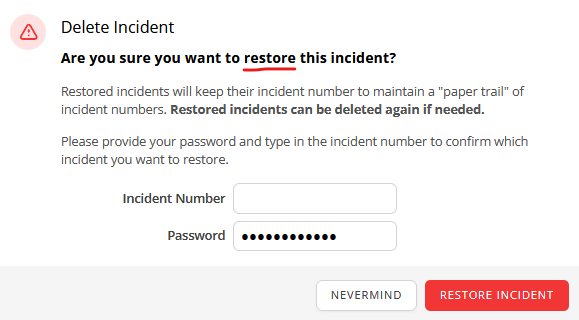
You will come to a warning page confirming if you are sure you want to RESTORE the incident. If you are certain of your action, enter the Incident Number and your WRMD password to authenticate yourself.
Step 7
Click on the Restore Hotline Incident button.