How to Create a Hotline Incident
In this tutorial, you will learn how to create a hotline incident.
About Hotline Incidents
Hotline incidents refer to external communications with the general public. These could include a discussion of an animal that may be injured or orphaned, a request for information about your center, or an inquiry about volunteering. If you want to keep a record of these communications, you can do that using the hotline option.
Creating a New Hotline Incident
Step 1
Visit https://www.wrmd.org/signin and log into your account using the username and password that you registered with.
Step 2
Click on the Hotline Link in the Quick Links tab.

Step 3
Click on the green New Incident button in the top right-hand corner.

Step 4
Fill in the relevant details about the call.
There is information across five panels, but only fields that are starred are required.
- Incident Panel: In this panel, record the date of the call, the date of the incident, and who responded to it. If the call is in reference to a sick, injured, or orphaned animal, fill in the suspected species, the number of animals, its category, and status. You can also mark the incident as a priority using the Is this a priority? toggle. While not required, you may want to record the duration of the call as the analytic data you receive can help you to improve staffing and/or training.
- Reporting Party: Input the details of who is calling. The information you include here will be recorded under your People data. If the caller has never called before, include their information under the Reporting Party tab. If they have called before, you can use the Search tab to find their information.
- Description: Include the location of the incident and a description of it.
- Communication: In this panel, record any important details that you told the person.
- Resolution: If you resolved the issue during the call, record the date, and write a description. If you gave them any information that was outside of general communication, like a brochure or weblink, turn on the Given Information toggle. If the species of the animal has been confirmed, turn on the Confirmed Species toggle. Be aware that if you include a date in the Resolution panel, the Status field in the Incident Panel will automatically change to Resolved.
Step 5
Click on the green Save New Hotline Incident button.

Step 6
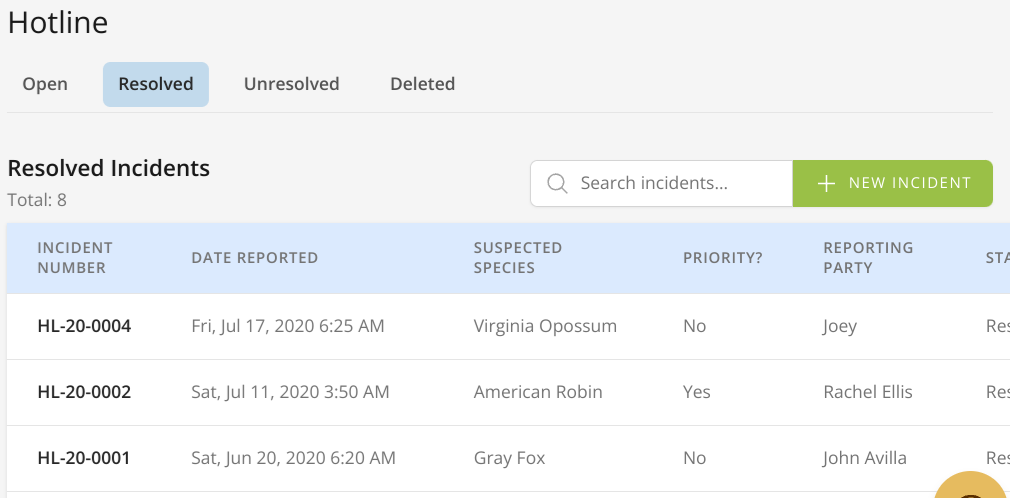
Your Hotline Incidents will be saved as a list in the Hotline section.
There will be four tabs: one is for open/pending incidents, one for resolved incidents, one for unresolved incidents and one for deleted incidents. Each incident is given an incident number, which is chronological and numeric.
Each list shows the incident number, date reported, suspected species, priority, reporting party and the location of the incident. The deleted incidents list also shows each incident's status.
To leave a note for everyone in your organization on the Hotline page, click the pencil button next to the Hotline heading, write your note and click Save. The note stays at the top of the Hotline page until someone edits or removes it.