How to use Quick Search
In this tutorial, you will learn how to use the Quick Search field to search for patients.
What is the Quick Search Field?
The Quick Search field tries to be an intelligent search tool that understands what you are looking for to quickly find the record you need. By filtering searches and using key terms, you can effectively limit the inquiry, making your search easier and more productive.
Using the Quick Search Field to Search for Patients
Step 1
Visit https://www.wrmd.org/signin and log into your account using the username and password that you registered with.
Step 2
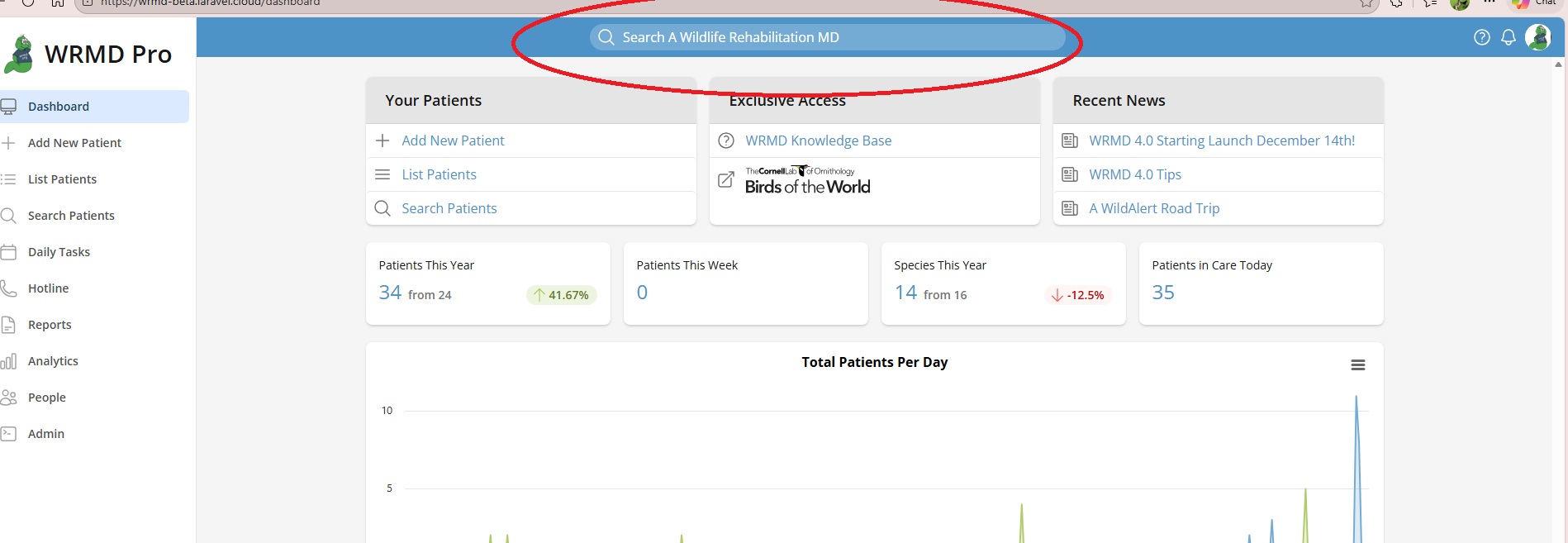
To access the Quick Search function, click the search bar located in the top center of your dashboard. The search bar displays your organization's name and contains a magnifying glass icon.
Step 3
A search panel will appear. Type your search term into the field and filter in whatever way appropriate for your needs.
- Filtered Search
- Limit to this year: Check this box to focus your search on the current year. It is unchecked by default, so your search covers all years of activity.
- Disposition pending: Check this box to narrow your search to patients with pending dispositions. It is unchecked by default, so your search includes all patients.
- Generic Keyword Search
- Enter any word, and WRMD intelligently searches across fields for matching records. For example, typing "red" retrieves files containing that term.
- Case Number Search
- Type the full case number to quickly locate a specific patient's file.
- Species-specific Search
- Enter a species name for a list of patients belonging to that species. Common names with variations (e.g., mule deer, black-tailed deer) are recognized as the same species.
- Location Search
- Search by location to find all animals that have ever been associated with a specific place. By limiting your search to the current year or to pending patients, your list will include only those patients who are currently residing in that location.
Step 4
Click Search to navigate to either the specific patient record you referenced or to a page listing all patients related to your search term.
Step 5
On a search where multiple results are found, you can either click on the appropriate patient or access tools that allow you to print the lists, print all the records, export the records, email them, or batch update them by clicking on the Actions tab to choose the appropriate next step.
