How to Print Patient Records
In this tutorial, you will learn how to print patient records.
Step 1
Visit https://www.wrmd.org/signin and log into your account using the username and password that you registered with.
Step 2
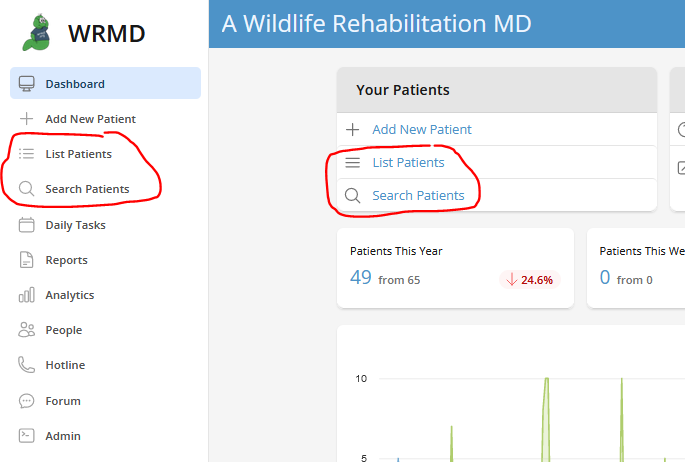
Go to the patient record you wish to print by either conducting a patient search or utilizing the list patient feature on the dashboard. These features are available in two different sections on the dashboard.
Step 3
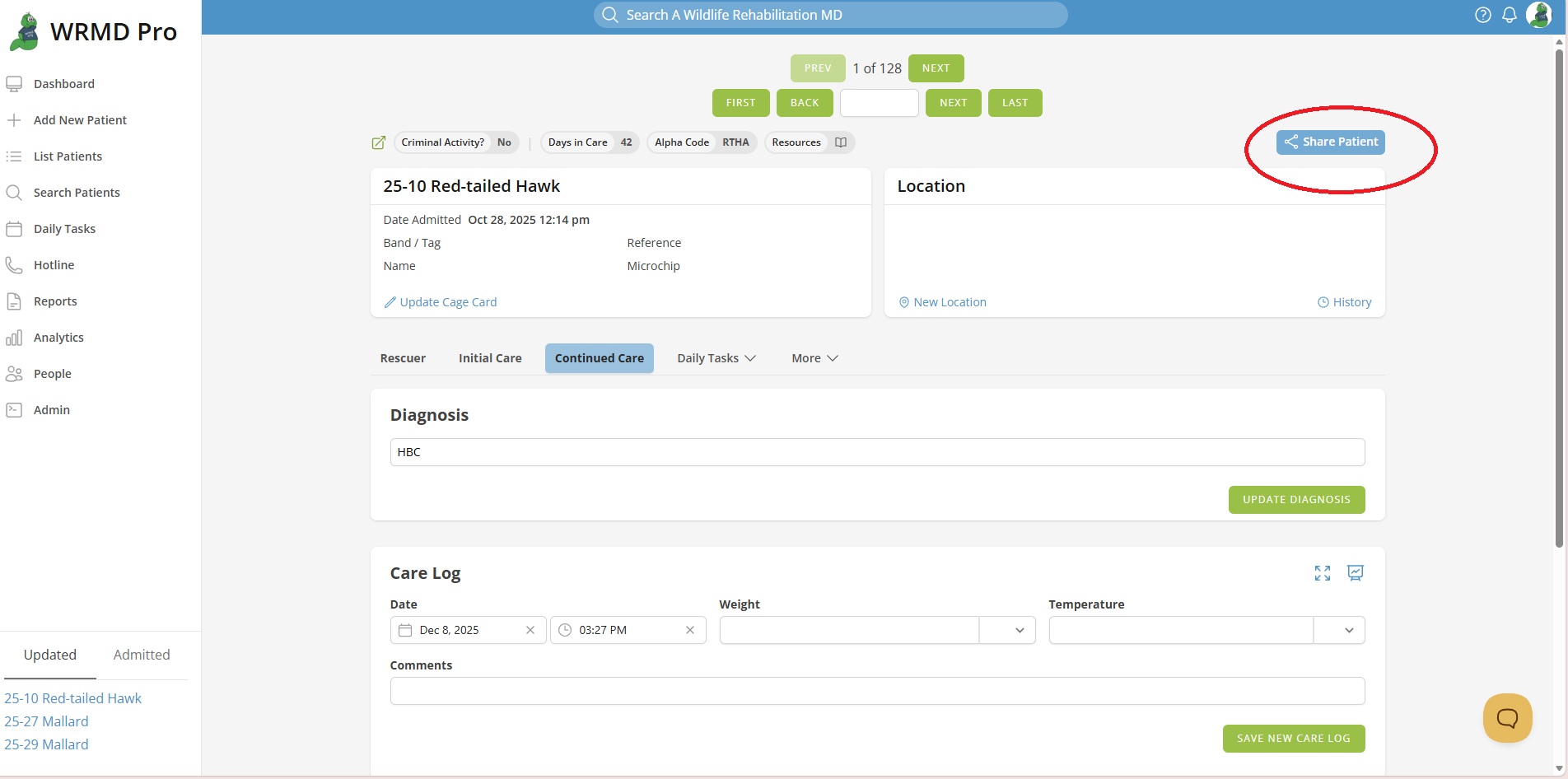
Click the Share Patient button and choose Print Patient Medical Record on the dropdown menu.
Step 4
A popup window will appear where you can choose from additional items to include in your print. If you have any extensions activated, this list will include more options.

Step 5
Click on the green Print Patient Record button.
Step 6
A PDF is generated. Depending on how your browser is set up, it will download and prompt you to print the file or save it as a PDF.
Printing Multiple Records
Step 1
Complete Steps 1 and 2 as you would looking for a single patient.
Step 2
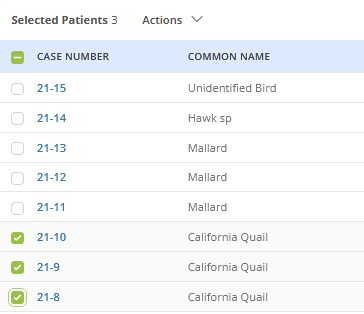
On the generated list, mark the checkboxes next to the patients whose records you want to print.
Step 3
Under the Actions dropdown menu, choose Print Patients.

Step 4
A popup window will appear where you can choose from additional items to include in your print. If you have any extensions activated, this list will include more options.
Step 5
Click on the green Print Patient Record button.
Step 6
A PDF is generated. Depending on how your browser is set up, it will download and prompt you to print the file or save it as a PDF.