How to Email Patient Records
In this tutorial, you will learn how to email patient records.
Step 1
Visit https://www.wrmd.org/signin and log into your account using the username and password that you registered with.
Step 2
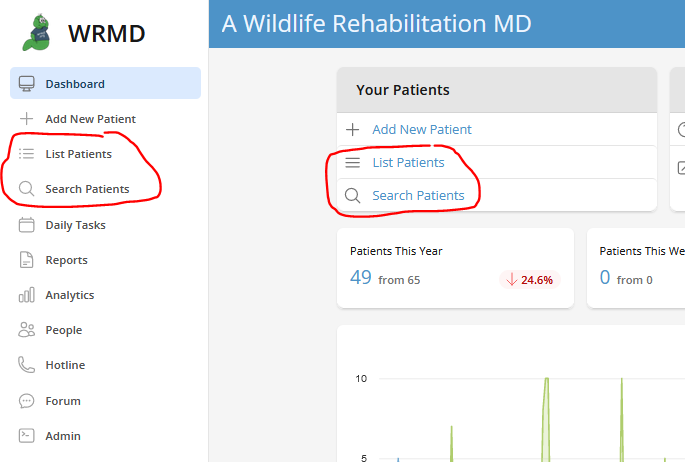
Go to the patient record you wish to email by either conducting a patient search or utilizing the list patient feature on the dashboard. These features are available in two different sections on the dashboard.
Step 3
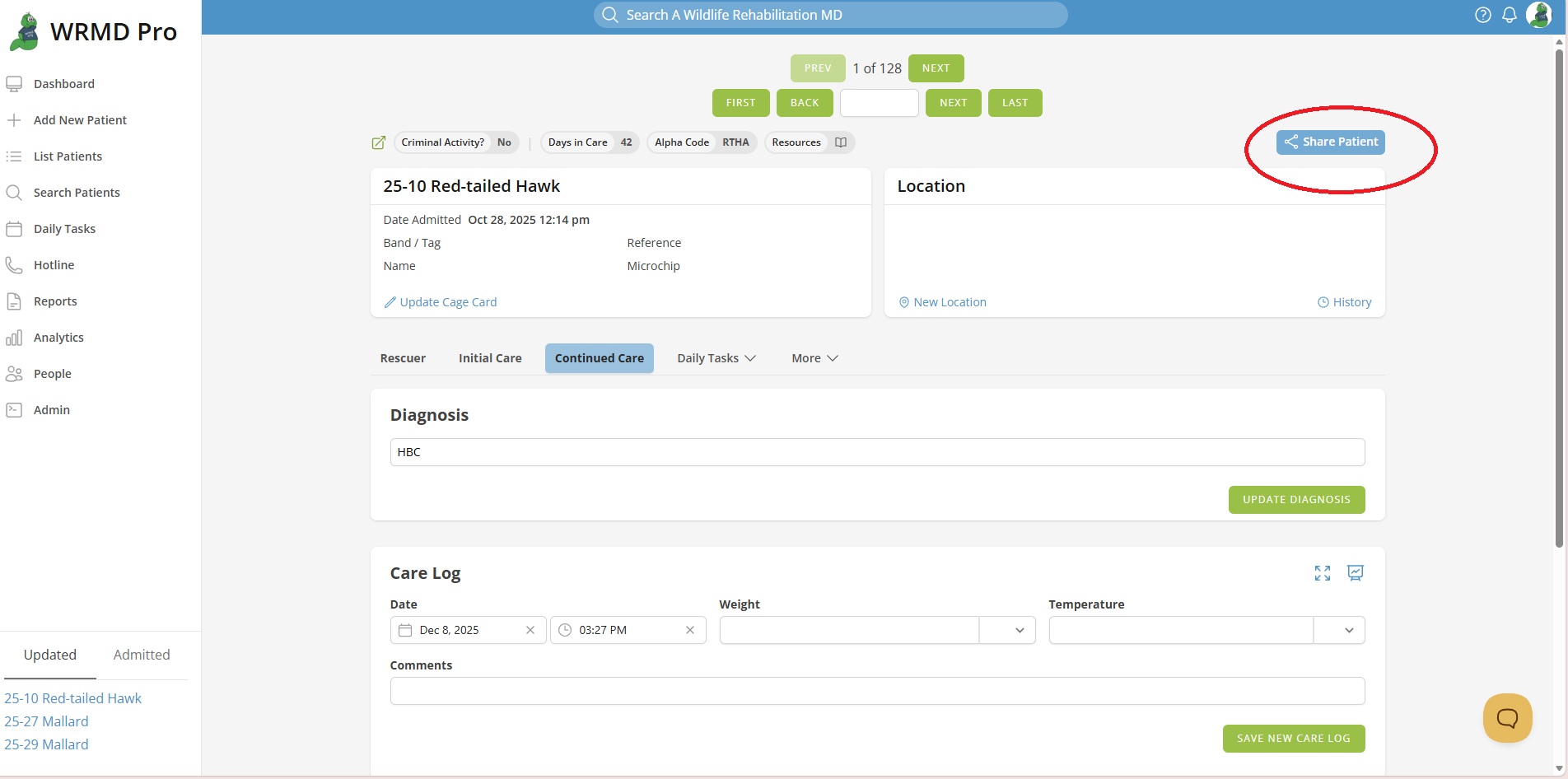
Click the Share Patient button and choose Email Patient Medical Record on the dropdown menu.
Step 4
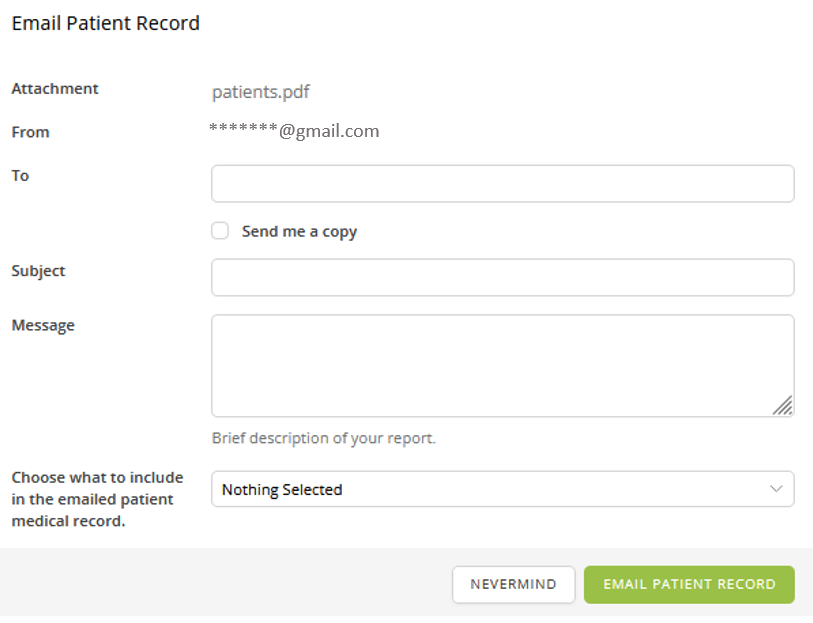
A popup window will appear where you can fill in the email details. Enter the recipient's email address in the To field. You can send to multiple recipients by separating their email addresses with commas. The email address associated with your WRMD account will be the sender, and you can optionally check Send me a copy to BCC yourself. Add a subject and a brief message, then choose what additional patient information to include in the email attachment.
Step 5
Click on the green Email Patient Record button. The email will be sent immediately, and the record will be emailed as an attachment.
Emailing Multiple Records
Step 1
Complete Steps 1 and 2 as you would looking for a single patient.
Step 2
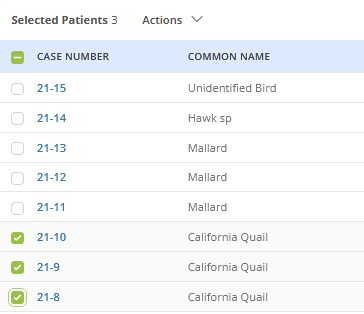
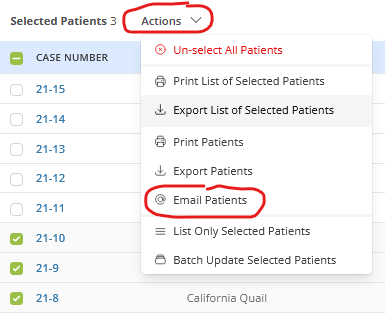
On the generated list, mark the checkboxes next to the patients whose records you want to email.
Step 3
Under the Actions dropdown menu, choose Email Patients.
Step 4
A popup window will appear where you can fill in the email details. Enter the recipient's email address in the To field. You can send to multiple recipients by separating their email addresses with commas. The email address associated with your WRMD account will be the sender, and you can optionally check Send me a copy to BCC yourself. Add a subject and a brief message, then choose what additional patient information to include in the email attachment.
Step 5
Click on the green Email Patient Record button. The email will be sent immediately, and the record will be emailed as an attachment.