How to do a Simple Search for Patients
In this tutorial, you will learn how to conduct a simple search for your patients in WRMD.
What is a Simple Search?
Depending on the number of fields you are searching for, a simple search can be as simple as typing in a single search item or as complex as typing in several search criteria. WRMD supplies various fields, allowing you to search by using any data point on a patient record. This gives you a great deal of versatility when you need to review data.
Using the Search Field to Search for Patients
Step 1
Visit https://www.wrmd.org/signin and log into your account using the username and password that you registered with.
Step 2
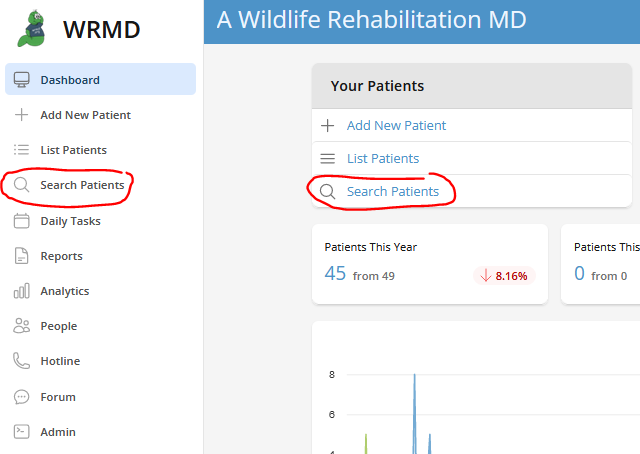
Click on Search Patients in one of the two locations on the dashboard.
Step 3
On the new search page, designate the time frame for your search. The default time frame is the current year, but you can customize it by clicking on the Dates Admitted dropdown menu for an array of time frames or selecting specific dates on the calendar.

Step 4
WRMD allows you to search by Cage Card, Keywords / Tags, Current Location, Intake, Rescuer, Intake Exam, Care Log, and Outcome. Click through the sections in the left sidebar and fill in whatever field is relevant to your search.
Step 5
Click the green Search Patients button.
Step 6
You'll be brought to a page that either lists all the patients that meet the criteria you indicated on the search form or to the one record that meets your criteria.
Step 7
On a search where multiple results are found you can click on the appropriate patient or access tools that allow you to print the lists, print all the records, export the records, email them, or batch update them. These tools are in the gray background.