How to Admit a Patient
In this tutorial, you will learn how to admit a new patient into WRMD.
Step 1
Visit https://www.wrmd.org/signin and log into your account using the username and password that you registered with.
Step 2
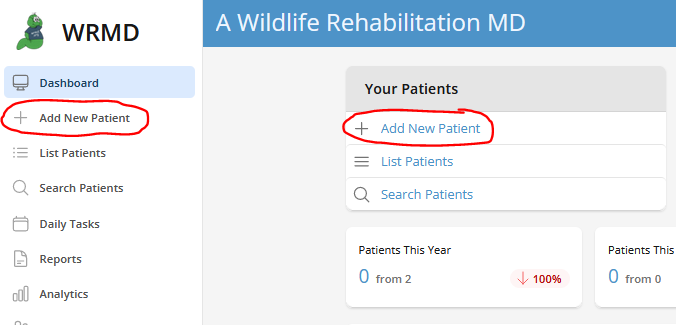
On the Dashboard view, click on Add New Patient in the left side navigation bar to open the admission form.
Step 3
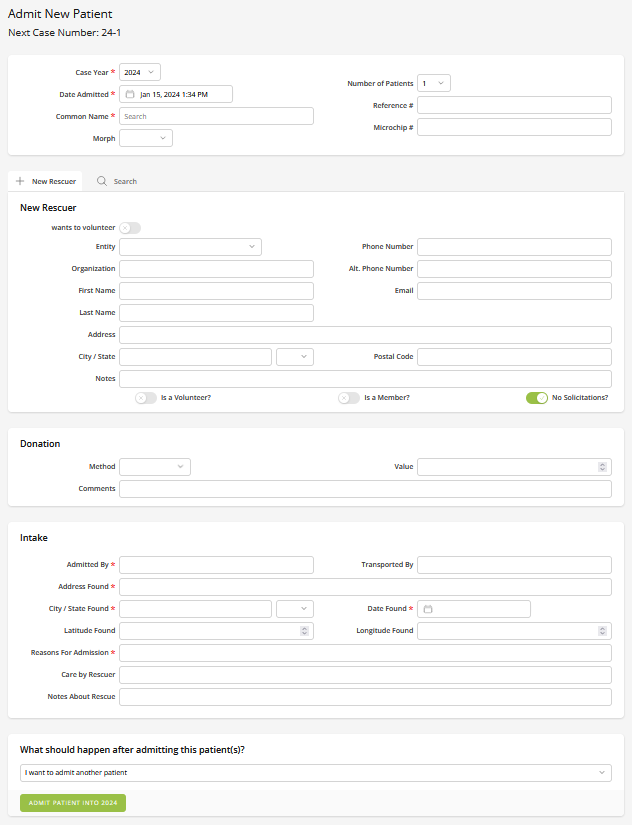
Follow the descriptions below to fill out the new patient form. The case number is automatically generated, but the following details need to be filled in by you.
- Species type
- Rescuer contact
- Donation amount (if enabled for your organization)
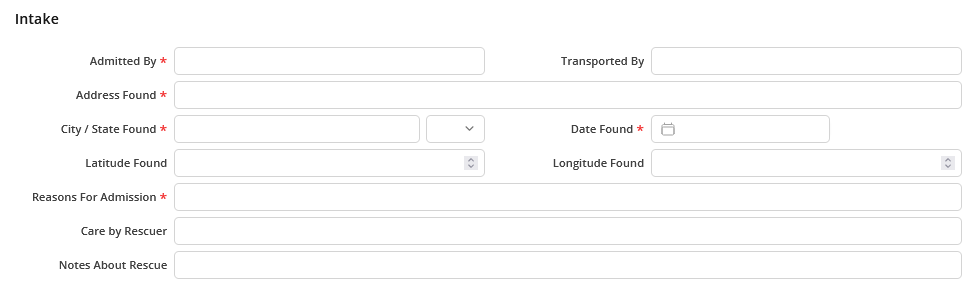
- Reasons for intake
Assigning a Case Number
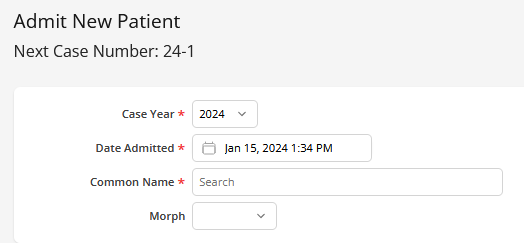
Each new patient is automatically assigned a case number which always begins with the current year and then the next numeric number for the patient to be admitted. For example, in a given year (let's assume it's 2024), if you are adding your first patient of the year, the case number would be 2024-1.
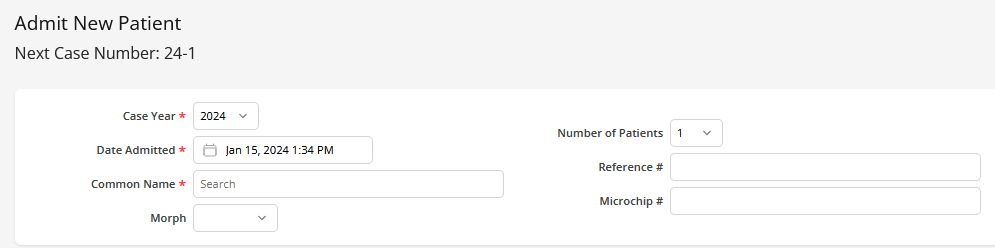
At the top of the admission form, WRMD displays the Next Case Number that will be assigned when you submit. This lets you see the upcoming case number before you admit the patient.
Adding Patients for a Previous Year or Date
WRMD assumes you are admitting a patient for the current year and date, but you can also admit a patient from a previous year. Alternatively, if you received a patient yesterday, but are just now putting it into WRMD, you can also change the date.
Step 1
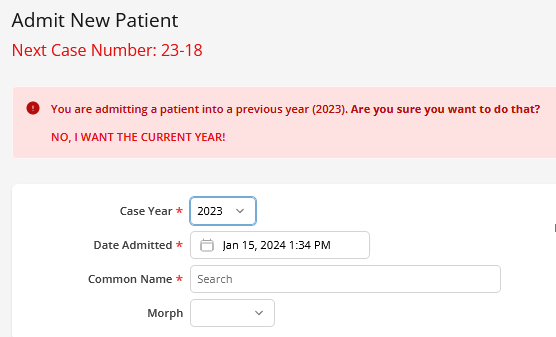
Click on the drop-down menu of the Case Year field and choose the year you want. WRMD will automatically assign the next numeric number of that previous year.
Note that the case number reference changes to red and there's a red alert banner telling you that the year you are admitting into is not the current year. You can click No, I want the current year! in the alert to switch back.
Step 2
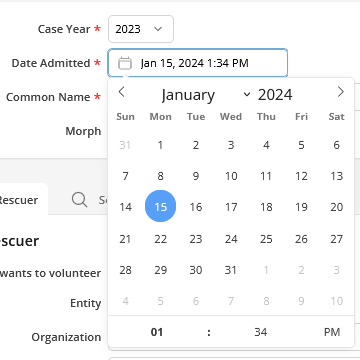
Click on the Date Admitted box and choose the date from the dropdown calendar.
Other Species & Patient Identifying Features
There are a few identifying features that can help you with your patient intake process.
- Common Name:
- The WRMD species database includes every species in the world, so as soon as you begin typing the species, or common name, of the animal admitted, WRMD generates an auto-suggestion list of what you are typing in, making it easy for you to choose the species name.
Note: WRMD's species list generator gets smarter as you continue to input names into your account, generating the names you most frequently add to your account.
- Number of Patients:
- This field allows you to designate how many patients you want to create. For example, if you are admitting 2 Red-shouldered Hawks together, WRMD will create two separate Red-shouldered Hawk patient records.
- Reference Number:
- While not mandatory, this field serves to identify a patient with an assigned number from an external source. For instance, if the patient was brought in by Fish & Wildlife or another animal service with a distinct case number, you can input it here. Additionally, if a different WRMD user printed out the record instead of transferring it, you have the option to enter the case number from that account. This field can be used in any way you find applicable.
- Microchip Number:
- Although not obligatory, this field aids in identifying a patient with a microchip.
Adding Rescuer Information and Donations
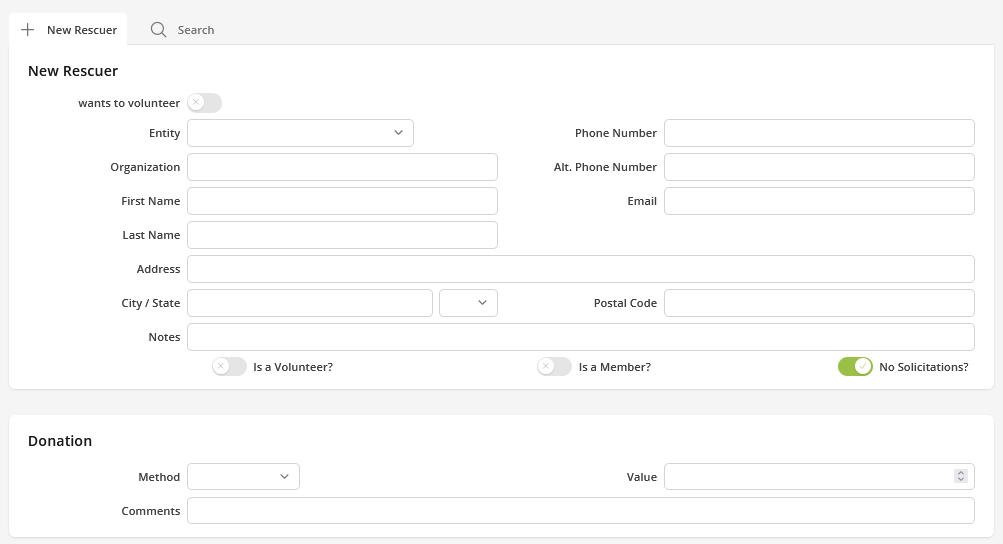
Fill in the appropriate fields with the contact information of the person or organization who brought in the patient. You can also include notes about that rescuer which may be helpful for you to know. By including their information, you effectively keep a history of all the animals a person has brought into your organization.
- Search Tab:
- If the rescuer has brought in animals before, click the search tab and type in their identifying information. In the drop-down list, choose the correct name and all of their information will populate the rescuer section.
- Donation Section:
- If the person donated, you can record that in this section, along with any comments you want to make. This section only appears if your organization has enabled donations on the admission form.
Adding Intake Information
Designate and Create Record(s)
Before creating a record, you can designate what you want WRMD to do with it. Use the dropdown menu to choose from the following options. By default, WRMD will create these patient records and return to Add New Patient.
- I want to admit another patient
- Continue to add additional new patients. This is the default selection
- I want to view this patient's record
- Takes you directly to the new patient record you just created
- I want to batch-update all the admitted patients
- Bulk updates all of the patients at the same time

Step 4
Click the Admit Patient into [year] button at the bottom of the page. If you are admitting into the current year this button is blue; if you are admitting into a previous year the button turns red as an additional warning.