How to Export Patient Records
In this tutorial, you will learn how to export patient records.
Method 1: Exporting Single Record
Step 1
Visit https://www.wrmd.org/signin and log into your account using the username and password that you registered with.
Step 2
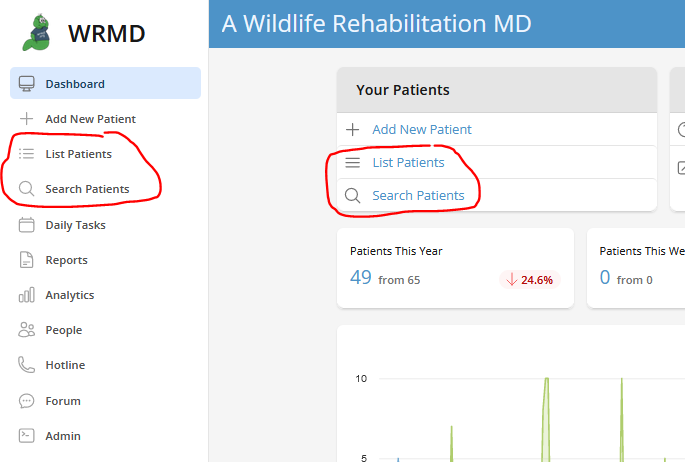
Access your patient's record by either conducting a patient search or utilizing the list patient feature on the dashboard. These features are available in two different sections on the dashboard.
Step 3
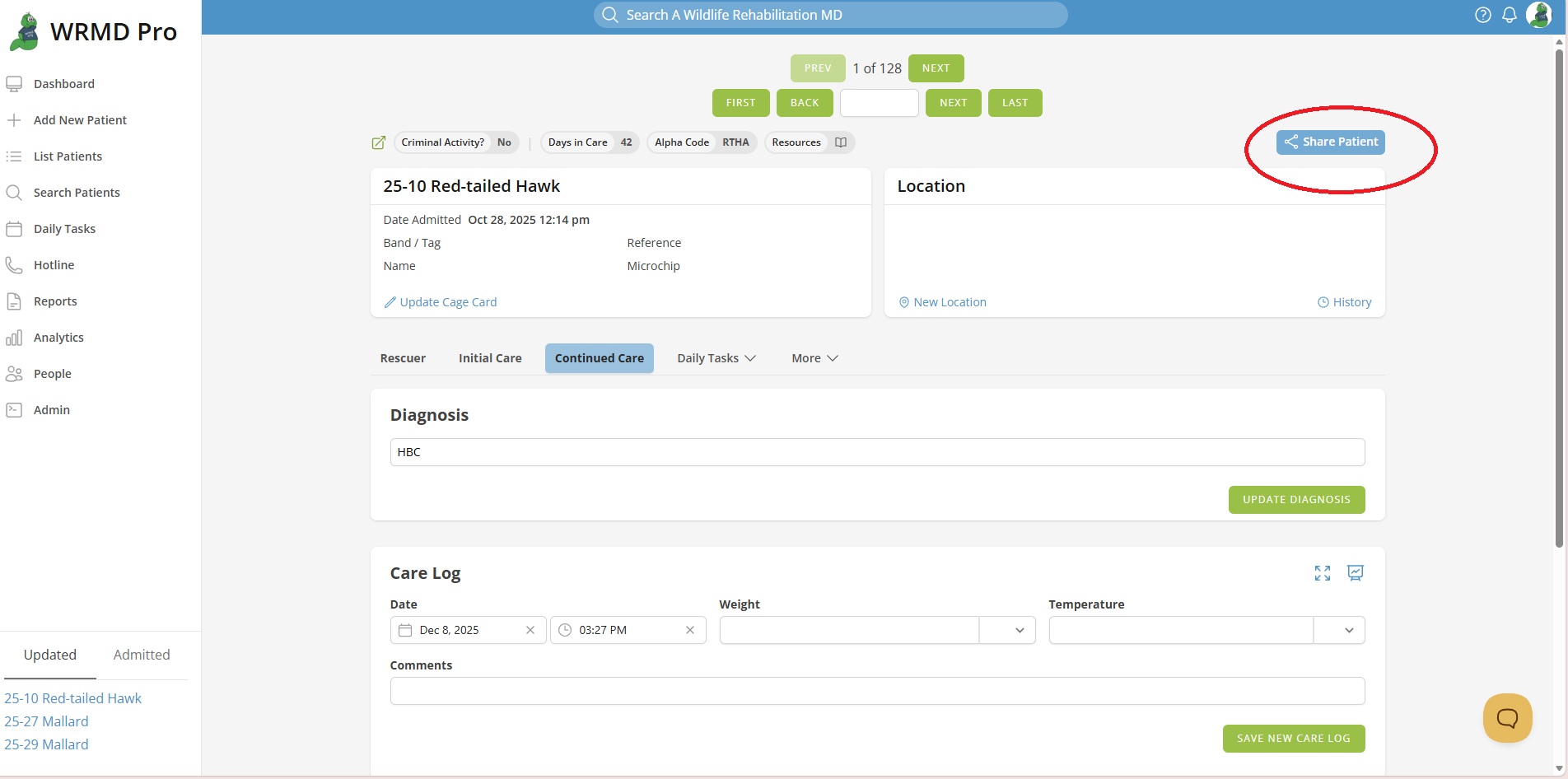
Click on the Share Patient button. In the dropdown menu, choose how you wish to export the patient record:
- Print Patient Medical Record
- In the popup, select what information you want to include in the printed version.
- Export Patient to Spreadsheet
- In the popup, select which field groups you want to include in the spreadsheet version.
- Email Patient Medical Record
- In the popup, provide the recipient's email address, a subject, and a short message about the patient.
- Transfer Patient
- Name the organization you are sending the patient to. You may also elect to collaborate on this patient if the other facility also uses WRMD.
Step 4
Select the green button corresponding to your chosen export method to initiate the process.
Method 2: Exporting Multiple Patient Records
Step 1
Complete Steps 1 and 2 as you would looking for a single patient.
Step 2
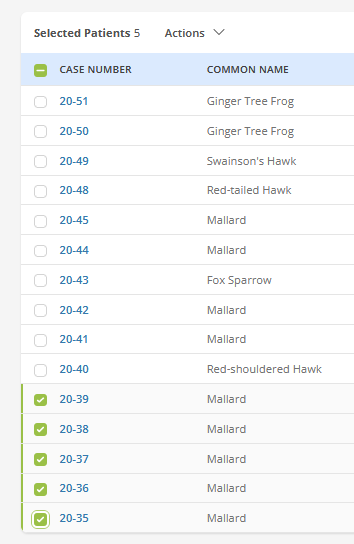
On the generated list, mark the checkboxes next to the patients whose records you want to export.
Step 3
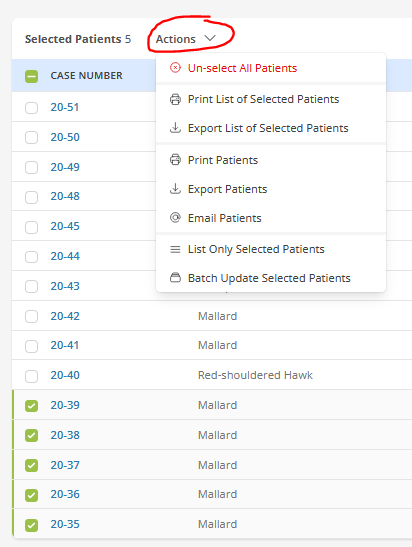
On that same page, click the Actions link to activate the dropdown menu. Choose how you wish to export the patient records:
- Print List of Selected Patients
- This selection will print a list of only the patients you have indicated.
- Click on the option to print, and a popup window will appear with an embedded document. You can choose to either print it or save it as a PDF. Please note that if the list is extensive, it might take some time to generate the report, so please be patient.
- Export List of Selected Patients
- This selection will export a spreadsheet listing only the patients you have indicated.
- Navigate to the dropdown menu and select the specific information you want to include in the report. If your list of patients is long, generating the report may take some time, so please be patient.
- Print Patients
- This selection will print the complete file for each patient based on the criteria you choose.
- From the popup, select what information you want to include in the printed version.
- Export Patients
- This selection will export the complete file for each patient based on the criteria you choose.
- From the popup, select what information you want to include in the spreadsheet version.
- Email Patients
- Compose a brief message about the patient for the recipient and select the relevant information to be included in the report.
Step 4
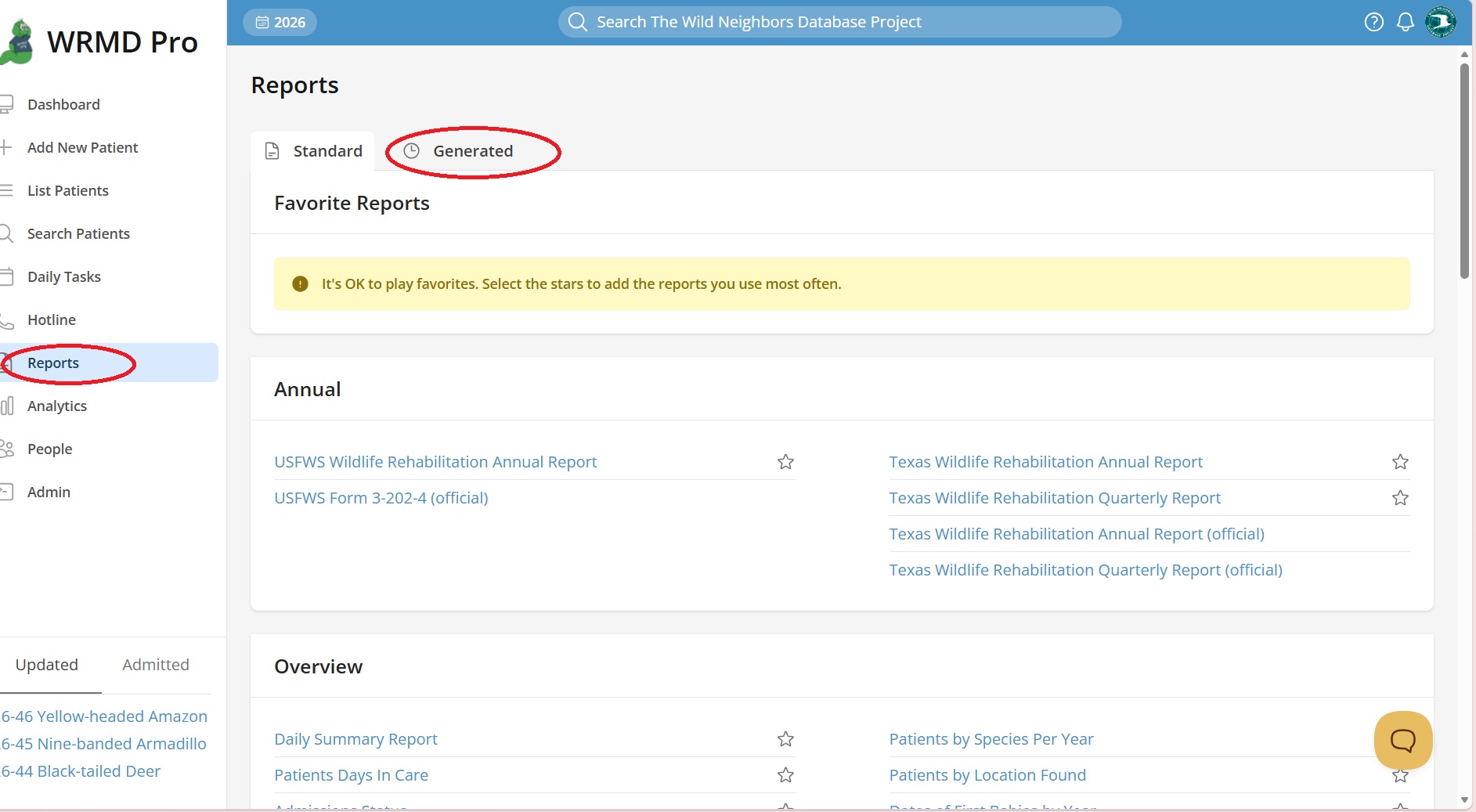
If you select the Export Patients option, it will direct you to click on the "choose category field". Select what you want for categories and then click "Export Patients". This will generate an excel document that you can further sort/filter for the information that you need. Please note, if this file does not pop up on your screen, you can go to the Reports section and then Generated to find that export.