Managing Your Security Settings
This tutorial will show you how to manage the security settings in your WRMD account. Specifically, it will show you how to restrict remote access to your account, meaning users of your account will be able to sign into WRMD only from a computer at your clinic. This is the most powerful security setting available in WRMD. If you choose to restrict user's access in this way, follow the steps below.
Step 1
Visit https://www.wrmd.org/login and log into your account using the username and password that you registered with.
Step 2
To access your account settings, click on your avatar in the upper right corner and choose Settings from the drop-down menu.

Step 3
Click on the Security link to access your security settings.

Step 4
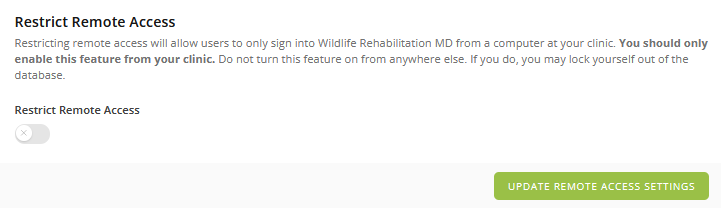
In the Restrict Remote Access section, we recommend that you choose to restrict remote access by moving the toggle switch to the right. Restricting remote access will allow users to sign into your WRMD account ONLY from a computer at your clinic.
Warning: Only turn this feature on while at your clinic. If you do it from elsewhere, you may lock yourself out of the database. Either someone at your clinic would have to fix the settings (they would need to have admin status) or you would have to contact us directly to fix it (support@wildneighborsdp.org).
Step 5
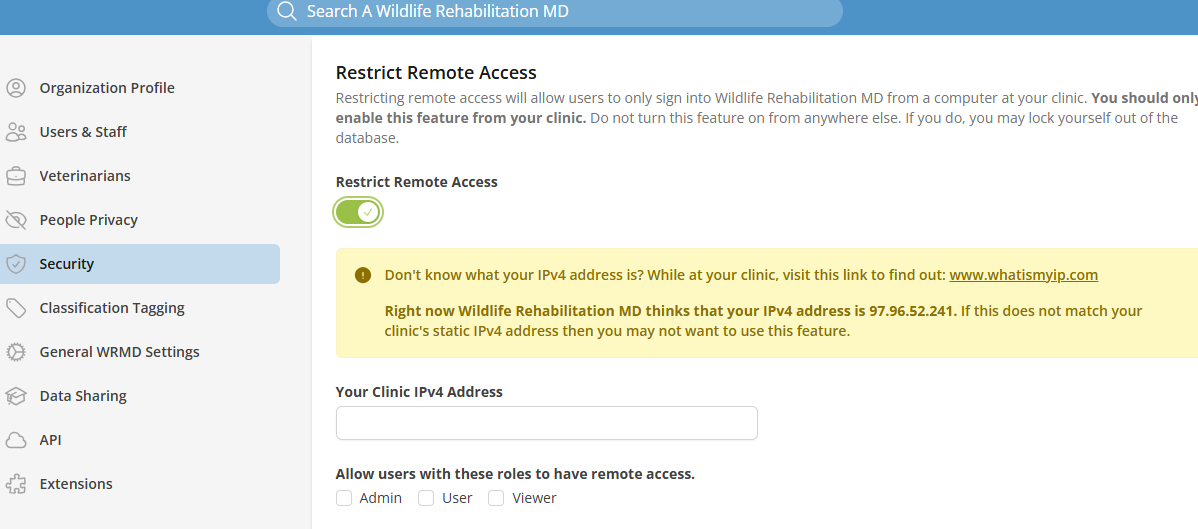
Once you move the toggle switch, you will see a new window. Input your clinic's static IP address into the text box. If you don't know your clinic's IP address, try these options:
- Click on the hyperlink displayed (www.whatismyip.com). This site will tell you what it thinks your IP address is.
- Confirm your IP address from the site: www.whatismyip.com with what WRMD thinks your address is (see the red text display). If the addresses match, then your IP is static, and you can safely use this address.
Warning: If your IP addresses do NOT match, then DO NOT use the Restrict Remote Access feature! It may indicate that your IP address is not static, or it is dynamic and may change periodically, which will cause problems.
Step 6
While you have limited remote access for all users, you have the flexibility to selectively grant remote access to specific roles or individual users for your WRMD account. You can accomplish this by checking the box next to the desired role(s) or clicking the box next to the email address of a specific user.
Step 7
Once you have set the security features click the Update Remote Access Settings button to save your changes.