Adding New Users
In this tutorial, you will learn how to add new users in WRMD.
Note: Only those with Admin access can add and update their user's profile information.
Step 1
Visit https://www.wrmd.org/signin and log into your account using the username and password that you registered with.
Step 2
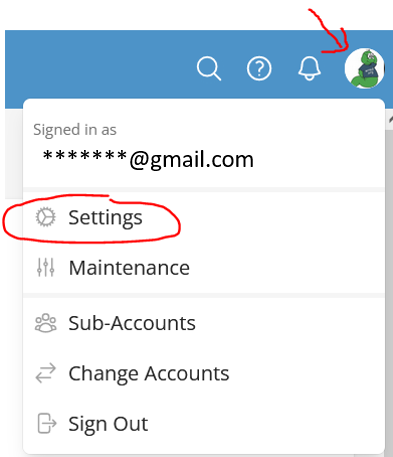
To access your account settings, click on your avatar in the upper right corner and choose Settings from the drop-down menu.
Step 3
Click on the Users & Staff link to pull up a list of all the users on your account.
Note: If your account is new, you may only see one user.

Step 4
Click on the Add New User button in the top right corner of the Users section.

Step 5
Fill in the requested fields for the new user you wish to add.
- Email address: Add the email address that corresponds with the new user. This should be unique across the entire Wildlife Rehabilitation MD service. You can be a user of multiple accounts; however, if the database recognizes the email address, it will add this existing user directly to your organization. If they are new to the system, an invitation email will be sent to them.
- Confirmation: Confirm the email address.
- Name: The full name of the user you are creating.
- Role:
- Admin: Manages account information, updates application settings and uses the application.
- User: Just uses the application.
- Viewer: Searches and views records but is unable to create, update, or delete records.
Step 5
Click the Invite New User button to send an invitation email to the new user. They will receive an email with a link to join your organization. Once they accept the invitation, they will be prompted to set up their password and profile.
Note: If the user already has a WRMD account, they will be added to your organization directly and notified by email — no invitation link is required.
Step 6
To exit from the area, click the Dashboard button.