Updating Existing User's Information
There will be times when you will need to update a current user's email address, alter a permission level, or delete a user from the account. In this tutorial, you will learn how to update existing users' information in WRMD.
Step 1
Visit https://www.wrmd.org/signin and log into your account using the username and password that you registered with.
Step 2
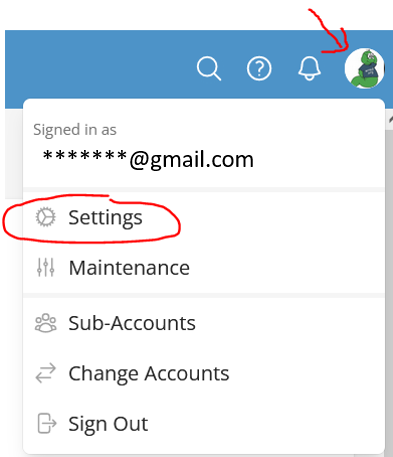
To access your account settings, click on your avatar in the upper right corner and choose Settings from the drop-down menu.
Step 3
Click on the Users & Staff link to pull up a list of all the users on your account.
Note: If your account is new, you may only see one user.

Step 4
You can now complete any desired updates and changes to a user's profile by clicking on a user's name. You will see three types of update actions:
You should be aware of two things before electing to update or delete a user:
- Updating a user's role will also reset their allowed authorizations to that role's default.
- Once a user is deleted, all their activity and data will be permanently deleted. Before electing to delete the user, please download any data or information regarding this user that you wish to retain.
Update User:
- Update a user's name, email address, or role.
Change a User's Authorizations:
- Default authorizations are set by the user's role. Updating a user's role will also reset their allowed authorizations to that role's default.
Delete User
- Once a user is deleted, all their activity and data will be permanently deleted. Before electing to delete the user, please download any data or information regarding the user that you wish to retain.
Step 5
Ensure you have updated each section you changed by pressing the green Update User buttons.

Step 6
To exit from the area, click the Dashboard button.