Setting Up Your Locations
In this tutorial, you will learn how to set up and manage location information in WRMD. Locations refer to the places where you house your patients in your facility such as their enclosures, rooms, aviaries, etc. Setting up default locations now will make it easier for you when you assign locations to your patients or when searching for them by location.
Step 1
Visit https://www.wrmd.org/signin and log into your account using the username and password that you registered with.
Setting Up Default Location Suggestions
You can configure a list of areas/rooms and enclosures that will appear as autocomplete suggestions whenever you assign a location to a patient. This makes it faster to fill in location fields consistently.
Step 2
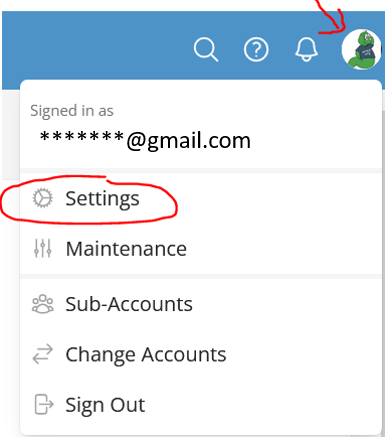
To access your account settings, click on your avatar in the upper right corner and choose Settings from the drop-down menu.
Step 3
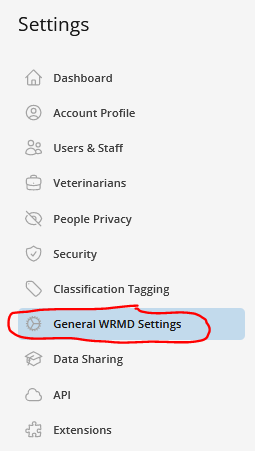
On the left sidebar, click on General WRMD Settings.
Step 4
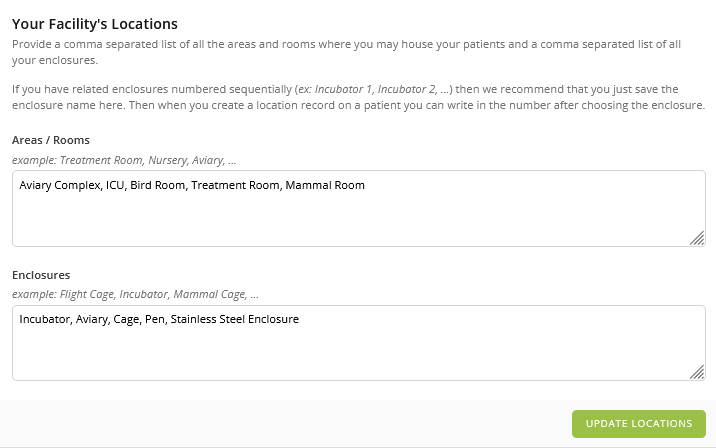
Scroll down to the section entitled Your Locations.
You will see two fields: Areas / Rooms and Enclosures. In these fields type in a comma-separated list of all the areas and/or rooms where you house your patients and a comma-separated list of all your enclosures. For example: Aviary Complex, ICU, Bird Room, Treatment Room, Mammal Room, etc.
Where do you see the default locations on the patient record?
The default locations on the patient record can be found in the Location panel, which is situated in the upper right corner of each patient's record. The location names you save here will automatically appear as autocomplete suggestions in the Area/Room and Enclosure fields when you assign a location to a patient.
Step 5
Once you have entered your location suggestions, remember to click the green Update Locations button to save your work.
Managing Your Locations
WRMD automatically creates location records the first time a patient is moved into a new area or enclosure. You can view, edit, and manage all of your organization's locations from the Maintenance section.
Step 6
To access your locations, click on your avatar in the upper right corner and choose Maintenance from the drop-down menu.
Step 7
On the Maintenance sidebar, click on Locations. You will see a table listing all locations that have ever held a patient, sorted by Facility, then Area, then Enclosure.
From this page you can:
- Search locations by area or enclosure name.
- Edit a location's Facility, Area/Room, or Enclosure details by clicking the pencil icon. If a location has been used on patient records, editing it will also update the location history shown on those patient records.
- View which patients have been associated with a location by clicking the bug icon.
- Delete locations that have never been used on a patient record by clicking the trash icon.