Initial Setup of Your Account
This tutorial explains the important setup features of your account once you have created it.
Step 1
If you logged out of WRMD before setting up the specifics of your account, visit the sign-in page: https://www.wrmd.org/login and log back in using the same username and password that you registered with.
Step 2
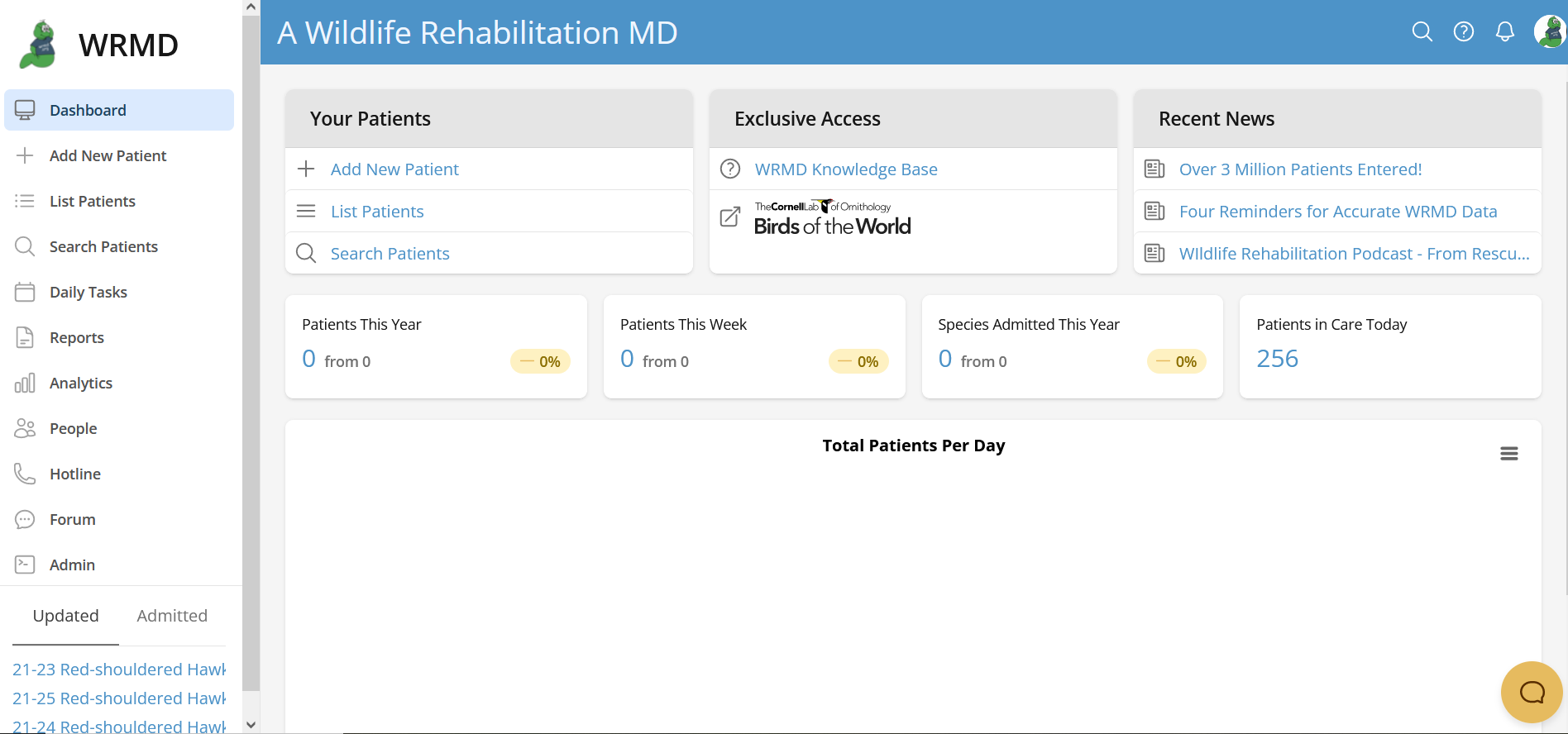
Once logged in, you will see the dashboard page. This is always the first page you will see whenever you log in.
Step 3
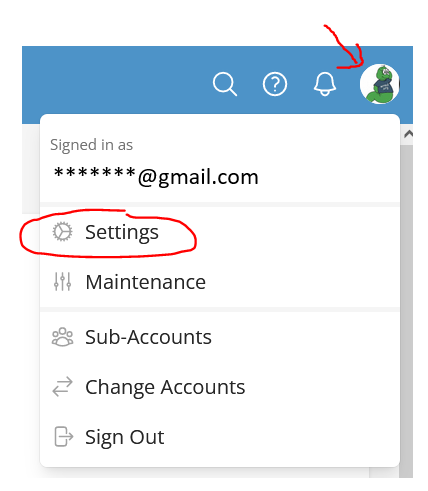
To access your account settings, click on your avatar in the upper right corner and choose Settings from the drop-down menu.
Step 4
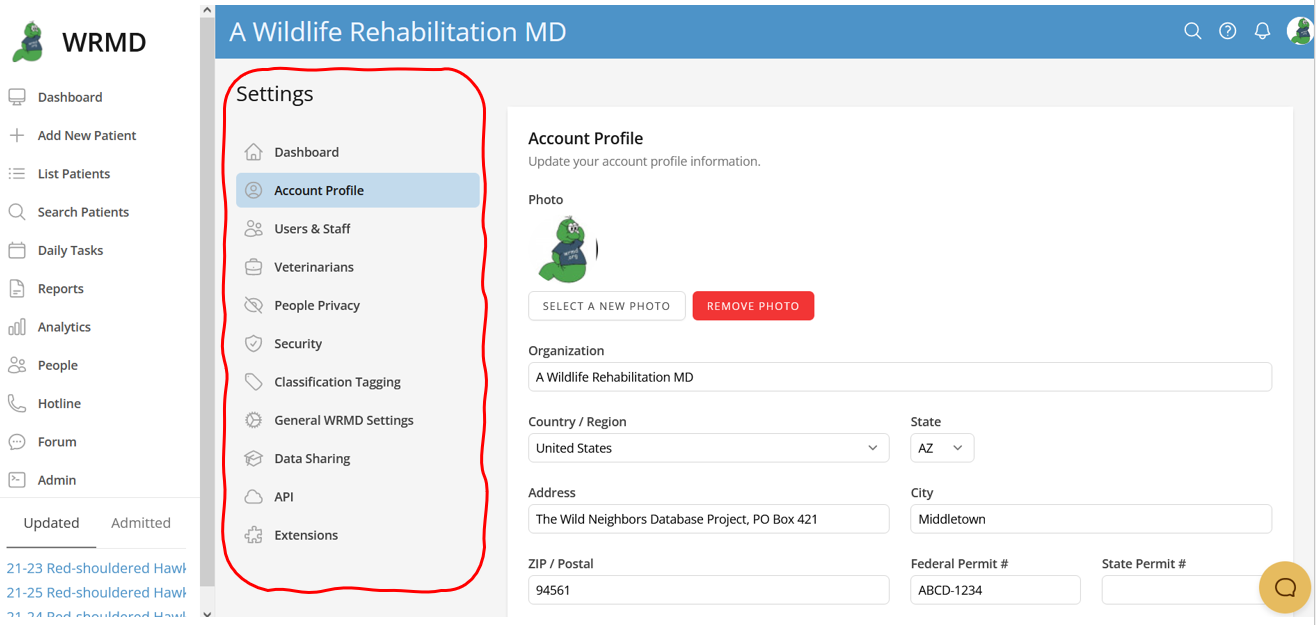
You can modify or customize any of the setting categories listed in the sidebar. The settings page includes all of your account information and important features that you will need to set up so that you and your team can use WRMD effectively.
- Organization Profile:
- Account Avatar: We recommend that you add a logo or icon of your organization.
- Organization Information: Add or modify the name, address, country, and permit number of your organization.
- Contact Details: Update any contact information
- Localization: Set the time zone for your specific location and preference. WRMD supports multiple languages including English and Spanish.
- Users and Staff
- Users & Staff: You can add more users to your account here. You'll see the user's email, name, and role (which is their access privileges in WRMD). Click on the Add New User button in the top right corner to add more people.
- Veterinarians:
- You can add veterinarians here, which is helpful when creating prescriptions.
- People Privacy
- This page includes permission settings for each user for accessing and editing the personal information of rescuers, volunteers, and donors. Only users with the Super Admin role are allowed access to private information by default. No other user has access to information on people, volunteers, donors, etc.
- Security:
- Allows or prohibits users from accessing information from off-site locations.
- Classification Tagging:
- Displays the classification system that will automatically tag your patients with standardized terminology. The three categories include Circumstances of Admission, Clinical Classification, and Categorization of Clinical Signs.
- General WRMD Settings:
- You can make additional customization to how your account functions and displays information.
- Generic Settings: You can adjust some generic behavior on your account such as columns shown when listing patients, time display format, geocoding preferences, and the default action after admitting a patient.
- Care Log Settings: Refers to the order and permissions for your care log. It includes specifications for who can access or edit these care log entries. It is a type of permission setting.
- Your Facilities Locations: Refers to locations where you house your patients in your facility. You can set up default locations which will make it easier when you assign locations to your patients or when searching for them by location.
- Data Sharing
- You can choose whether you would like to share your data with other research organizations.
- API:
- Manage API access for your organization.
- Extensions:
- Includes optional WRMD features that add more high-level functionality to the database. You can easily activate the extension by clicking the green activation button on the particular feature you want to add.