General WRMD Settings
General WRMD settings refer to certain generic behaviors that you can adjust so that WRMD works better for you.
Step 1
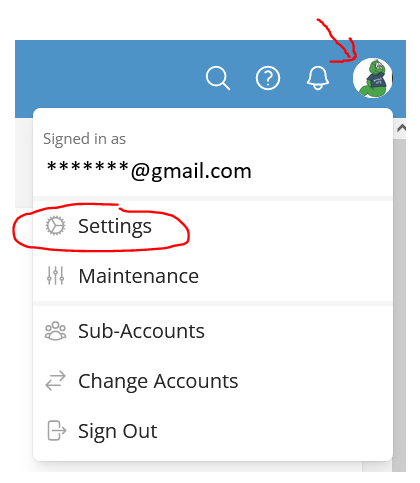
Once logged in, you can access your account settings. Click on your avatar in the upper right corner and choose settings from the drop-down menu.
Step 2
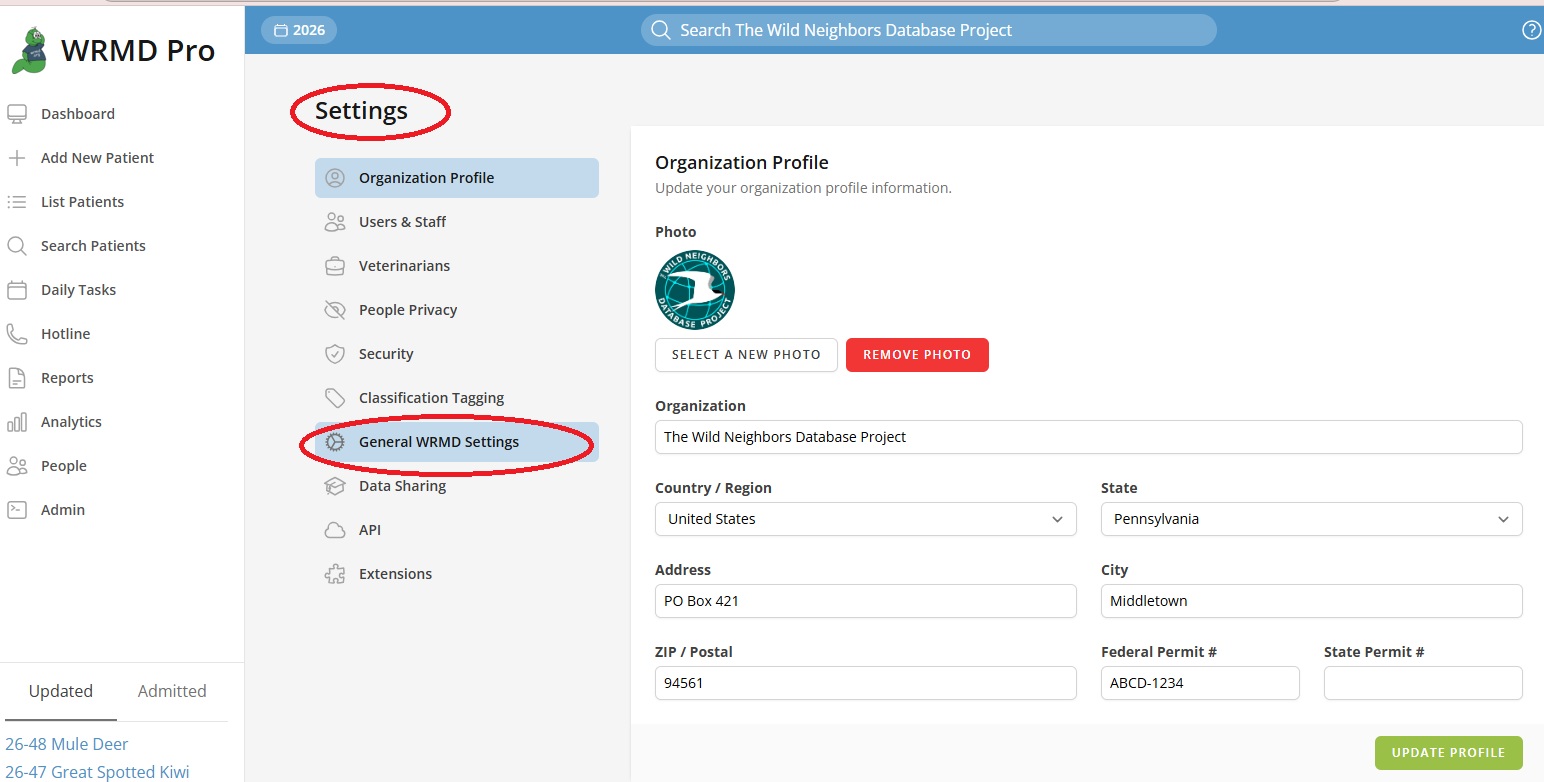
In the new sidebar window, click on General WRMD Settings.
Step 3
You will see 3 boxes you can set to your preference.
- Generic Settings
- Columns shown when listing records: These boxes indicate the columns on the patient record. You may rearrange, delete, or add boxes in any way you would like to view them.
- Show times in 24 hour format: When activated, all times in WRMD are displayed in 24-hour format (e.g. 14:30) instead of 12-hour format (e.g. 2:30 PM).
- Show latitude and longitude fields: When activated, latitude and longitude inputs appear on intake and outcome forms so staff can enter precise coordinates by hand.
- Automatically estimate coordinates from addresses: When enabled, WRMD will attempt to geocode missing coordinates for patient locations, hotline incidents, and your organization. A street address is required; city-only data will not be geocoded. When disabled, auto-geocoding is turned off for your organization.
- Show lookup rescuer tab first when creating a new patient: When activated, the lookup rescuer tab will be highlighted first when adding a new patient. This prompts you to look up a past rescuer first when admitting a patient. If the rescuer is new, you would need to click on the New Rescuer tab instead.
- Show donation fields on the add new patient screen: When enabled, donation entry fields appear on the new patient form so staff can record a donation at intake.
- Default action after admitting a patient: Choose where WRMD takes you after a patient is admitted — back to the new patient form, the patient's record, or the batch update screen.
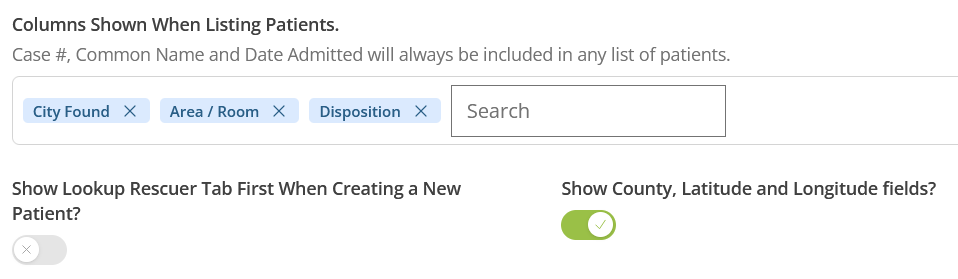
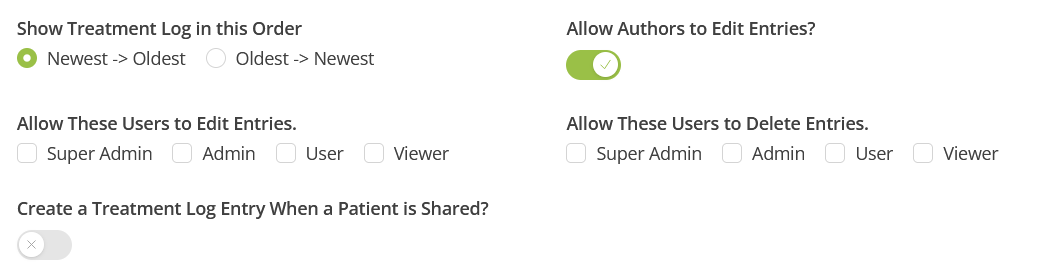
- Care Log Settings
- You can update these settings to adjust how the Care Log will perform on your account.
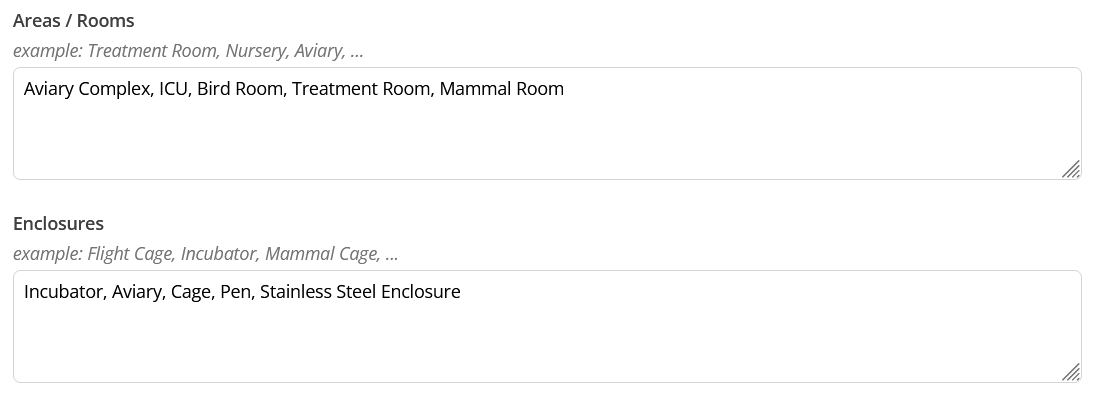
- Your Facility's Location
- Provide names of all the areas, rooms, and enclosures where you house your patients.
Step 4
If you made any changes or updates to the (1) Generic Settings, (2) Care Log Settings, or (3) Your Facility's Locations, click the green update button in the lower right corner of the box where you made changes to ensure your information is saved.